Thermal Camera Project

The GRID-EYE.  What a name!

The GRID-EYE. What a name!

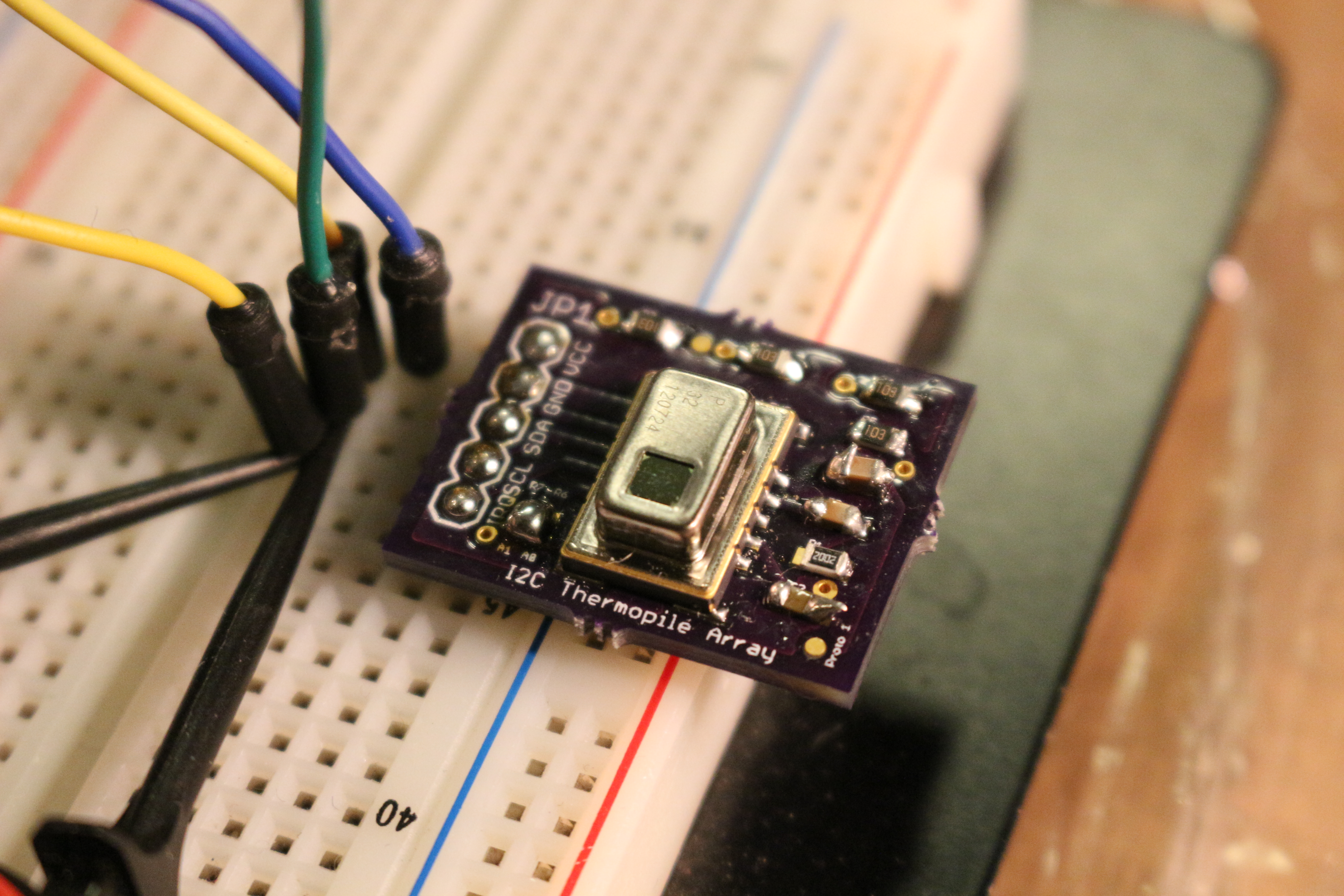
A few months ago, I bought an AMG8852 “Grid-eye” sensor from digikey.  It is an 8×8 thermopile array, which is one way of saying it is a low resolution thermal camera, which is totally worthy if its terrifying and vaguely sci-fi name.   I soldered it down to a breakout board from osh park, tested it with some arduino code (provided at that link), and then threw it in a parts pile for a while.  I knew its future would be as the input to an 8×8 LED array, but I didn’t have time to work on it back then, so it hid in my logic analyzer case for a while.  This weekend I pulled it out to work on.

The grid-eye datasheet on digikey is pretty garbage, but there are some good resources online that actually describe what all registers are and what bytes are r, w, r/w.  Turns out most of the settings are already what I want them to be, but knowing that is better than leaving it up to chance.

I decided that this project would be done in assembly, since I haven’t used it in a while.  The first task was to choose a development environment.  The last time I wrote pure assembly was a while ago, and I wanted to see what was out there.  I tried avr-as, avra, and atmel studio 6 (in windows).  Atmel studio 6 won out since it has all the up-to-date XXXXXdec.inc files, and it has a nice interface for setting and checking fuses.

I chose an atmega328p as my controller since I have about 10 of them rolling around in my bag-o-microcontrollers, and they are extremely common.  I didn’t want a repeat of when I ordered attiny20s only to find that they could barely be programmed in assembly (not supported by avr-gcc).  One of my other options was an attiny 25/45/85, but they don’t have real I2C peripherals (UART instead) and don’t have much in the way of pins, so they got passed over.  I could have also used an atxmega32a4u or an atmega32u4, but that seemed like overkill.

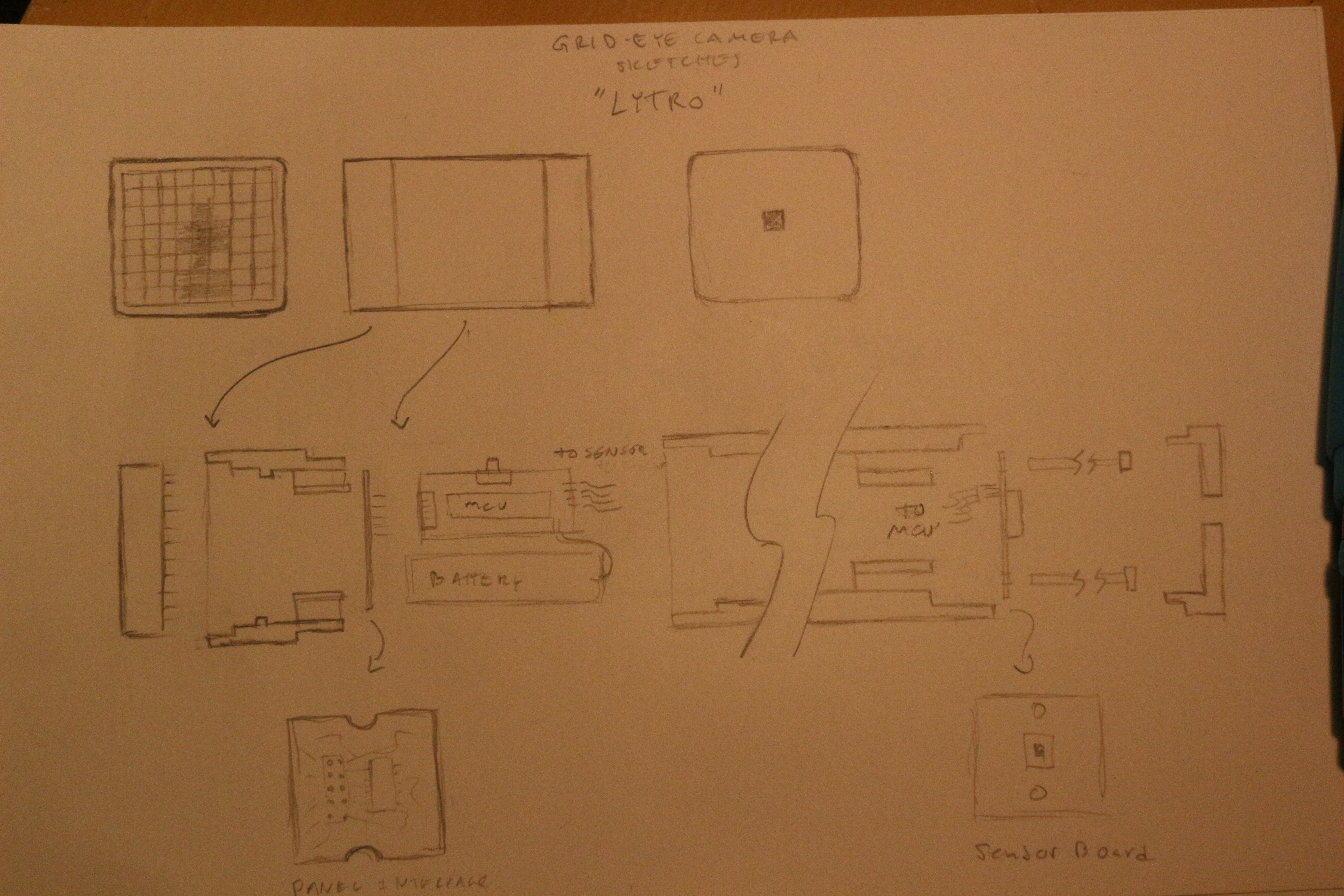
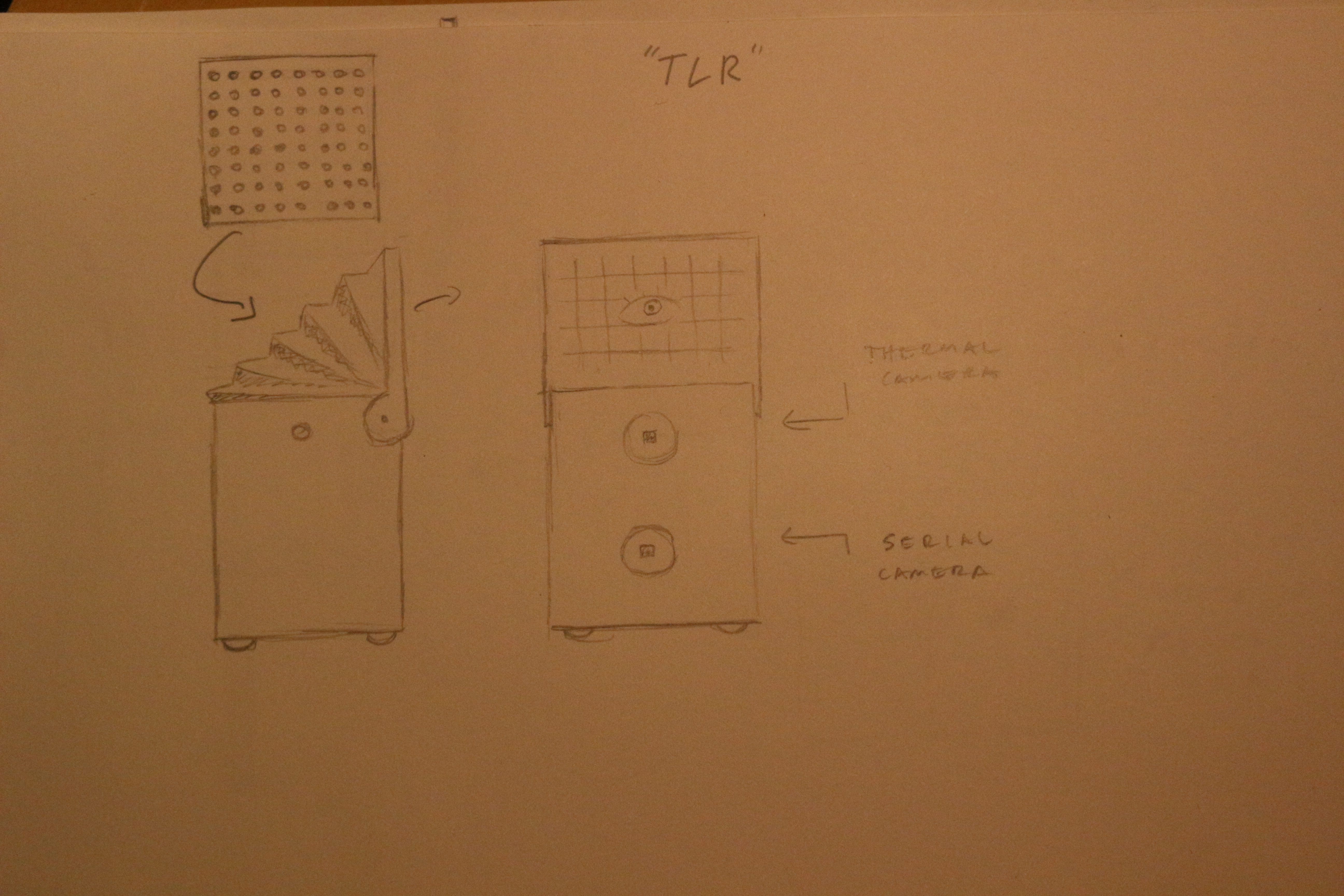
Here are a few sketches of enclosures or usage ideas.  There are two main ideas here- a lipstick/lytro shaped camera, and a “twin lens reflex” camera.

Lipstick/Lytro design

Lipstick/Lytro design

This design is supposed to be small and easy to stuff in a bag or toolbox and to be easy to hold in one hand.  The use case here is producing a “live” thermal image, that you can use to find hot/cold spots in a project or space.  The case could be striped black/orange/black to give it a cool color scheme.  The case prototype would be 3d printed.

Twin lens reflex idea.  Thermal camera data superimposed on small jpeg

Twin lens reflex idea

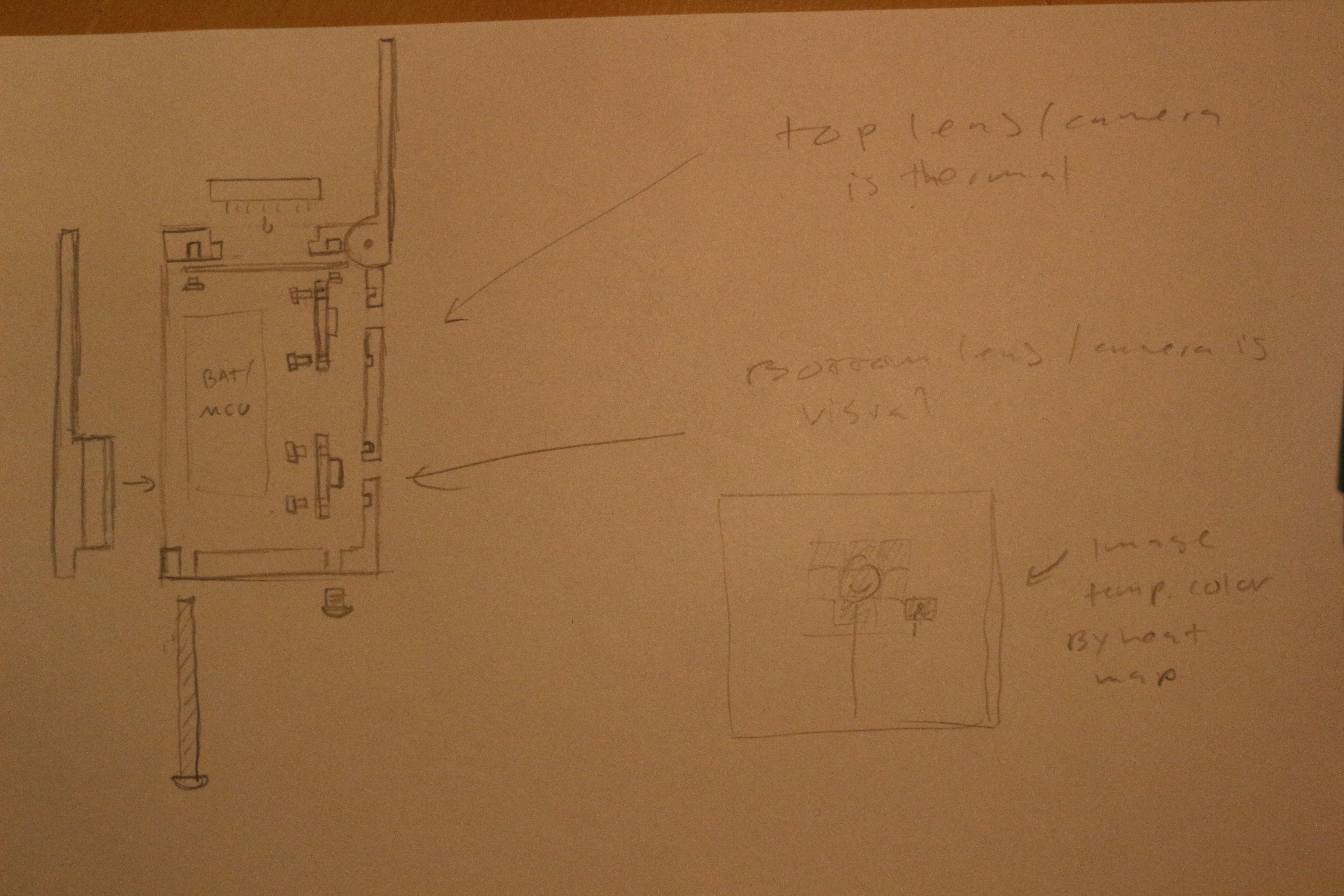
A TLR is an old kind of camera that had one lens for viewing the image, and one lens for capturing the image.  In this case, the thermal image would be the one you would use to sight the camera, and in addition to the thermal camera there would be a static serial camera on board.  This could have some cool applications in sensing wildlife or people as they approach the camera.  The saved image would include the thermal profile tacked on, so you could do a temperature overlay of the final image.

TLR idea detail.

TLR idea detail.

This is another image of the camera body.  I am excited by this idea, but it is more complicated than the simpler thermal imager.  The simple version could be a stepping stone to the more exciting version.

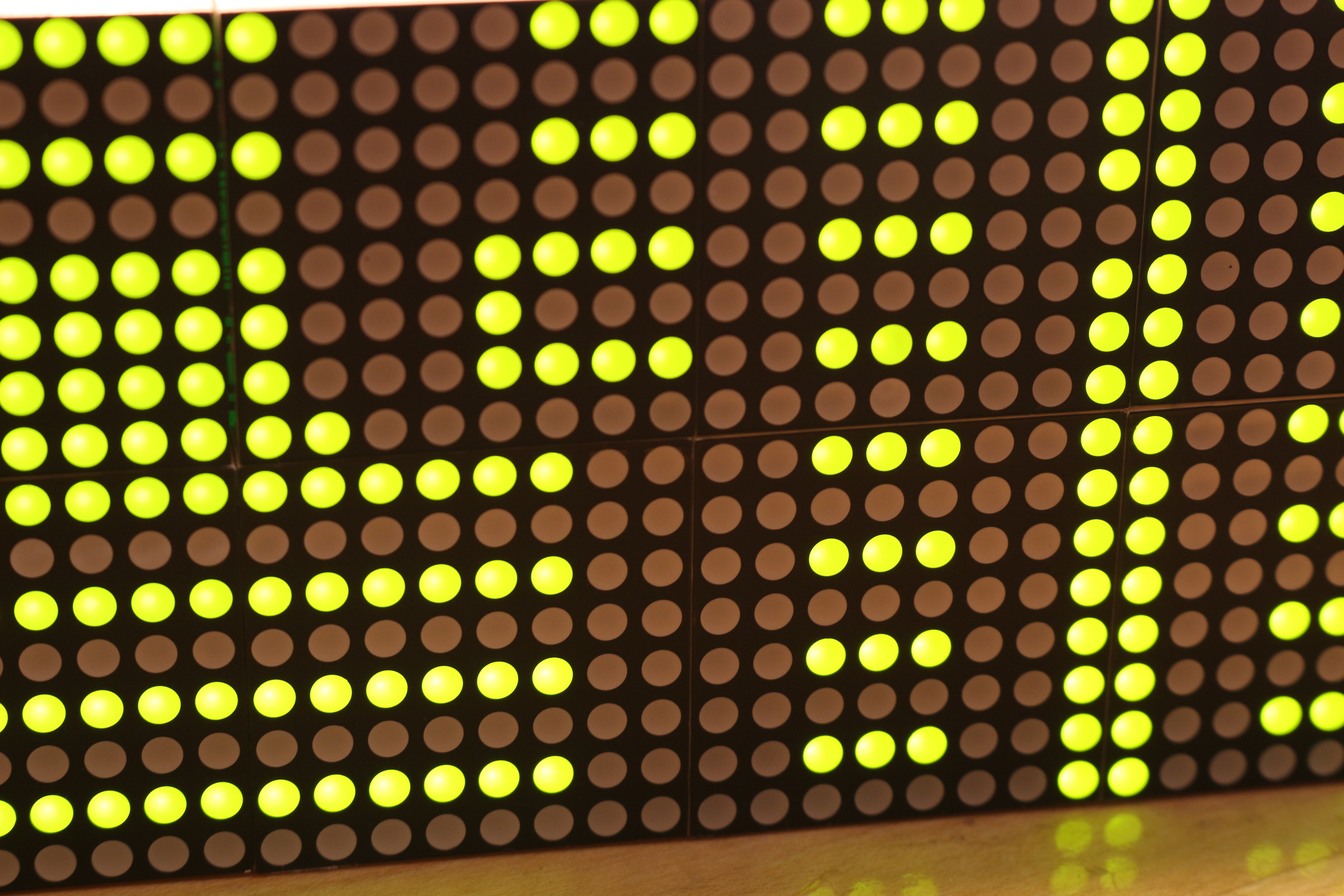
Scrolling LED Display

They look pretty good...

They look pretty good…

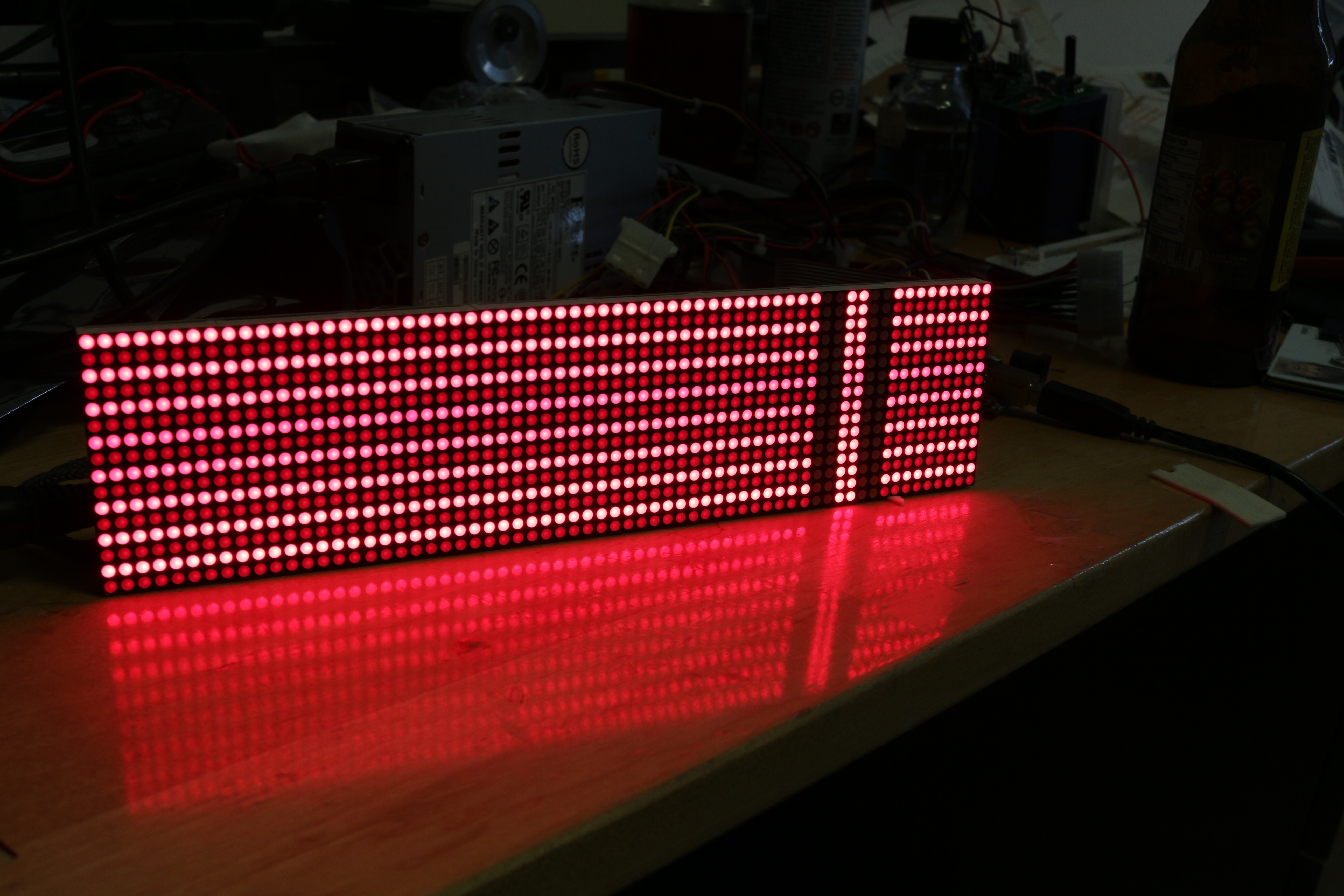
I am working on a project for someone, which I was encouraged to post here.  The goal is to explore making big led panel displays available as a module for new wireless development platform (the tessel).  As part of my assignment, I need to asses the viability and quality of several LED panels.  I will be starting with the LDP-6416 from Embedded Adventures.

The display is 64 lines “long” and 16 lines “high”.  Only one row of 64 LEDs can be on a time- this means to create a persistent display, the rows need to be enabled over and over very quickly.  Additionally, the LED display is relatively “dumb”, and the line needs to be shifted in each time before it is displayed.  This means that you put some data on the R1 and G1 pins, then you pulse a pin to put that data into the LED driver register.  The reasons behind this are covered in the electronics tear-down below.

The result is that the person developing on the board needs to be protected from having to devote a lot of resources to flash the board over and over, because that would take a lot of memory.  Also, there needs to be some way of scrolling the display, since that is a pretty common task that should not require the image to be shifted on the main processor, then retransmitted to the panel module and re-displayed over and over again.  My goal was to evaluate if functions like scroll_text(‘ASDF’); and static_text(‘ASDF’) would look good and be easy to implement.

It turns out to be pretty easy to scroll text if you store your data thoughtfully.  My experience with the code is below, followed by an electronics teardown of the module, and a short second on reducing ghosting and flickering.  At the very bottom are a few caveats and suggestions if you want to use the code.  If you want to run it, check the caveats.  the code is available on github, as well as being pasted below.

CODE

There were three main revisions of the code, which got faster and faster.  The speed had to increase to reduce flicker due to refreshing of lines.  The takeaways are: use the right type of variable, and put pins you want to change at the same time on the same PORT.

The metrics for “goodness” of the code were how much program storage and dynamic storage it took up, and how much the display flickered.  The dominant function in terms of time-usage is the function that loads the image into the row, so that is what is scrutinized in these attempts.  The code was compiled with the -O3 (optimize for speed) optimization command passed to the compiler, so some of the code blowup in the first two functions may be because of in-line arguments etc.  Also, only the data for the image and the data for the data driving were compiled- no extra loops or functions.

The latest code is available on github, complete with comments

Naive Attempt: 1484 byte program memory, 521 byte dynamic memory, flickery
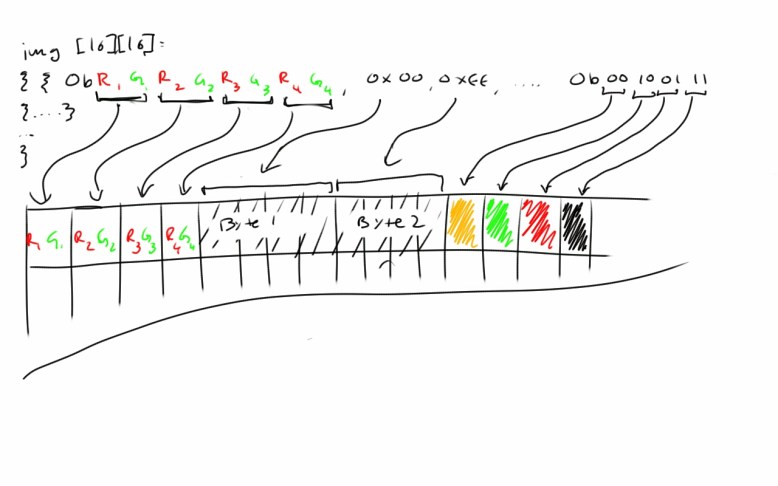
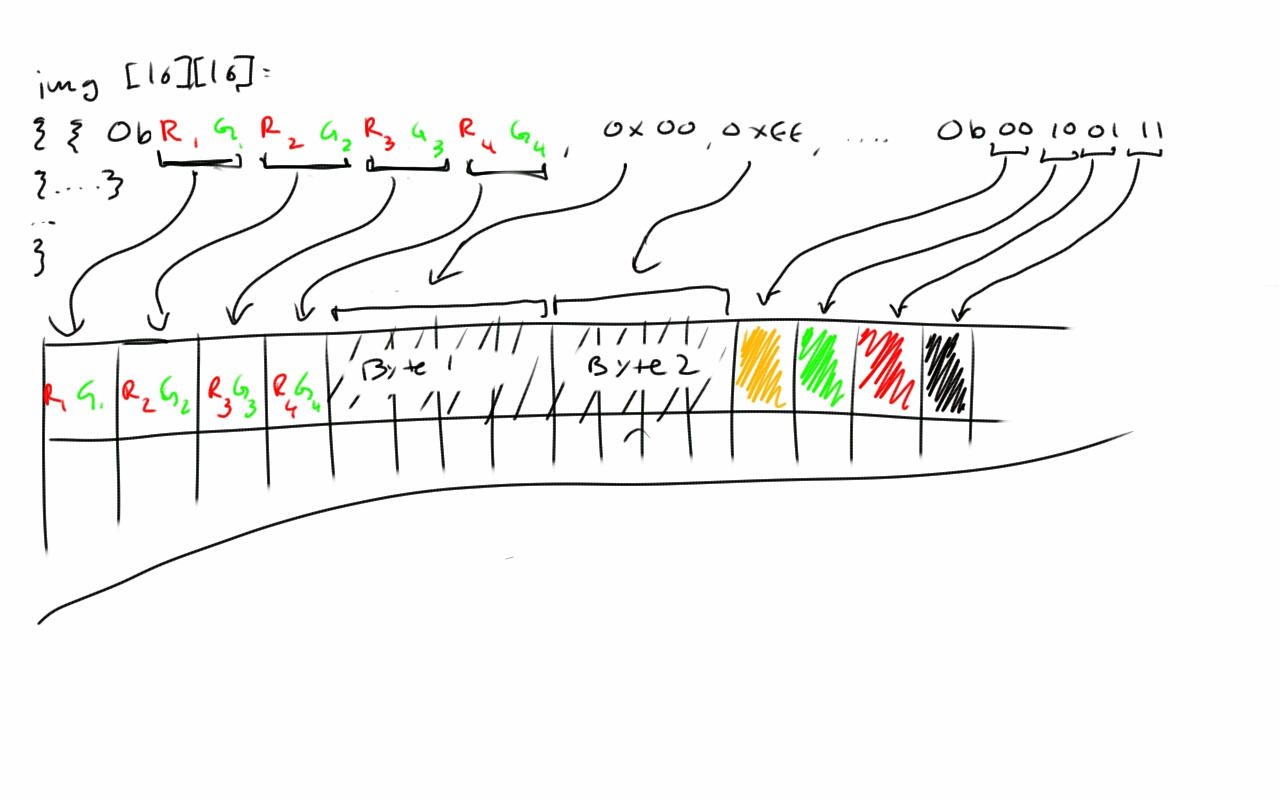
Each byte contains four pixels

Each byte contains four pixels

My normal approach is to try the easiest way to do something first- just to check things out, and to make sure things are hooked up right.  Sometimes it even works well enough to use as a prototype.  In this case it would have worked if the arduino were about twice as fast, but it was still a good way to start seeing how the panel worked.

The “image” data was stored as an “int image[16][16]={{0xff,0x55..},…}”.  Each alternating bit was a green, then red value for a pixel.  This turns out to be a stupid way to store the image, but it does work.  The issues with this image storage are that ints are 16-bit in this implementation, and I only used up to 8 bits of them.  byte image[16][16] is the way to go if you want to store 8 bit values.

The code was also pretty bad.  The wiring was such that the pins that were clocking the signal out to the LEDs were on different PORTs.  Here is the function:

void noob_line(int line){

for(int k=0; k<16; k++)
{
for(int j=3; j>=0; j–)
{
digitalWrite(0,bmp[line][k]&(0b1<<j*2)>>j*2);
digitalWrite(1,bmp[line][k]&(0b10<<j*2)>>j*2);
digitalWrite(2,LOW);
digitalWrite(2,HIGH);
}
}

digitalWrite(13,HIGH);
digitalWrite(13,LOW);
}

On the surface this doesn’t seem too bad- it is basically just doing two writes, clocking in the data, and then latching it at the end.  The thing that kills this function and causes the flicker is actually digialWrite.  It seems innocent enough, but digitalWrite actually takes quite a bit of time.  One guy clocked it at 4.75us, which is around 40 instructions.  Round that up to 5us, see that there are 4 calls, and the loop runs 64 times, and you will notice that it is 1.3 miliseconds!  That means the whole screen is only updating 50 times a second.  With no fine grain or motion blur, like a movie has, this is pretty apparent.  That doesn’t take into account the logic operations and retrieving the data form the image, but its not a good number to start with.

Proof Attempt: 1120 byte program memory, 265 byte dynamic memory, no flicker

flckr-less.  Showing off some of the colors with a silly test pattern

flckr-less. Showing off some of the colors with a silly test pattern

At this point, I just wanted to make sure that the display would work without flicker.  This one went way faster and used much less program memory to store the image, since the type was set to byte instead of int.  I could have used half as many ints instead, and taken the same amount of memory, but there is something appealing and fast about using 8 bit numbers on an 8 bit micro.

This loop went a lot faster because I wrote directly to the PORT, and I put all the pins on the same PORT.  I didn’t clock the function since it was not flickering, but an easy check would be to use an oscilloscope on the latch line.

Here is the code:

void send_line(byte line){

for(int k=0; k<16; k++)
{
{
for(int j=3; j>=0; j–)
{
PORTD =0b11111000 | ((bmp[line][k] & (0b11<<j*2))>>j*2); //access some memory
PORTD|=0b00000100;
}
}

}
digitalWrite(13,HIGH);
digitalWrite(13,LOW);
}

As you can see, the four digital writes have been replaced.  The nice thing is the boolean functions are all acting on 8 bit registers, so each one should take about one operation.  Thee are five of them, which even with 200% overhead for getting variables from memory only takes 63 microseconds.  The estimated time for the function to run is then 40 microseconds, or about the amount of time it takes to run 10 digitalWrites.  If I wanted to go faster, I could even use a PORT write instead of digitalWrite to latch the data.

Anyway, this was MUCH faster.  But still, there was no good way to scroll the data.  The obvious approach to scrolling is not to rewrite the entire image, but just to shift it over.  However, since the data was stored in bytes, there was not an easy way to index a shift of one pixel, because of the inner loop always runs four times.  Since the data was indexed by bytes that coded for four pixels, it was easy to scroll by four, but not by one, two, or three pixels.

Wise Shift: 740 bytes program memory, 137 bytes dynamic memory, no flicker

now each bit of a 64 bit row is addressable individually

now each bit of a 64 bit row is addressable individually

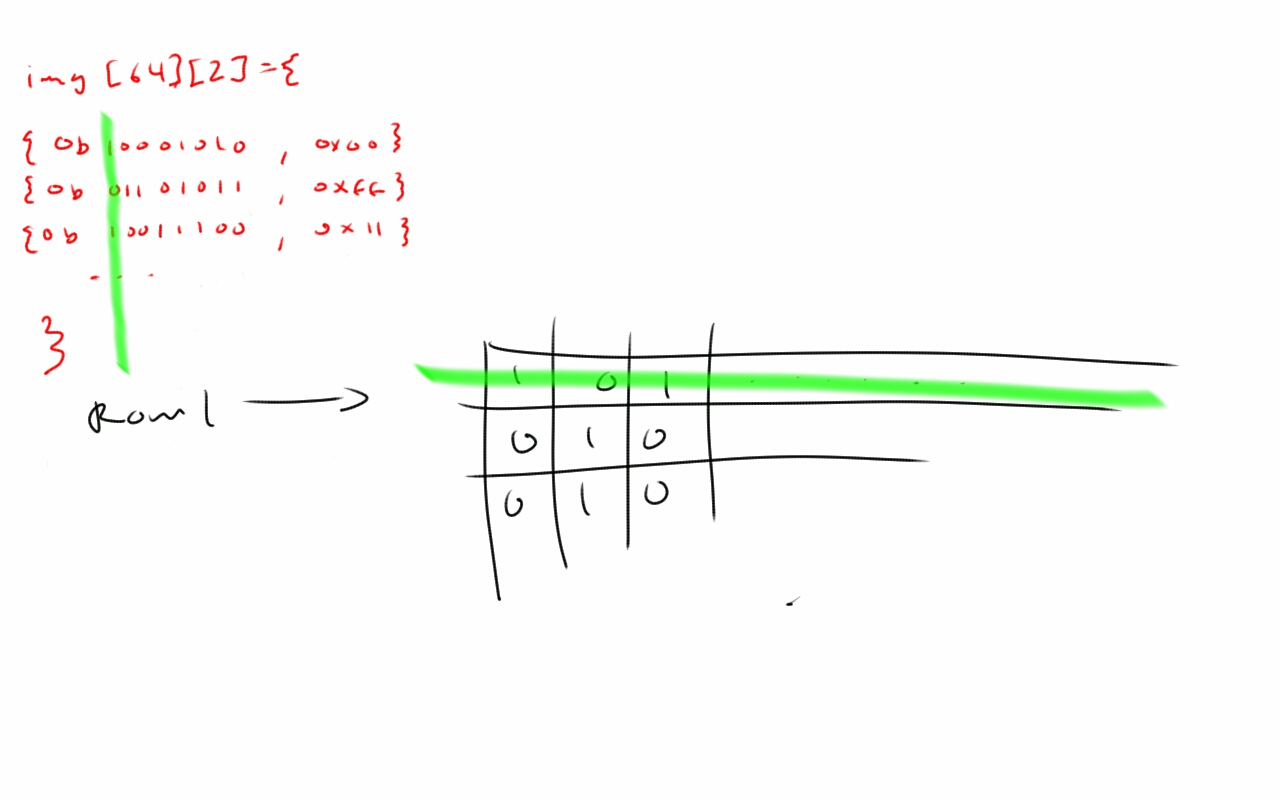
I called this function wise_line since the data structure used to store the image was wiser.  To be efficient, I packed the data into bytes just like before, but to be wiser, I made the two matrices of [64][2] instead of [16][16].  This means that imj[0,1,2…63][0] gives you the top 8 pixels rows, and imj[0,1,2…63][1] gives you the bottom 8. Now if i want a 64-pixel long row, I can just ask for imj[0…64][0] and mask it with the correct row.

Same amount of data, but much easier to deal with!  Now I can iterate down a column and start and stop at any point.  This makes scrolling easy!

void wise_line(byte line,byte shift)
{
for(byte i=shift; i<64; i++) //print everything from shift onwards
{
PORTD =0b11111010 | ((img[i][line>>7]&(0b1<<(line&0b111)))>>(line&0b111));
PORTD|=0b00000100;
}
for(byte i=0; i<shift; i++) //print the rest of the picture
{
PORTD =0b11111010 | ((img[i][line>>7]&(0b1<<(line&0b111)))>>(line&0b111));
PORTD|=0b00000100;
}
PORTB|=0b00010000;
PORTB&=0b11101111;
}

Now to scroll, all I have to do is print  img[shift,shift+1…63][n], then print img[0,1…shift][n]. I decided that byte line would hold all of the data for what line you to print, specifically:

byte:  | 7: upper/lower display | 6-3 empty | 2-0 column mask |

so line>>7 tells you if you want image[n][1] or image[n][0], and line&0b111 tells you what part of the byte is the correct row.  The nice thing is that to display a given row of pixels, you don’t have to change any index except how far down the row you are- the top/bottom and mask information is the same.

The result is that scrolling and other effects involving shifting images are easy, and the code is much, much smaller and faster.  Over the three iterations, the program memory only dropped by about 50%, and the dynamic memory dropped by about 75%.  The main memory gains were made by using bytes instead of ints, which are half as big, and replacing slow arduino function calls with faster PORT writes and a little bit-math.

ELECTRICAL
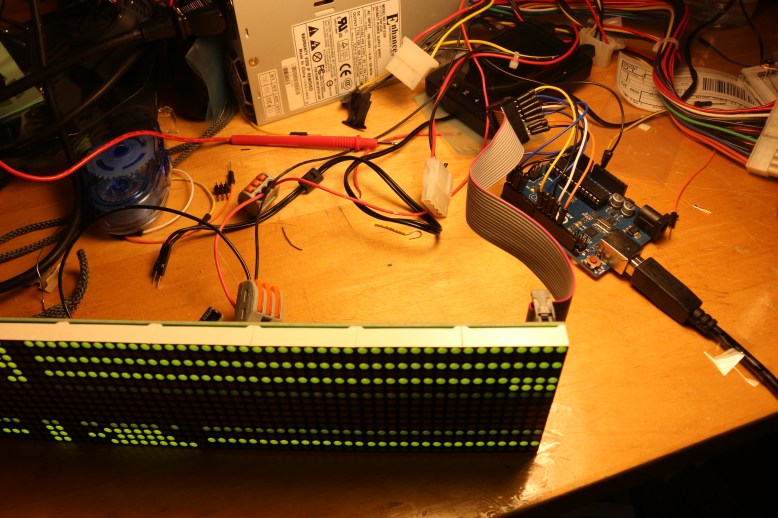
Wires.  Everywhere.

Wires. Everywhere.

The panel itself is pretty easy to hook up and use.  Power is needed in abundance to drive the panel, but it only needs one line lit at a time, and that line can be PWMed on the ~enable pin to reduce average current draw.  Fully lit, the datasheet says it will draw 4A a row, so a 5V 5A power supply seems like it would do the trick with a spare amp- a tiny portion of which could be used to power a microcontroller.

There are 10 connections that are important, but 16 pins in the header, so it is not nearly as bad as it seems at first.  Since it is a test setup, I just jammed some male-male headers into the connector.  The important lines are:

  • ground
  • ~enable
  • latch
  • shift
  • ~Green data
  • ~Red data
  • A, the first bit of the row selector
  • B, the second bit of the row selector
  • C, the third bit of the row selector
  • D, the fourth bit of the row selector

The arduino pin numbering for these pins is provided in the code on github. and copied at the bottom of the document.

The backside of the board.

The backside of the board.

The chips on the board are the usual suspects- lots of 74 series logic, and some FETs.

There are 8 FDS4953 FET packages, on the board, each containing two transistors.  There are two SM74HC138D decoder/demultiplexers, and 16 74hc595 shift registers.  The LED panels look like the typical sort which can only actually have one row on at a time anyway.

With 8 FET packages at two FETs per package, you can imagine pretty much exactly what is going on.  Each FET powers a row of LEDS.  Using a continuity tester reveals that the top and bottom decoders are connected to the ABCD row select pins on the control header, so those pins get demultiplexed and used to turn on the FETs, which are each connected to a row pin on each of the LED panels.  So the flow looks like this:

ABCD pins–>74HC138D–>FDS4953–> all of the H# pins on the top panel

The H# (where # can be 1-8) turn on one row of each of the panels on one side of the board.

So that is power.  The logic is pretty simple as well, since it is just a bunch of chained shift registers.  One chain of 8 registers controls each color, and turns on all the pixels in a column.  The FET then selects the row, and the two output a single line.

And there you have it- a big, cheap LED driver board.  The last interesting thing here is that it was not designed by Embedded Electronics- I think I was shipped an old rev. of the board, because it lacks the screw terminals, chip position, and silk of the picture on their website.  This board is copyrighted 2013 by linsn, which looks like an LED panel supplier.

Increasing Brightness, Reducing Flicker and Ghosting

Ghosting is noticeable between rows here in this picutre.  *(cylon noises)*

Ghosting is noticeable between rows here in this picutre. *(cylon noises)*

Flicker is caused by going too slow, and Ghosting is caused by having the enable on before the data is shifted in.  In my first, slow attempts I had a line like:

analogWrite(EN,1); //keep EN low most of the time, flash it at ~500hz

This made the display ghost, because the LEDS would light up as the data was propagated across the registers.  It would also cause flickering because the code was slow.  One way to mitigate flickering if your code is too slow is to display lines in a random fashion- it can be the same pattern every time, but if you refresh lines next to one another it can cause a traveling wave pattern of flickering if the code is not running smoothly.  This goes for anything that has a consistent direction, including refreshes from the outside in or inside out.

Once the code was much faster, I would manually enable/disable EN after the line was written.  This causes a dim display because the code loops back around and pushes the next line immediately, like so:

void loop() {
disable_display();
push_line();
enable_display();
}

Inevitably, it would spend most of the time doing the push_line() command, and during that time the display was off.  The fix to this is to write:

void loop() {
disable_display();
push_line();
enable_display();
delayMicroseconds(a_few_us);
}

to allow the panel to shine.  This value can be tweaked up to the point where you start to see flickering, and it will make the display brighter.

Caveats and Suggestions for Implementation:

So you want to scroll some pixels.  The only bugs right now are a tiny pause when the shift value is reset, but this could be fixed with some clever use of binary math.  It is only noticeable if the scrolling is fast.

This code was written at max speed- therefore some lines are somewhat obfuscated.  They have been commented to try to de-obfuscate them, but I admit they could still be confusing.

You may need to change the delay value, discussed above.

There is also a pretty big problem in loading the data, since you have to generate the map by hand at the moment.  you could write some python that pushes it to the arduino, or a gui for generating maps.

Lastly, the scrolling function is pretty boss.  You could change the code to have a longer img matrix, like a [128][2] and have a longer scrolling message, or you could save sprites and make an animation…there is a lot of room left on the arduino!

CODE PASTE!

/*
LED driver software for LDP-6416
Written by Avery Louie for Ryan Hurst
*/

//defines used on old versions of code, still useful for wiring reference
//all these pins live on PORT D, D0-3
#define RD  0
#define GR  1
#define  S  2
#define EN  3

//all these pins live on PORT B
#define  A  8
#define  B  9
#define  C 10
#define  D 11

#define  L 13

//the “image” for the static test using send_line and noob_line
byte bmp[16][16]={

{0x00,0x00,0x00,0x00,0x00,0x00,0x00,0x00,0x00,0x00,0x00,0x00,0x00,0x00,0x00,0x00},
{0xAA,0xAA,0xAA,0xAA,0xAA,0xAA,0xAA,0xAA,0x55,0x55,0x55,0x55,0x55,0x55,0x55,0x55},
{0x55,0x55,0x55,0x55,0x55,0x55,0x55,0x55,0xAA,0xAA,0xAA,0xAA,0xAA,0xAA,0xAA,0xAA},
{0x00,0xff,0x55,0xAA,0x00,0x10,0x00,0x00,0x00,0x00,0x00,0x00,0x00,0x00,0x00,0x00},
{0x00,0xff,0x55,0xAA,0x00,0x01,0x00,0x00,0x00,0x00,0x00,0x00,0x00,0x00,0x00,0x01},
{0x00,0xff,0x55,0xAA,0x00,0x00,0x10,0x00,0x00,0x00,0x00,0x00,0x00,0x00,0x00,0x00},
{0x00,0xff,0x55,0xAA,0x00,0x00,0x01,0x00,0x00,0x00,0x00,0x00,0x00,0x00,0x00,0x01},
{0x00,0xff,0x55,0xAA,0x00,0x00,0x00,0x00,0x00,0x00,0x00,0x00,0x00,0x00,0x00,0x00},
{0x00,0xff,0x55,0xAA,0x00,0xFF,0x00,0xFF,0x40,0x00,0x00,0x00,0x00,0x00,0x00,0x01},
{0x00,0xff,0x55,0xAA,0x00,0x00,0x00,0x00,0x00,0x00,0x00,0x00,0x00,0x00,0x00,0x00},
{0x00,0xff,0x55,0xAA,0x00,0x00,0x00,0x00,0x50,0x00,0x00,0x00,0x00,0x00,0x00,0x01},
{0x00,0xff,0x55,0xAA,0x00,0x00,0x00,0x00,0x70,0x50,0x00,0x00,0x00,0x00,0x00,0x00},
{0x00,0xff,0x55,0xAA,0x00,0x00,0x00,0x00,0x00,0x00,0x00,0x00,0x00,0x00,0x00,0x01},
{0x00,0xff,0x55,0xAA,0x00,0x00,0x00,0x00,0x80,0x00,0x00,0x00,0x00,0x00,0x00,0x00},
{0x00,0xff,0x55,0xAA,0x00,0x00,0x00,0x00,0x90,0x00,0x00,0x00,0x00,0x00,0x00,0x01},
{0x00,0xff,0x55,0xAA,0x00,0x00,0x00,0x00,0x00,0x00,0x00,0x00,0x00,0x00,0x00,0x00},

};

//the “image” for the wise_line function.  Can even scroll!
byte img_G[64][2]={
{0xAA,0xFF},
{0xAA,0xFF},
{0xAA,0xF1},
{0xAA,0x55},
{0xFF,0x55},
{0xFF,0x55},
{0xFF,0xFF},
{0xFF,0xFF},
{0xAA,0x55},
{0xAA,0x55},
{0xAA,0x55},
{0xFF,0xFF},
{0xFF,0xFF},
{0x00,0x08},
{0x00,0x00},
{0xFF,0xFF},
{0xFF,0xFF},
{0xAA,0x55},
{0xAA,0x55},
{0x55,0x55},
{0x00,0x55},
{0x01,0x55},
{0x03,0x55},
{0x07,0x55},
{0x0F,0x55},
{0x3F,0x55},
{0x6F,0x55},
{0x7F,0x55},
{0xFF,0x55},
{0xAA,0x55},
{0xAA,0x55},
{0xAA,0x55},
{0xAA,0x55},
{0xAA,0x55},
{0xAA,0x55},
{0xAA,0x55},
{0xAA,0x55},
{0xAA,0x55},
{0xAA,0x55},
{0xAA,0x55},
{0xAA,0x55},
{0xAA,0x55},
{0xAA,0x55},
{0xAA,0x55},
{0xAA,0x55},
{0xAA,0x55},
{0xAA,0x55},
{0xAA,0x55},
{0xAA,0x55},
{0xAA,0x55},
{0xAA,0x55},
{0xAA,0x55},
{0xAA,0x55},
{0xAA,0x55},
{0xAA,0x55},
{0xAA,0x55},
{0xAA,0x50},
{0xAA,0x50},
{0xAA,0x50},
{0xAA,0x50},
{0xAA,0x50},
{0xAA,0x50},
{0xAA,0x50},
{0xAA,0xfe}
};

byte img_R[64][2]={
{0x07,0x55},
{0x0F,0x55},
{0x3F,0x55},
{0x6F,0x55},
{0x7F,0x55},
{0xFF,0x55},
{0xAA,0x55},
{0xAA,0xFF},
{0xAA,0xFF},
{0xAA,0xF1},
{0xAA,0x55},
{0xFF,0x55},
{0xFF,0x55},
{0xFF,0xFF},
{0xFF,0xFF},
{0xAA,0x55},
{0xAA,0x55},
{0xAA,0x55},
{0xFF,0xFF},
{0xFF,0xFF},
{0x00,0x08},
{0x00,0x00},
{0xFF,0xFF},
{0xFF,0xFF},
{0xAA,0x55},
{0xAA,0x55},
{0x55,0x55},
{0x00,0x55},
{0x01,0x55},
{0x03,0x55},
{0xAA,0x55},
{0xAA,0x55},
{0xAA,0x55},
{0xAA,0x55},
{0xAA,0x55},
{0xAA,0x55},
{0xAA,0x55},
{0xAA,0x55},
{0xAA,0x55},
{0xAA,0x55},
{0xAA,0x55},
{0xAA,0x55},
{0xAA,0x55},
{0xAA,0x55},
{0xAA,0x55},
{0xAA,0x55},
{0xAA,0x55},
{0xAA,0x55},
{0xAA,0x55},
{0xAA,0x55},
{0xAA,0x55},
{0xAA,0x55},
{0xAA,0x55},
{0xAA,0x55},
{0xAA,0x55},
{0xAA,0x55},
{0xAA,0x50},
{0xAA,0x50},
{0xAA,0x50},
{0xAA,0x50},
{0xAA,0x50},
{0xAA,0x50},
{0xAA,0x50},
{0xAA,0xfe}
};

void setup(){
//setup all pins interfacing with the panel to be outputs
pinMode(EN, OUTPUT);
pinMode(RD, OUTPUT);
pinMode(GR, OUTPUT);
pinMode(A,  OUTPUT);
pinMode(B,  OUTPUT);
pinMode(C,  OUTPUT);
pinMode(D,  OUTPUT);
pinMode(L,  OUTPUT);
pinMode(S,  OUTPUT);

//default state of S is high
digitalWrite(S,HIGH);
}

void loop(){

//lin, leaf, ud and rd are different refresh patterns.  Try them out!
int leaf[16]={0,2,1,3,5,4,6,8,7,9,11,10,12,14,13,15};
int ud[16]  ={0,15,1,14,2,13,3,12,4,11,5,10,6,9,7,8};
int rd[16]  ={3,1,6,13,7,14,4,10,5,11,0,12,2,8,15,9};
int lin[16] ={0,1,2,3,4,5,6,7,8,9,10,11,12,13,14,15};

//top    0x87, 0x86, 0x85, 0x84, 0x83, 0x82, 0x81, 0x80
//bottom 0x00, 0x01, 0x02, 0x03, 0x04, 0x05, 0x06, 0x07
byte xd[16] = {0x87, 0x86, 0x85, 0x84, 0x83, 0x82, 0x81, 0x80, 0x00, 0x01, 0x02, 0x03, 0x04, 0x05, 0x06, 0x07};

unsigned long oldtime=millis();
byte shift=0;

//uncomment this part if you want to see noob_line run
/*
analogWrite(EN,1);
while(1){
for(int i=0 ; i<16 ; i++)
{
noob_line(rd[i]);
PORTB=rd[i];
}
}
*/

//uncomment this part to see send_line run
/*
analogWrite(EN,1);
while(1){
for(int i=0 ; i<16 ; i++)
{
send_line(rd[i]);
PORTB=rd[i];
}
}
*/

//comment this and uncomment the other functions to change to the other functions.  Use this to see scrolling images.

while(1){
if(millis()-oldtime>70)  //change the value of millis()-oldtime>70 to something other than 70 to make the scroll faster or slower
{
oldtime=millis();
shift++;
if (shift>64){      //images are 64 bits long, so if you get to the end of an image you need to reset the shift amount to 0. playing with how this works, you could do bouncing images etc.
shift=0;
}
}

for(int i=0; i<16; i++)
{
PORTD|=0b00001000;        //toggle en low
wise_line(xd[i],shift);   //to change it to no scroll, replace shift with 0
PORTD&=0b11110111;        //toggle en high
PORTB=i;
delayMicroseconds(500);     //light the leds for 500us before drawing the next line.  longer can make it brighter, but adds flicker
}

}

}

/*
The smart way to do things.
*/
void wise_line(byte line,byte shift)
{
for(int i=shift; i<64; i++) //starting at the shift value, print the image
{
//set portD to be the data you want to clock in
//lets break this down
//img_G[i][line>>7] gets an 8-bit value from the green image.  the first bit of line tells you if it is from the top or the bottom
//this value is masked with whatever part of the line we want.  for example, if line is 0b100000011, we want the 3rd line.  to get this mask just shift 1<<3
//so img_G[i][line>>7]&(0b1<<(line&0b111) masks the 8-bit value with the actual line we want
//Once we have that, we need to shift down to the bottom of the byte
//finally, for green only, we shift it up one, since the last two bytes of portd are 0bGR, where G is the green bit and R is the red bit
PORTD =0b11111000 | (((img_G[i][line>>7]&(0b1<<(line&0b111)))>>(line&0b111))<<1) | ((img_R[i][line>>7]&(0b1<<(line&0b111)))>>(line&0b111));
PORTD|=0b00000100;//clock in the actual data by raising the S line.
}
for(int i=0; i<shift; i++)
{
PORTD =0b11111000 | (((img_G[i][line>>7]&(0b1<<(line&0b111)))>>(line&0b111))<<1) | ((img_R[i][line>>7]&(0b1<<(line&0b111)))>>(line&0b111));
PORTD|=0b00000100;
}
digitalWrite(L,HIGH);
digitalWrite(L,LOW);
}

void noob_line(int line){

for(int k=0; k<16; k++)
{
for(int j=3; j>=0; j–)
{
/*here is some more bit-mathgic.  not very pretty but this function takes the nth bit of the map on a line
then it masks it to get the two bits you want, and shifts those down to the right position to write them to the pin
*/
digitalWrite(RD,bmp[line][k]&(0b1<<j*2)>>j*2);
digitalWrite(GR,bmp[line][k]&(0b10<<j*2)>>j*2);
digitalWrite(S,LOW);
digitalWrite(S,HIGH);
}
}

digitalWrite(L,HIGH);
digitalWrite(L,LOW);
}

void send_line(byte line){

for(int k=0; k<16; k++)
{
{
for(int j=3; j>=0; j–)
{
//similar to noob_line, only it masks for two bits at the same time, not one
PORTD =0b11111000 | ((bmp[line][k] & (0b11<<j*2))>>j*2);
PORTD|=0b00000100;
}
}

}
digitalWrite(L,HIGH);
digitalWrite(L,LOW);
}
GELIS Redesign: Dirty Power Supply Part II

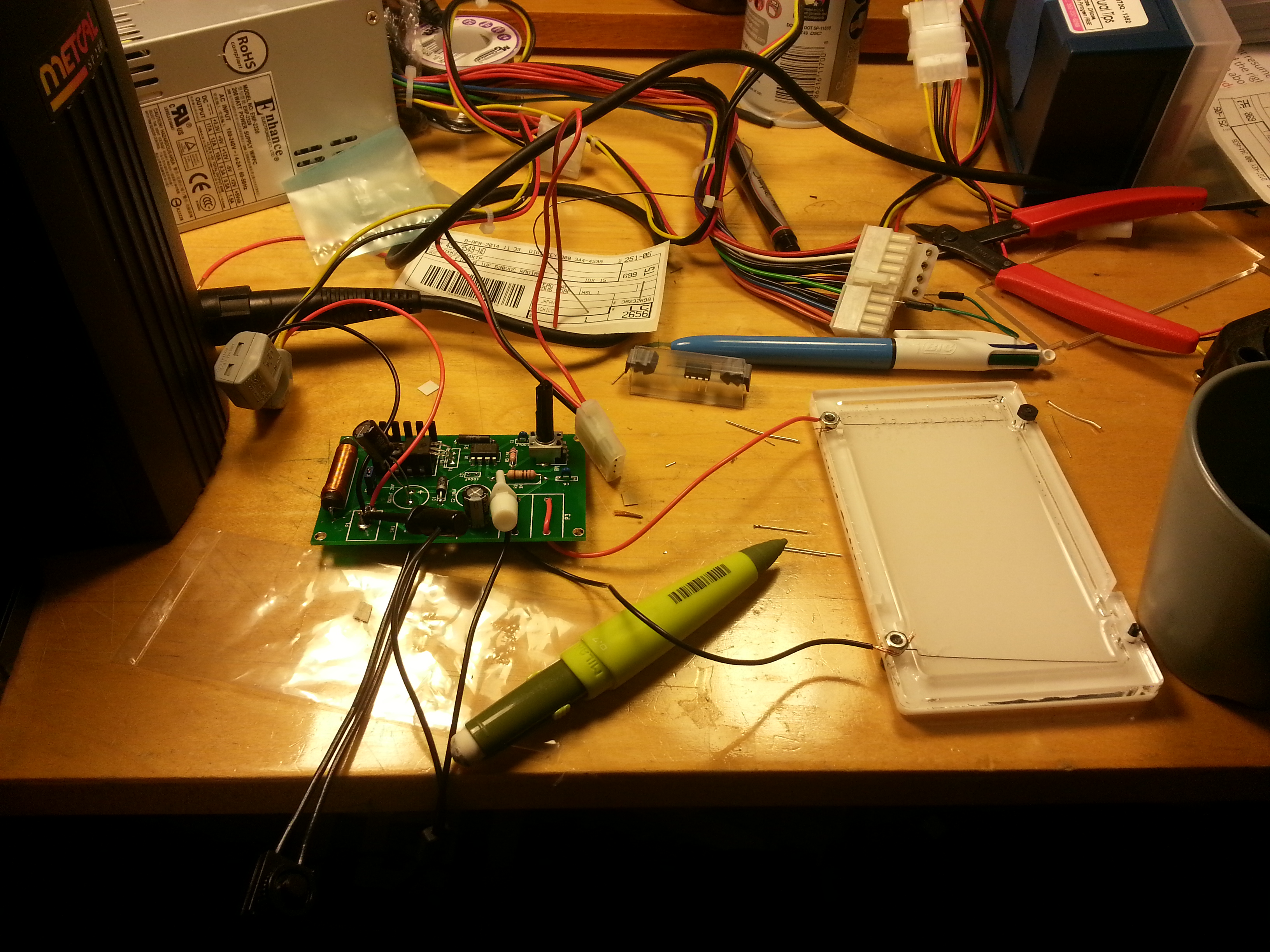
The test-desk.  Power supply hooked up to an old gel tray with TBE in it.

The test-desk. Power supply hooked up to an old gel tray with TBE in it.

I did some testing on the boost converter today.  My naive methodology to learn what to expect was to first RTFM on the IOR site, then read the links they provided in their documentation on boost/buck converters.  Some links I found handy on that page/that I found were:

*this design uses almost exclusively (expensive looking) SMD components, so it is a good reference

Once I read those documents and took a look at the BOM, it looked like I would be able to figure out SMD replacements for most of the components.  This is good, in case I want to make 10-20 of these, since they can be batched in an oven, or even by a PCB assembler instead of done one lead at a time by hand.  The next task, since I have the parts, was to build the power supply with as few parts as possible.  A gel power supply does not need to have low ripple, or be particularly “clean”.  This means that a lot of the decoupling caps, and associated assembly cost, can be left out.

I eventually settled on adding in all of the capacitors except the input capacitors, C2, C3, and C4.  This didn’t work very well, as I suspect it tripped the over-current protection on my 12 V 10A input from a computer power supply.  Unfortunately, I don’t have a very good scope in my room for testing this- I am using a xprotolab on the feedback pins (FB on the max1771) to take my fast measurements, and a ‘harbor fright’ multimeter for my slow higher-voltage readings.  With no input capacitors I could reach about 40V, which is about half way.  Adding in C4 allowed me to easily reach 100 V.

The next step is just to get equivalent SMD parts where I can.  Some things like the MAX1771 chip are cheaper in DIP-8 than SOIC-8, so it might be worth looking into re-flowing DIPs, but I would want to make sure that that did not also impact pick-and-place-ability.  I could look at other controller chips, or simpler types of control, but I really want to get this out fast, and with as few iterations as I can manage- after all, each iteration is a pretty big cost on my end, which reduces the other cool things I can spend time and money on to revamp the gel box.

GELIS Redesign: Dirty Gel Power Supply

New vs Old GelIS sketches

New vs Old GelIS sketches

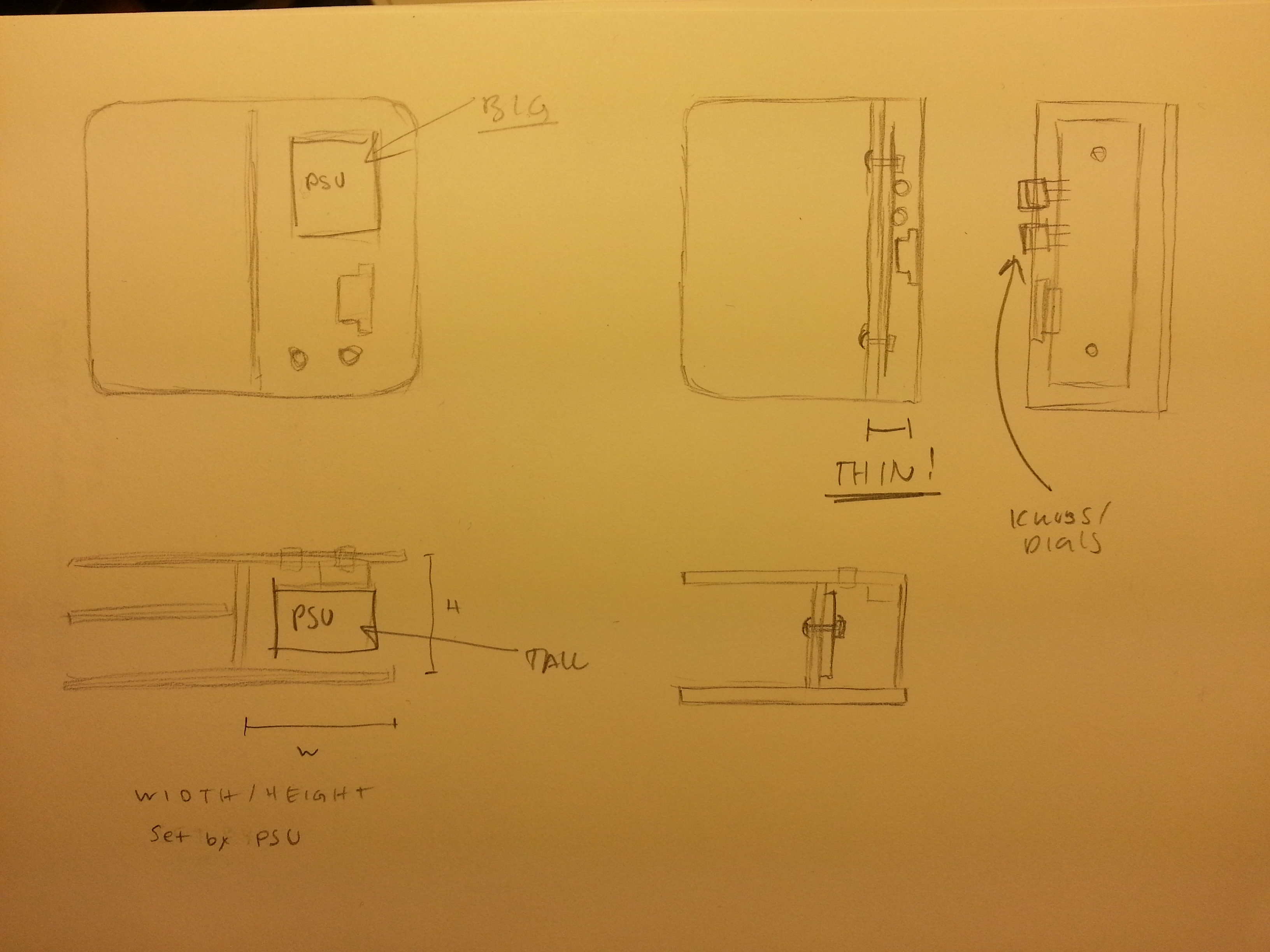
I am proud of the Gelis system, but it has some flaws caused by the major dimensions of the box being driven by the need to accommodate the off the shelf power supply.  This causes material wastage in the mostly empty back half of the box, and forces me to use screw-terminal connections in the box for wiring.  This is kind of awesome in that you can wire it all without a soldering iron, but kind of a pain in that it requires wires being routed from four faces of the box.  Some redesign options I considered were:

  • using a terminal strip to simplify wiring instead of binding posts
  • move meter/control buttons to back of box
  • use off the shelf capacitive sensors+transistors instead of switches
  • re-evaluate multi-enclosure design
  • Build custom power supply

The last option has been something I have been avoiding, because it would be capital and time intensive- I don’t have tons of experience with power electronics.  However, an Eames quote comes to mind “Never delegate understanding”.  In this case, I had delegated the power supply design to whoever had a cheap boost converter.  Whoever designed it had different goals- probably to provide way more power than my tiny gel needs, hence the enormous heat sinks.  So I decided that it was time to take on the burden of understanding the power supply.  This freedom gives me some room to make some key design decisions:

  • I can choose a knob to control voltage
  • I can choose a better way to control the LEDs
  • I can choose a better way to connect to the LEDs
  • I can choose a better power jack

These modifications will make assembly easier with regards to wiring the LEDs, which is currently a pain.  The disadvantages will be that I need to spec out each individual part, make a board, and then possibly find somebody to assemble the boards.

To get started, I ordered the parts for the iorodeo gel power supply.  Their supply works, has amazing documentation, and has few enough parts for my tiny mechanical engineer brain to handle.  My goal in building this supply is to figure out what is absolutely necessary for it to function in terms of which capacitors and parts are totally necessary, then convert it to an SMD design.  IOR very explicitly wanted this to be all through hole- for ease of assembly by everyday people.  However, SMD assembly is cheaper, and certainly faster to do in large quantities provided you have a stencil and a reflow oven.

Olympus XA Teardown and Rebuild

The Olympus XA with several panels removed

The Olympus XA with several panels removed

I have been shooting the olympus XA recently, and it is a wonderful camera.  It is small enough to fit in my the pocket of my jeans, but it makes nice big pictures with its fast f/2.8 lens.  When shooting, all the important controls are at your fingertips.  Some would say, given that it has a full-on rangefinder, that it is the poor mans leica.  Having never tested a Leica, I wouldn’t know.

However, it does have a few niggling issues.  There is no bulb mode, which makes taking more than 10 second exposures impossible.  There is also no remote release, which means that when I put it on my pocket tripod I can still get shutter shake, and I have to run into the frame if I am taking a group shot with people.  A remote release adds a lot of hackability, like triggering on motion, or at a particular time of day.  It would also make it possible to use the +1.5ev setting with a timer.  Some people also complain about focusing with the small rangefinder patch, but it is less of a big deal to me.

Finally, there are no filters available for it.  Now I didn’t realize how important this was until I took some pictures in my suite.  They are a horrible greenish color- and filters could help with this, except that there aren’t any.

In order to figure out the feasibility of hacking on some of these missing features, I found a donor camera to take apart.  It seems to be plagued by the mysterious and dreaded lens fungus, so I decided that since I couldn’t sell it, it would be donating its body to science.

If you are going to attempt this, I suggest grabbing a copy of the repair manual found here.  It does an ok job explaining the teardown, but real photos and notes are definitely useful.  It goes without saying (but I will anyway) that if you are going to do this, you are responsible for whatever damage happens to your camera.  That being said, it is an amazing piece of mechanical engineering.

IMG_4196

The first part to go (and the last one back on) is the base plate.  It is attached to the bottom by five screws- three shorter ones on the right of the picture, and two longer ones on the left.  One of the longer screws is hiding under the options lever in the upper left part of the camera.

IMG_4198

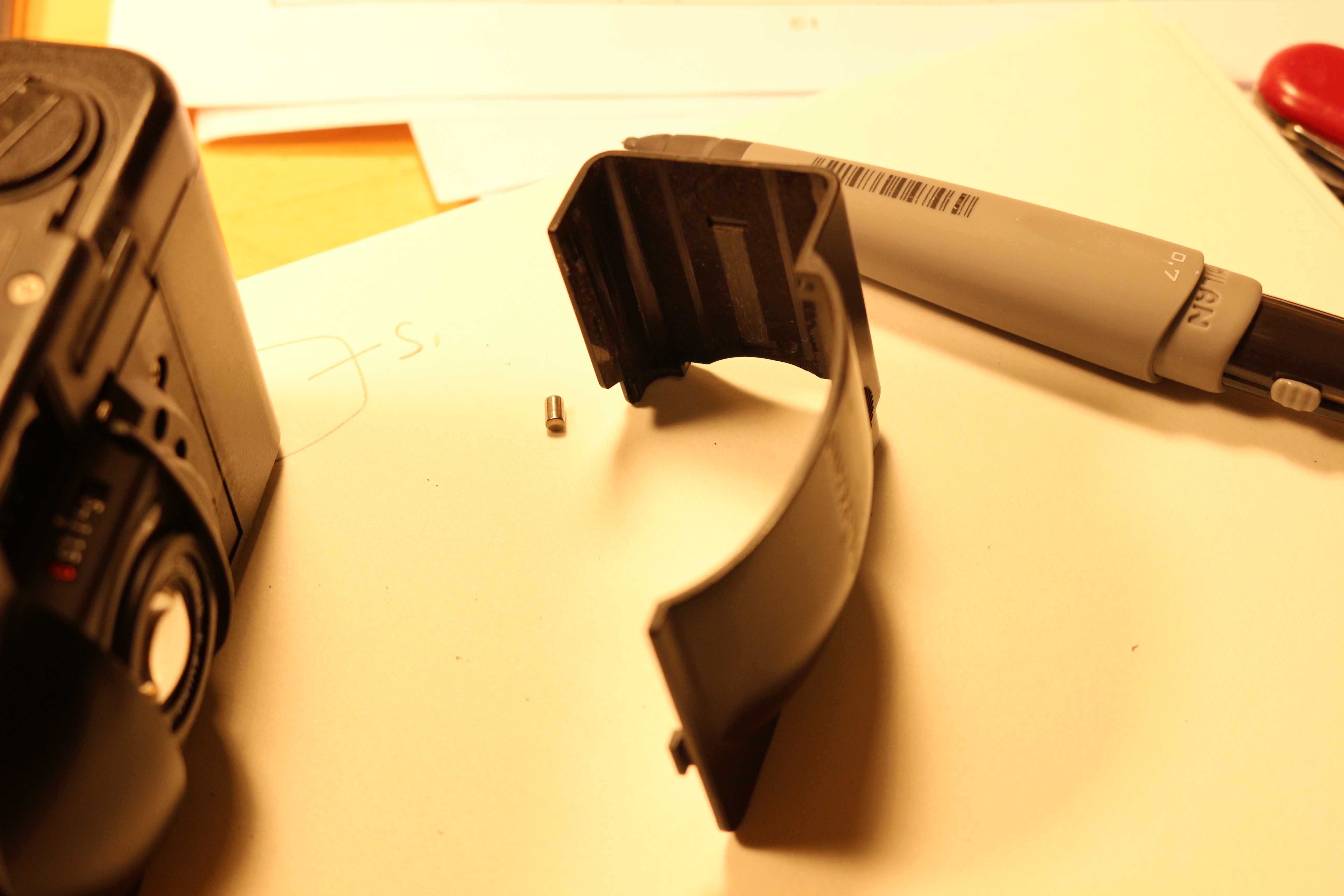
If you pull up on the bottom cover, it should come off.  This is the inside of the cover.  The only thing that might stick is the selection lever- but there is no firm mechanical connection there.

IMG_4200

Here is the inside of the bottom of the camera.  It already looks pretty exciting!  If you are having battery/power/self check problems, this is a good way to take a really good look at the battery holder and test for (or clean out) any corrosion.

IMG_4206

A groove in the bottom plate holds the sliding door on, via the hook you can see at the bottom of the cover in this photo.  Once the bottom is gone, the sliding door can be removed by gently prying the bottom part of the door upwards.  It should pop right out, but be careful not to let the tiny roller bearing escape (and it will).

IMG_4207

The next step is to remove the rewind lever.  This is pretty simple- just unscrew the bolt right in the middle.

IMG_4240

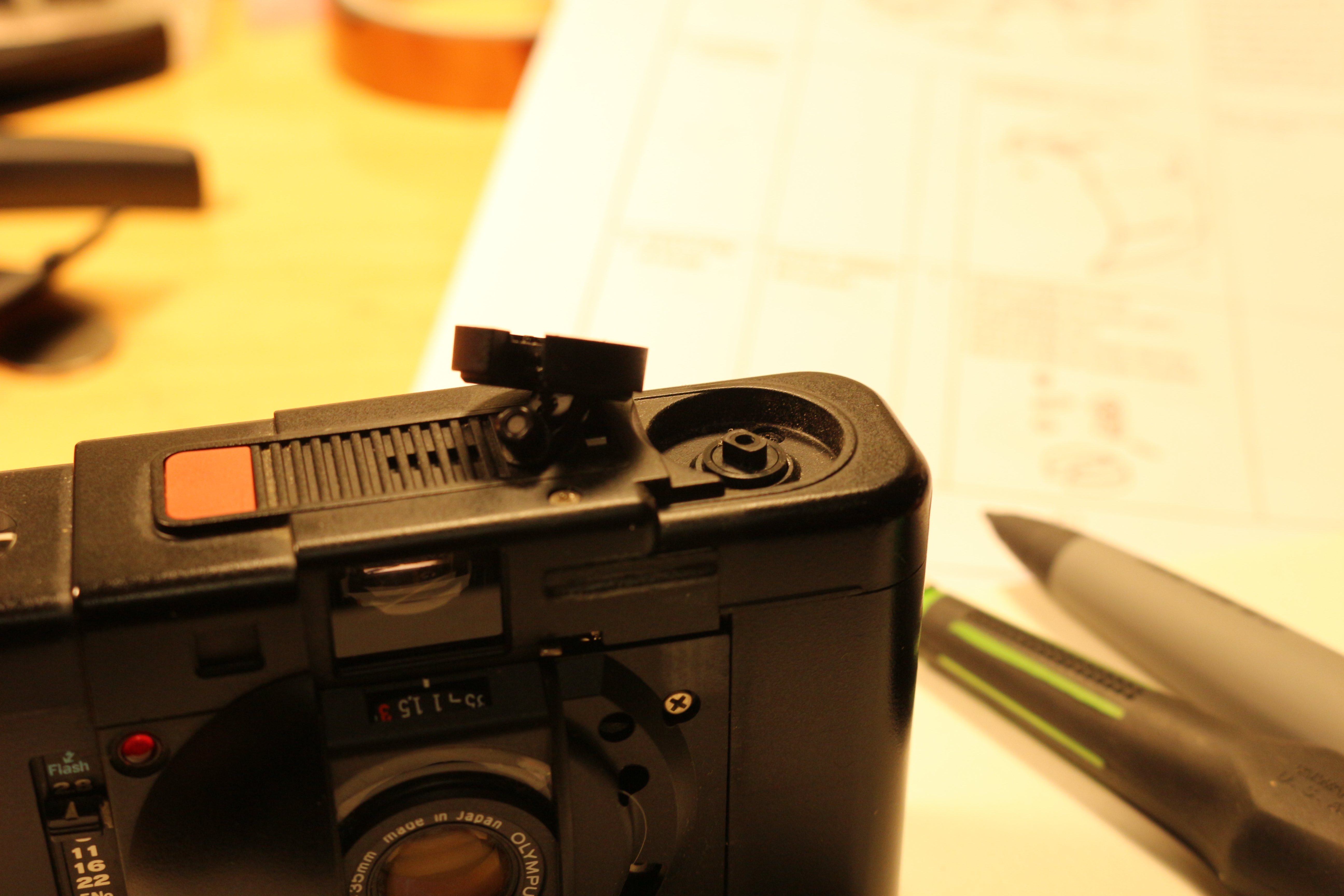
Next is the top.  The first thing to do is to carefully pry up the iconic red shutter release.  It is fastened to the camera via some kind of glue.  With that removed, the only things keeping the top on are two more screws in the well of the rewind lever and a conspicuous screw next to the rangefinder window (on the back side of the camera).

The Olympus XA with several panels removed

The Olympus XA with several panels removed

The next thing to go is the front panel.  A few obvious screws hold it in.  This gives you access to the front of the lens and the CdS cells that control exposure, but I didn’t need to tear into it further because it turns out that the front plastic on the lens is threaded onto the brass that holds the front element!  Score, if I want to add a filter.  Could turn a metal adapter to replace the plastic that would mate with a filter.  The only complication would be adding ev compensation to the meter, without using the 1.5 ev lever.  I wouldn’t want to use the lever because then I would loose some flexibility if shooting with a filter.

IMG_4210


Reassembly is pretty straightforward, except for the shutter release button. The shutter release it both loved and hated by the users of the camera- it is oh-so-sensitive, but it also wears out and is not very tactile- it is a lot closer to a membrane switch than a modern DSLR release.  Personally, I like it, and when I took the camera apart I decided not to just superglue it in.  Instead I used the large mating surface of the shutter release and the button face to put on more adhesive than was originally used, but at a lower strength.  Hopefully this allows me to take the button out more easily next time.

Lightbulb PCR Usage

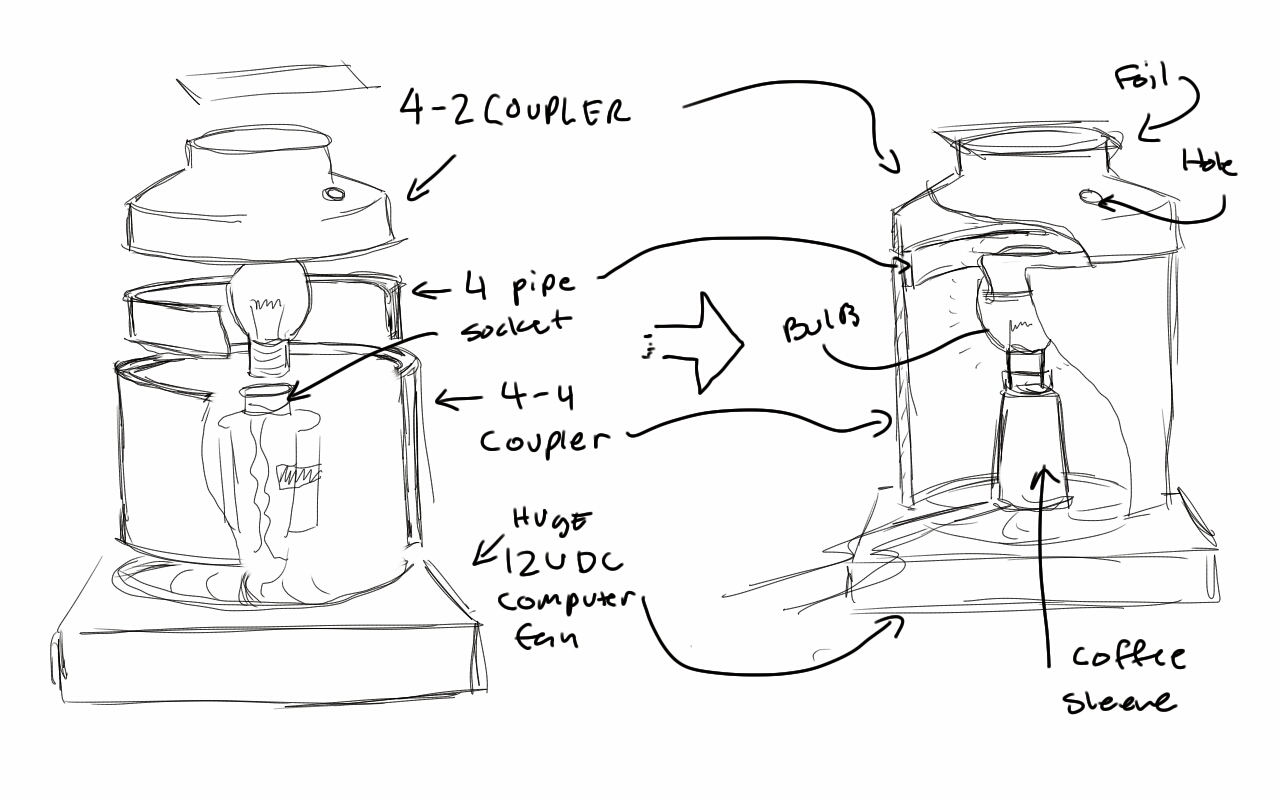
Exploded/Cross sectioned view of Lightbulb PCR Machine

Exploded/Cross sectioned view of Lightbulb PCR Machine

If you really really want to use the lightbulb PCR machine, here are a few tips:

Note the plug

Note the plug

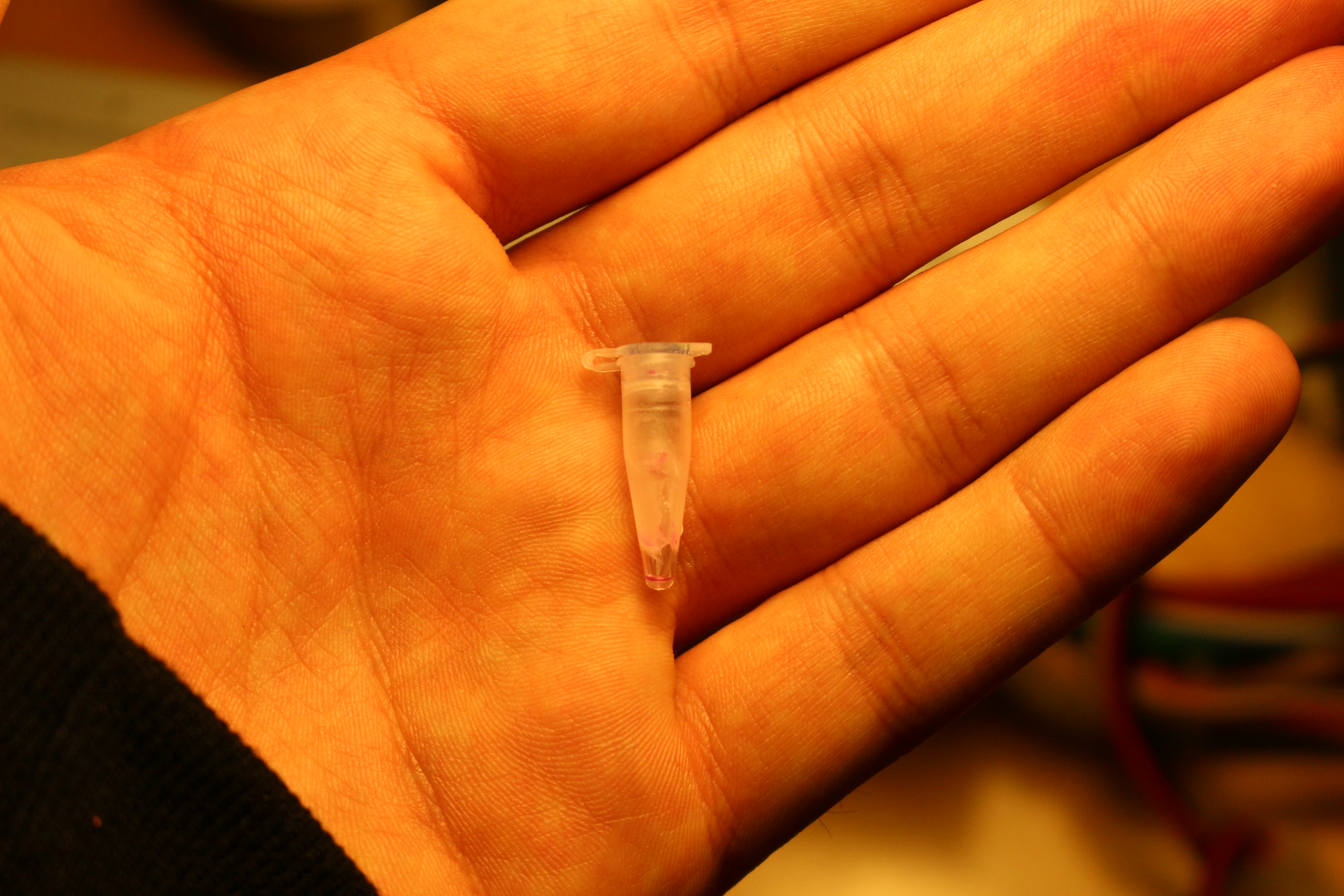
It is a good idea to add a small ball of wax or a drop (20ul) of mineral oil to your reaction.  This will form a plug/barrier so that your reaction cant evaporate and condense all over your tube.  There is no heated lid here!  Watch out if you use oil because it will solidify into a plug in your tube if you don’t pipette the sample out withing a minute or so of the final extension.

It is a good idea to add a few (10-20) seconds to each PCR step to allow your sample tube to get to the same temperature as the sensor.  The reaction is almost definitely larger in thermal mass than the sensor, so it will take longer to get to the correct temperature.  To help this, use the smaller .5ml thin-walled tubes.

IMG_4973

The proper way to mount samples is by taping them inside the taper of the 2-4 coupler, as seen here.  The sensor should be taped nearby.

And dont forget to modify the parameters of your reaction per the instructions in the code section of the documentation (previous post)!

Lightbulb PCR Build Documentation

Exploded/Cross sectioned view of assembly

Exploded/Cross sectioned view of assembly

There are three main parts to this documentation: hardware, electrical, and software.  A usage post will follow this one.  A paste of the complete code is included at the end and is intended to be run on the arduino uno.  Consult the hardware and electrical bill of material lists at the end of the post before going to the hardware or electronics store if you attempt this build.  It details what parts should be available at what store- some things like lamp cord are hardware items, even though they are electrical parts by nature.  Each section also contains recommendations for improving the device at the end of the section.  Read these if you want to make your device better/more durable.  As usual, I am not responsible for your actions or accidents if you choose to build this.

Hardware:

4" pipe creates a place for the lid to sit

4″ pipe creates a place for the lid to sit

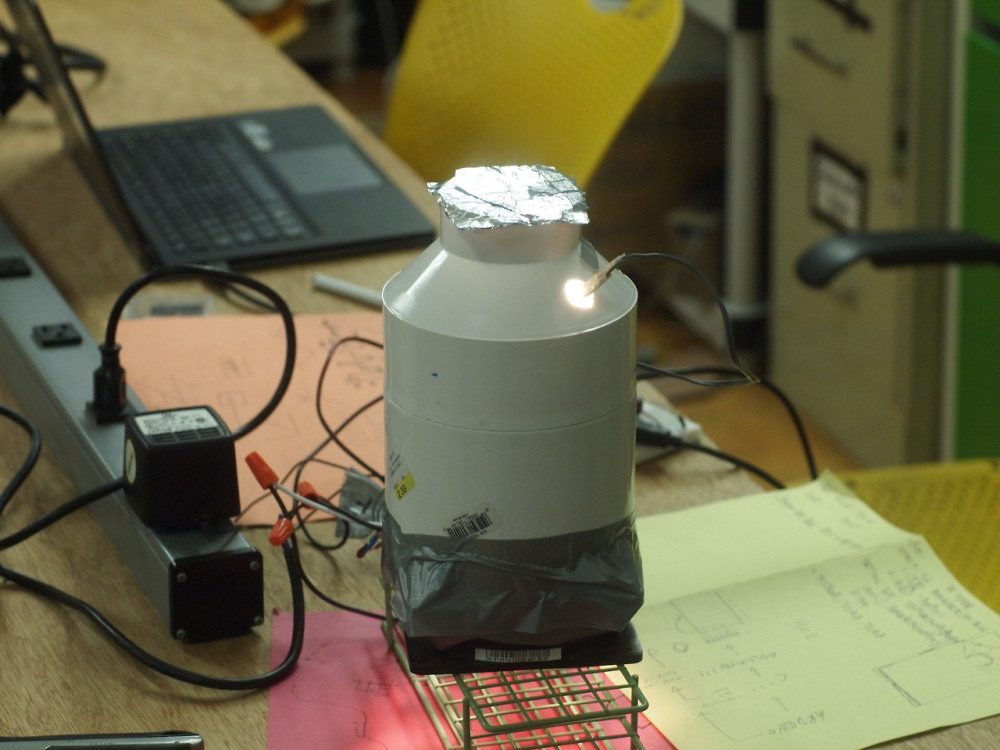
The body of the cycler is made of three pieces of PVC pipe.  Note that nominal PVC pipe sizes refer to (mostly) ID and not OD.  I think this pipe is schedule 80, but I could be wrong.  The base is made of a “4 coupling” which is a part that holds couples two 4″ pipes together.  This is attached to the lid that holds the samples,  made of 4-2 reducing coupler, which reduces the pipe size.  These are connected by a small piece of 4″ pipe.  The pipe should  be jammed as far as possible into the 4 coupler as possible, and should expose about .5″ of pipe above the lip of the coupler to make a flange the lid can sit on.  See above photo.

LID IS IMPORTANT

LID IS IMPORTANT

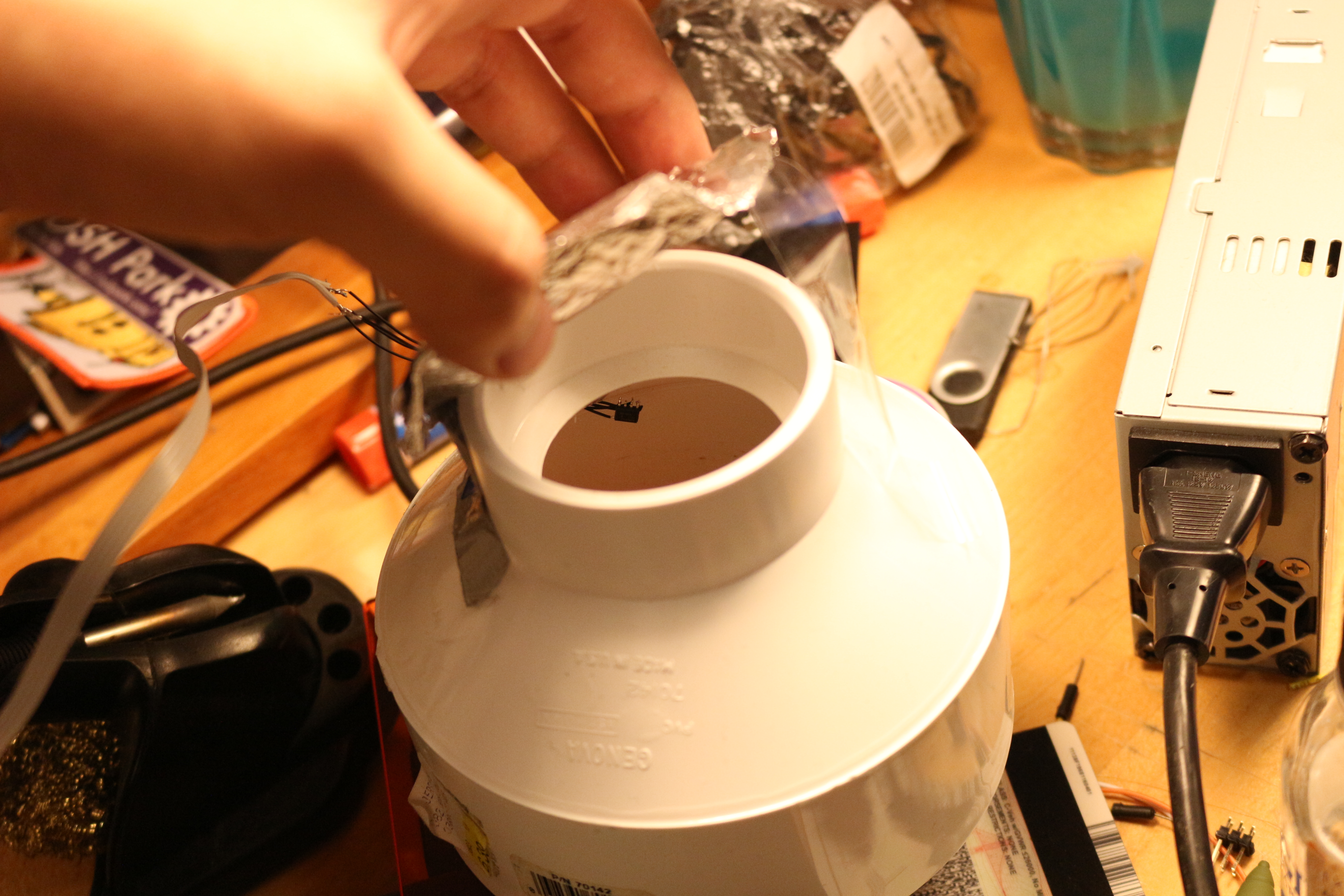
The lid currently has one .25″ hole on it, which was made to hold samples or route the temperature sensor wires.  Since I didn’t want to drill more holes, I just scotch taped my samples inside the lid, along with the sensor, and routed the wires through the hole.  One key thing that you cannot omit is the aluminum foil flap at the top (2 side) of the lid.  This flap prevents convection during the heating cycle and allows air to escape during the cooling cycle.  If it is omitted, your device may struggle to reach the higher cycle temperatures unless your rooms ambient temperature is very high.

Recycling!

Recycling!

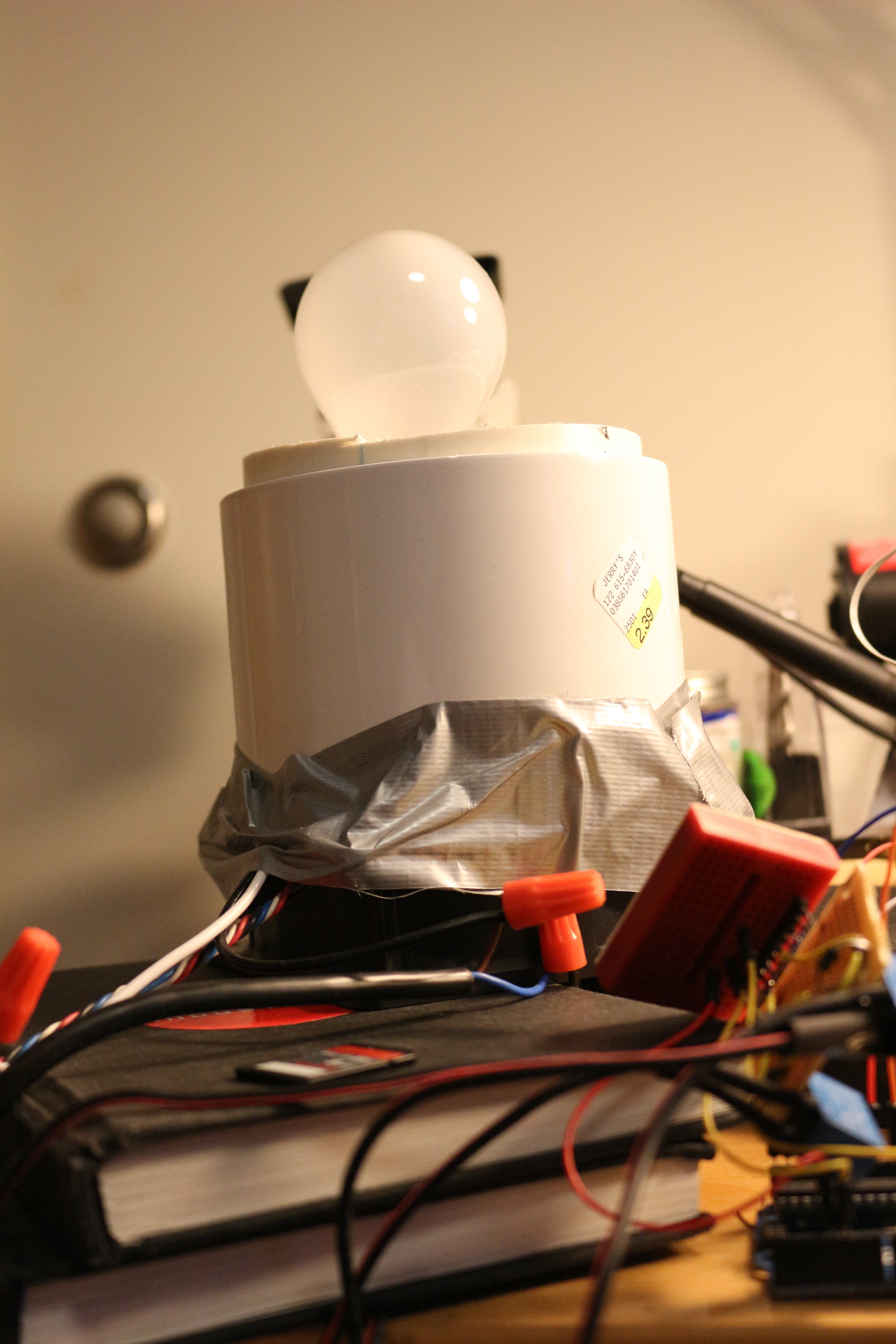
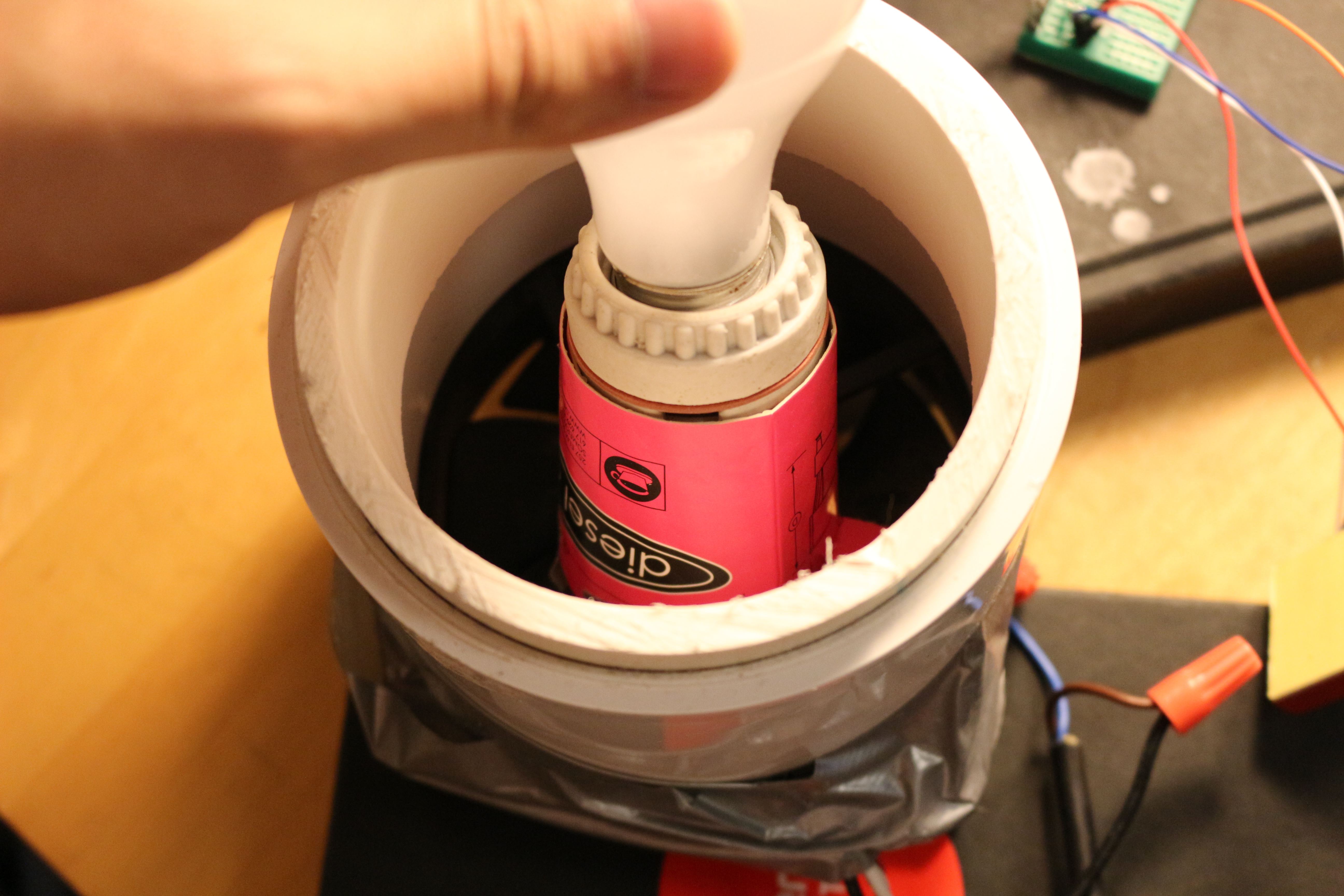
The next thing to discuss is the lightbulb.  I had a 60w incandescent lightbulb, of the cheapest variety possible.  It is screwed into a bulb base of the variety that hardware stores sell to make custom lighting fixtures, and is attached to two wires like a lamp cord.  It is positioned over the fan using a rolled up coffee cup sleeve.  Our coffee cup sleeve came from the local eatery Diesel Cafe, which serves both delicious coffee and useful sleeves.

On a wire test tube rack at BOSSLAB

On a wire test tube rack at BOSSLAB

The fan is a 100mm fan from a computer, approximately the same size as the 4″ pipe.  It is duct taped to the pipe, and it is tremendously loud.  It us suggested that the machine be propped up on books or a wire rack to allow air to flow into the fan.

Hardware Improvements:

To improve heating times, do not drill a hole for the sensor wire.  Drilling such a hole provides a path for convection currents to take heat out of the system.  Instead, make a small notch in the interface between the lid and the 4 coupler to route the sensor wires.

The next obvious improvement is to get a bigger bulb.  However, there are tons of other resistive heating solutions out there that don’t use a delicate, gas filled glass bulb as a heater.  Heating blankets for example, use flexible wires that would work way better for this application, and could allow each tube to have its own personal heater, sensor, and feedback loop! Unfortunately, you can’t just buy a new custom wire heater at CVS.

Besides that, the connection between the fan and the coupler and the connection between the lightbulb and the fan could be improved.  Duct tape is fine for my build because I really only want it to work once.  An easy solution would be 3d printed brackets, or some small sheet metal adapters.

Electrical:

Electrically this thing is dead simple.  However, it does deal with dangerous voltages- 120 VAC or whatever your local mains is.  If you do this be careful! Never ever work on the wiring while it is powered up.

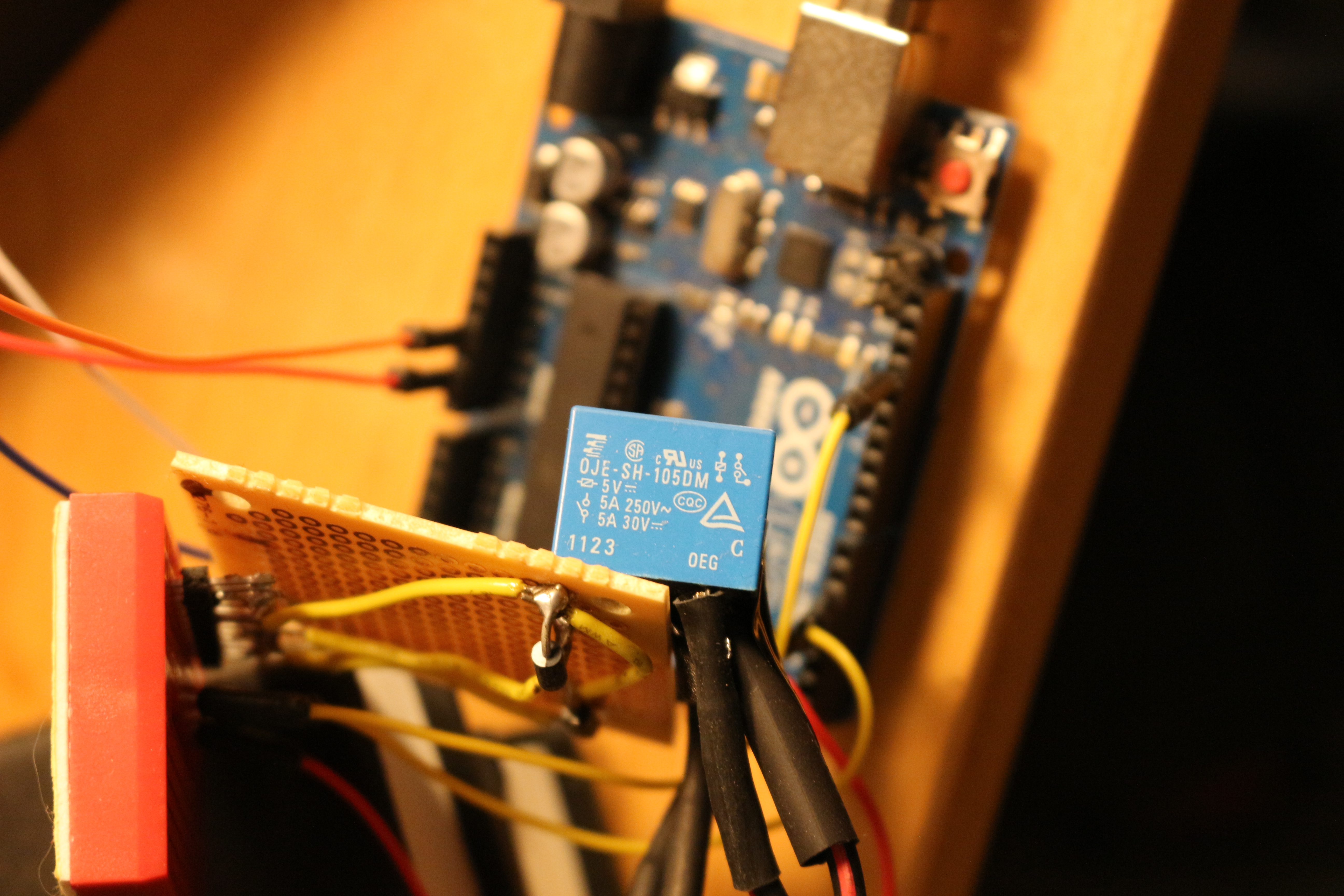
Really poorly connected relays are a holdover from old build

Really poorly connected relays are a holdover from old build.  Heatshink is solid though!

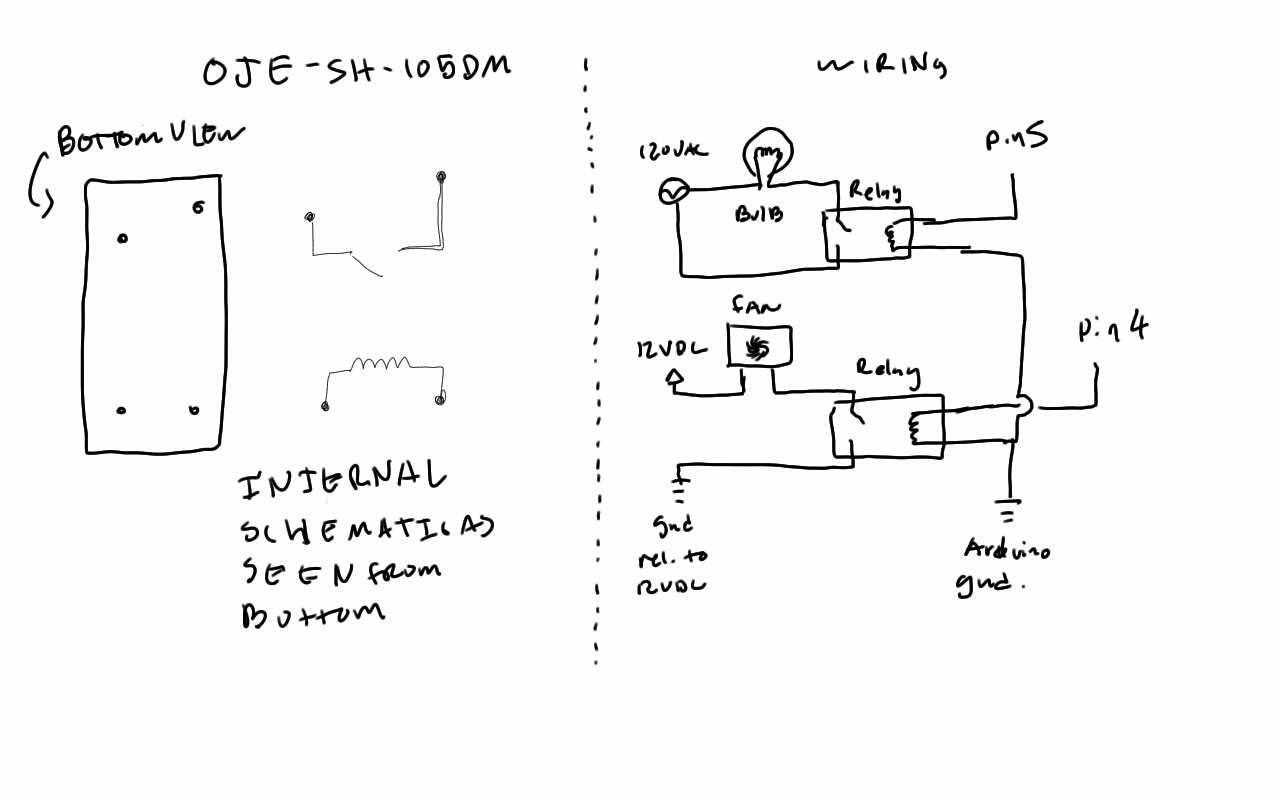
Basically, there is an arduino with two relays and a single i2c temperature sensor hooked up to it.  The relays have four pins.  When current flows through one pair of pins, the other pair of pins connect to each other.  so one side of the relays goes from a digital pin to ground, and the other side interrupts whatever the circuit you want to turn on and off.  Other devices can do this, but relays are cheap, hard to destroy, and are readily available.  Note that the fan needs a 12v power supply via a wall wart, while the lightbulb needs to be connected to 120vac.  We used a few wire nuts, but I highly recommend wago lever wire nuts instead.

Sketch7105850

Here is the documentation for wiring the relays.  Be sure that there are no bare120 VAC connections by covering them in heatstroke tubing.

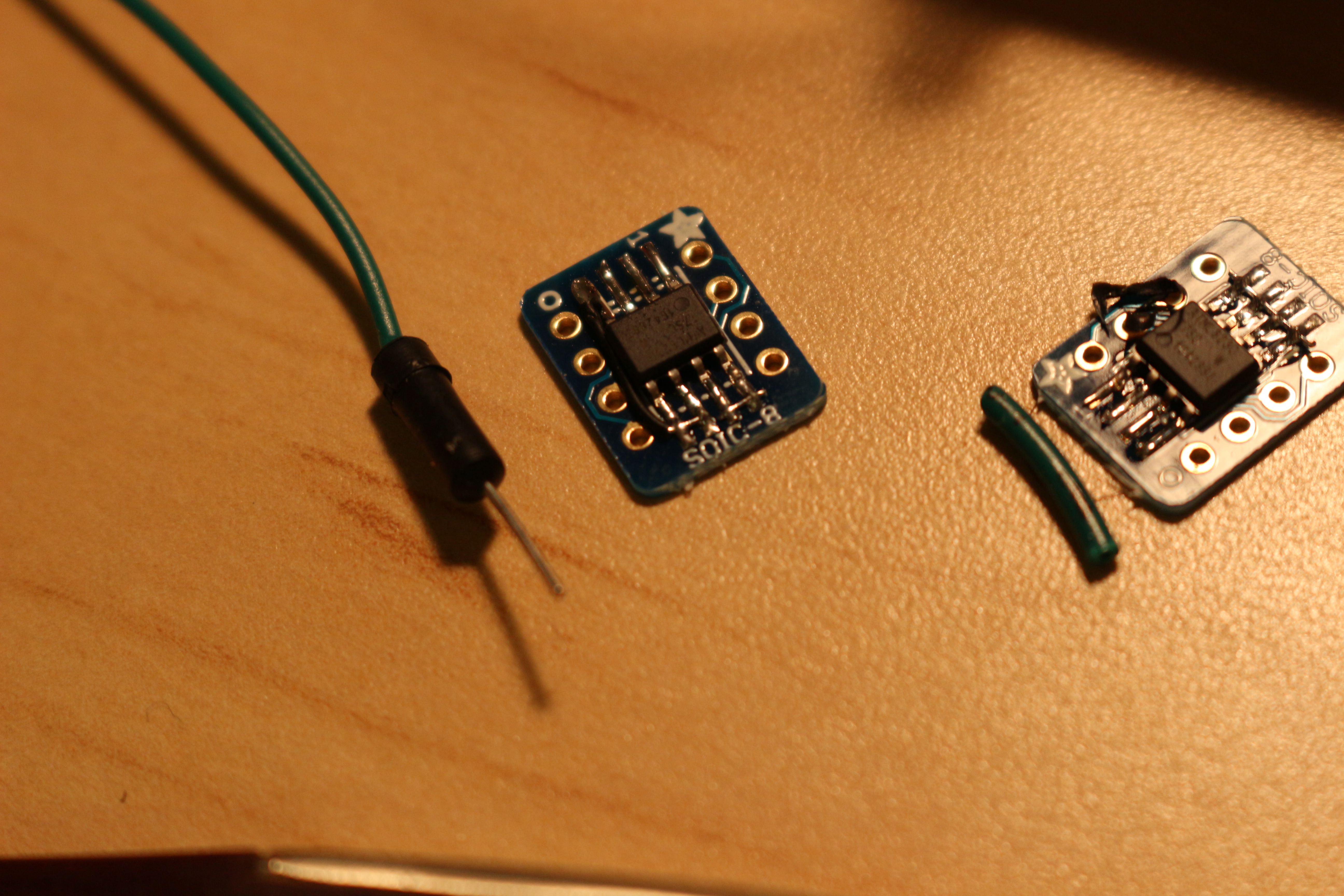
at30ts750 free soldered to wires.

at30ts750 free soldered to wires.

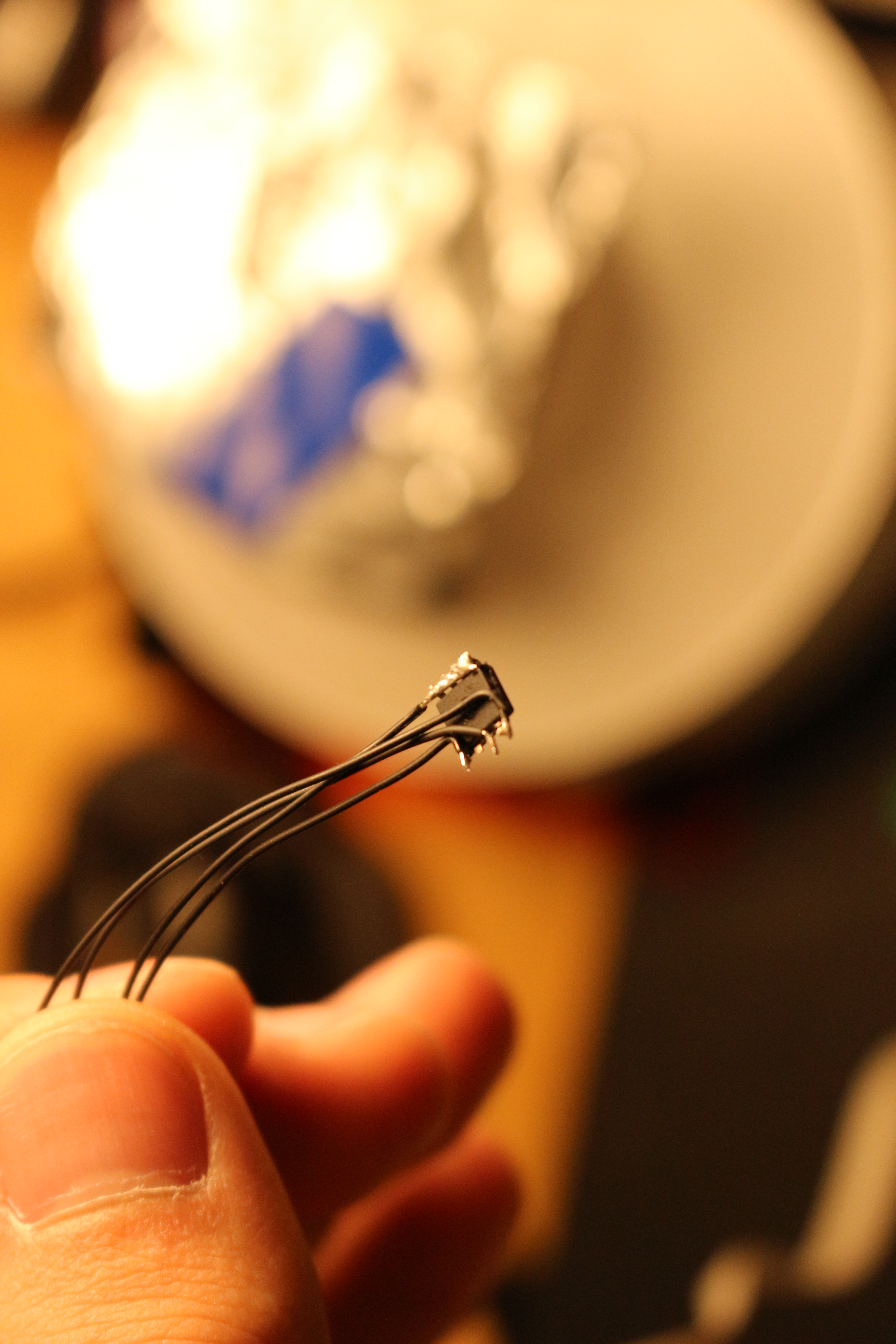
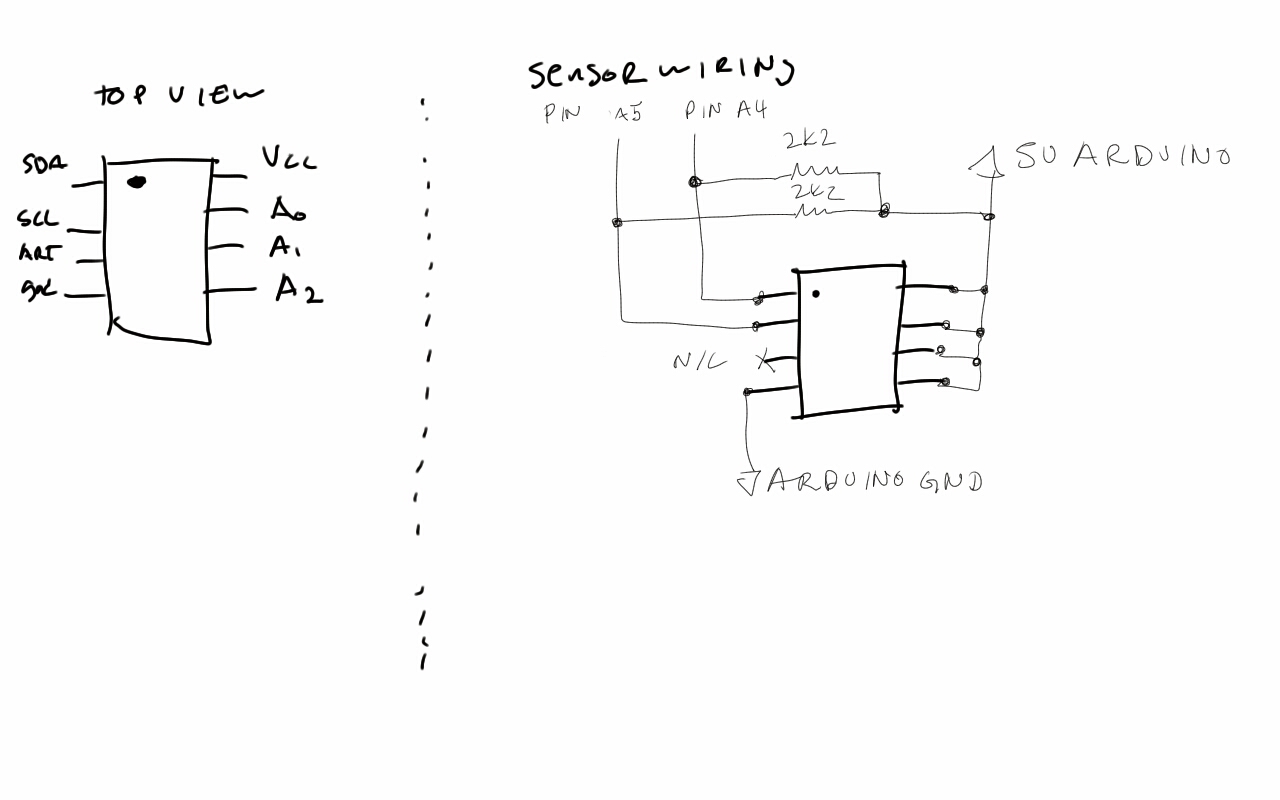
The temperature sensor is an at30ts750 in SOIC-8.  It is a wonderful and cheap sensor and comes in a variety of sizes.  It talks over i2c to the arduino, and requires 5 and ground, giving it a grand total of 4 wires.  But as you can see, there are 8 pins! Don’t worry. Pin 3 is an alarm that is not used, and 6, 7, and 8 are the last 3 values of the i2c address.  For my purposes, I soldered them all to Vcc (5v), making the 7 bit address 0b1001111.  The first four bytes, “1001” are the same for all sensors of this type.

As you can see, the chip is soldered to small solid core wires.  This was done to try to match the thermal impedance of the tube better.  Large sensors with lots of mass take time to heat up, and the tube take a different amount of time to heat up.  The only way to measure the temperature of the tube is to put a sensor in it, or to estimate the temperature with a sensor of similar thermal mass.  I guesstimated the matching based on sizes of sensors I had available.  UDFN-8 seemed too small so I went with soic-8.

Sketch711526

All of this connects to an arduino, which theoretically connects to your computer.  You don’t actually need the computer unless you want to log the temperatures, but the arduino does need power! Don’t forget that.

Electrical improvements:
Let’s start with the relays: they were chosen because you can get them anywhere, and because wiring two relays is really easy conceptually for people who have never worked with electronics.  But a transistor would suffice to drive the fan, and a solid state ac line switch might be more elegant than a relay for the bulb.  These are probably a slightly cheaper (depending on source/ratings) than the relays, and could provide proportional control of the fan or PWM the bulb.

A cheap wiring/durability improvement would be a proto shield or a relay shield for the arduino. They may be overpriced in a lot of ways, but they are very convenient and can clean the wiring up, which is nice if you are going to use it frequently. If you wanted to go all-out you could design a custom PCB.

Software:

Software deals with a lot of the complexities of this system, including temperature control, temperature sensing, and timing.  Each time you change your cycle parameters, the code needs to be recompiled and uploaded. Each of these paragraphs is meant to comment the code in more detail, with some code snippets pasted in. There is also a section for people who are not familiar with programming but want to use this code.  Complete code available at the end, and soon on github.

int temp_task(float target,float temp)
{
if(temp<(target-tol))
{
digitalWrite(FAN,LOW);
digitalWrite(HOT,HIGH);
}
else if(temp>(target+tol))
{
digitalWrite(HOT,LOW);
digitalWrite(FAN,HIGH);
}…

Temperature control is handled with a simple bang-bang controller. The control loop runs every 250 ms, which is fast enough to stay within about +/-.5 degrees. The acceptable band of temperatures is also +/-.5 degrees. A hysteretic controller was chosen because it worked, and I wanted to finish this instead of tuning a PI controller.

float get_temp(int address) {…

Wire.requestFrom(address,2);
while(Wire.available())
{
upper= Wire.read();
lower= Wire.read();
raw  = (upper << 4 ) ^ (lower >>4);
temp=(float)raw*.0625;…

Temperature sensing was done on an at30ts750, which can supply up to 12 bit temperatures (default is 9) in twos complement. There is some brief setup code at the beginning of the main loop. This is to change the value of the volatile configuration register of the chip so it returns 12 bit values and not 9 bit values. I didn’t write to the non-volatile memory because this chip is going back in the parts bin, and I don’t want non-default vales written to it.

Since it the i2c transactions happen a byte at a time, there is some code to shift out the trailing 0s and stitch the two bytes together. Negative numbers a la twos complement are not implemented, since unless your room is negative degrees C ambient, there are no subzero temperatures to read. At the end of this the temperature value is computed by taking the raw sensor value and multiplying by the conversion from adc ticks to deg. C.

for(int i=0; i<seconds*8; i++){
temp=get_temp(0b1001111);
Serial.println(temp,DEC);
temp_task(target,temp);
delay(125);
}

Timing is done by taking a loop and putting a delay in it. Interrupts would be nice, but it is way easier to just use delay, and this project is just to prove it can be done. Basically, every that loop calls get_temp and passes the temperature to control_task also has delay (250) in it. The time of the delay dominates the loop. This is not very safe because the sensor could possibly not reply, and that would cause the loop to hang.

For those of you not well acquainted with programming, it is still simple to change the PCR parameters. There is a function called single_cycle(temp, time) that ramps to a temperature in Celsius, then holds it there for the specified time in seconds. The temperature should not exceed 100 C and the time cannot exceed 30 seconds. To make it longer than 30 seconds, just have call single_cycle multiple times.

You will notice that my code does not have each pcr step pasted into it. That’s because the cycling in pcr is the same three steps over and over again- denature, anneal, and extend. These three steps live in the for loop. To add or change the steps, edit what is in the for loop by changing the parameters of single_cycle, or adding more cingle_cycle calls. To edit how many times it happens, change the line “#define CYCLE_REPEATS 30” that is at the top of the file. Just change the 30 to the number of cycles you want. If you want to add things before the cycling, or after, just add single_cycle calls before or after the for loop.  Check the comments (the things after the //) in the code for where to add stuff before or after the loop.

Code Improvements:

Well for starters, you could have interrupt driven timing events, and a state machine instead of a bunch of nested loops.  This might make the machine more accurate time wise.  The code could also be improved to take some kind of array/serial data that encodes the cycles, so you don’t have to edit and recompile it for each different annealing temp.  The final thing to add would be input sanity checks on the single_cycle function, so people don’t go putting in a temperature of 200 or anything crazy, and saftey functions to prevent overheating, emergency stop, and pause.

Bill of Materials:

Hardware:

  • Duct tape.  Get the good stuff- 3M
  • 4″ long piece of 4″ nominal diameter PCV
  • 4-4 PVC coupler
  • 4-2 PVC coupler
  • aluminum foil
  • coffee cup sleeve, or paper plate
  • lightbulb, 60W or greater
  • lightbulb socket
  • lamp cord- this is just insulated 2 conductor cord used in lamps
  • Wire nuts or wago lever nuts
  • heat shrink is sometimes found at hardware stores

Electrical:

  • Arduino uno
  • at30ts750 or any digital or analog temperature sensor that is handy*
  • two relays capable of 12v .5A DC and 125 1A VAC.  The OJE-SH-105DM is suitable*
  • two resistors for pulling up the i2c lines.  2.2k ohms each, any tolerance*
  • heat shrink

*These items are available on digikey.  Part numbers AT30TS750-SS8-B-ND, PB874-ND, CF14JT2K20CT-ND.

ETC Items:

Here is a copy of the code- I will get around to posting it on my github once I remember the password.  Fortunately, this is not python, so whitespace does not count!

#define CYCLE_REPEATS 30
#define tol .5
#define HOT 5
#define FAN 4

#include <Wire.h>

void setup() {
Wire.begin();        //join bus as a master
Serial.begin(9600);  //start serial port to computer
pinMode(HOT,OUTPUT); //set hot and fan pins as outputs.  Default is low.
pinMode(FAN,OUTPUT);
}

//get raw value from sensor, convert it to temperature and return it as a float
float get_temp(int address)
{
unsigned short upper, lower, raw;
float temp;
Wire.requestFrom(address,2);
while(Wire.available()) //read data from sensor as a 12 bit twos complement. since this application will always be at ambient temperature, we dont need to worry about the sign.
{
upper= Wire.read();
lower= Wire.read();
raw  = (upper << 4 ) ^ (lower >>4); //get rid of trailing 0s
temp=(float)raw*.0625;              //each ADC “tick” is .0625 of a degree.
return temp;
}
}

//this is the function that decides what the machine will do- heat, cool, or idle.  the #define tol .5 at the top can be changed to an arbitrary tolerance.
//making the tolerence too small will result in your machine flipping between heating and cooling really fast, making it too big will result in more ringing
int temp_task(float target,float temp)
{
if(temp<(target-tol))
{
digitalWrite(FAN,LOW);
digitalWrite(HOT,HIGH);
}
else if(temp>(target+tol))
{
digitalWrite(HOT,LOW);
digitalWrite(FAN,HIGH);
}
else
{
digitalWrite(HOT,LOW);
digitalWrite(FAN,LOW);
}
return temp>(target-tol-tol) && temp<(target+tol+tol); //return 1 if temp is within 2 tol- approaching switchover pt. from ramping to waiting for the timer
}

//this function ramps (heats or cools) to the desired temperature, then waits a certian amount of time while holding that temperature
void single_cycle(int seconds, float target)
{
float temp;
temp=get_temp(0b1001111);
Serial.print(“BEGIN\n”); //prints this at the beginning of every cycle, useful for debugging
Serial.println(temp,DEC);
while (!temp_task(target,temp)) //while temperature is not near the target, keep ramping and checking the temperature.  delay makes each cycle take about 1/8 of a second
{
temp=get_temp(0b1001111);
Serial.println(temp,DEC);
temp_task(target,temp);
delay(125);
}
for(int i=0; i<seconds*8; i++){ //seconds*8 since this loop takes about 1/8 second.  holds at the desired temp for the desired number of seconds
temp=get_temp(0b1001111);
Serial.println(temp,DEC);
temp_task(target,temp);
delay(125);
}
}

void loop() {
float temp, target;
target=25; //arb target temp, just so the thing doesent go crazy it is set to about room temperature

//these wire commands set the prescision of the sensor to 12 bits

delay(1000);
Wire.beginTransmission(0b1001111);
Wire.write(0b00000001);
Wire.write(0b01100000);
Wire.endTransmission();

Wire.beginTransmission(0b1001111);
Wire.write(0b00000000);
Wire.endTransmission();

int time=0;

delay(1000);

//prints start at the beginning of the cycle
Serial.println(“START”);

//add stuff here that you want to do before the cycle, eg hot start, initial denaturation

single_cycle(30,98);

//this for loop is what gets repeated over and over again, change #define CYCLE_REPEATS 30 to change it
for (int i=0; i<CYCLE_REPEATS;i++){
//change what is in here to change what the denature-anneal-extend cycle is.
single_cycle(10,98);//denature
single_cycle(30,71);//anneal
single_cycle(30,72);//extend
}
//Final extension etc. goes here.  Note repeat to get correct time.
single_cycle(30,72);

//this block turns off the fan and bulb and waits for the device to be reset
digitalWrite(HOT,LOW);
digitalWrite(FAN,LOW);
while(1){
Serial.println(“IDLE”);
}

}

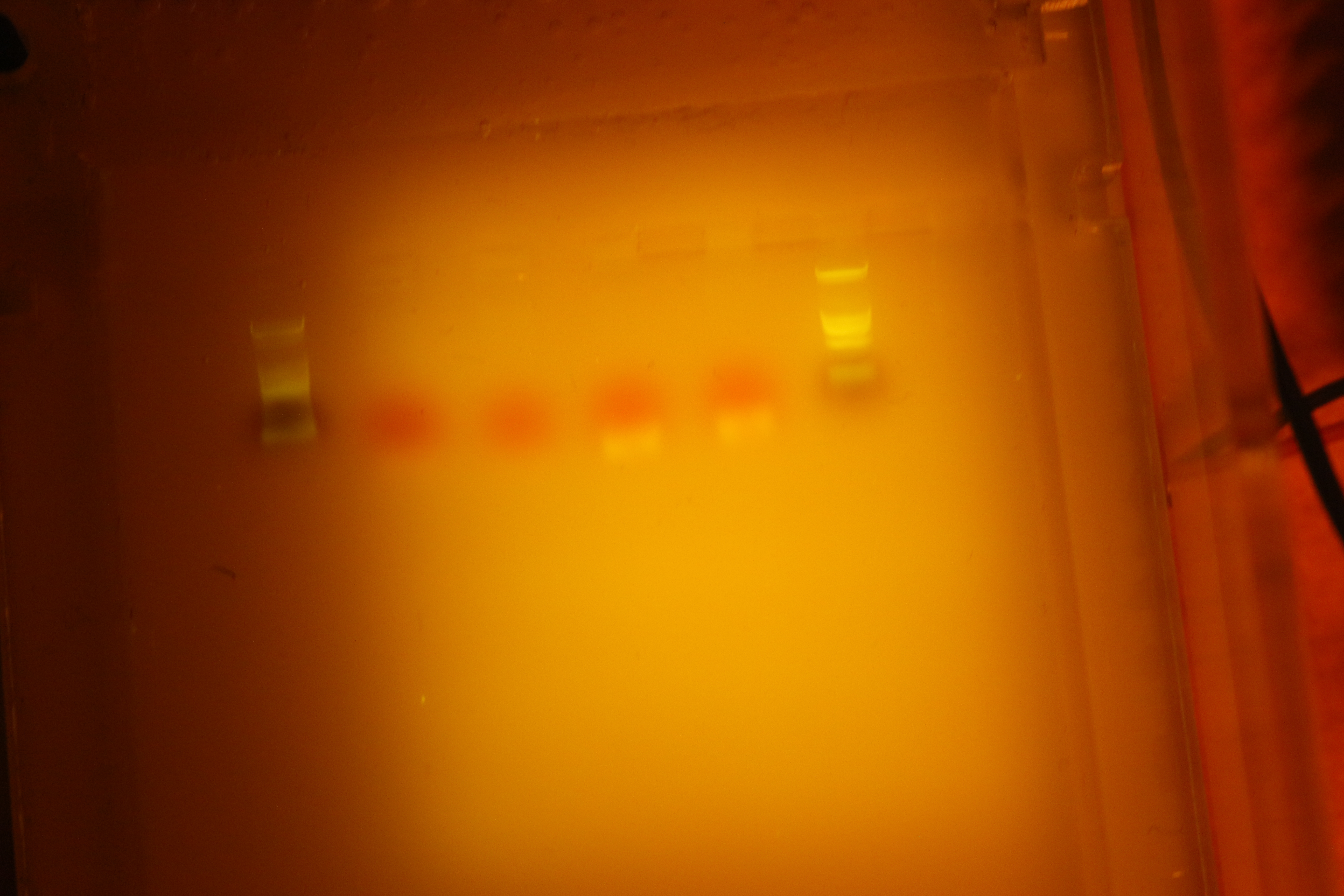
Verified working Lightbulb PCR!

L to R: ladder, neg control, neg control, positive, positive, ladder (diff conc)

L to R: ladder, neg control, neg control, positive, positive, ladder (diff conc)

Lightbulb PCR has been kind of pipe dream of diybio.  Today, I finished off the build started at Bosslab, and confirmed the results via gel electrophoresis on a torn-down GELIS box.  What you see above in the right-most red lanes are the real deal- amplified DNA (ladders with blue dye on outside, red with no dna is negative control.  Technical details will follow soon but I really need to hit the hay.  In lieu of documentation, here is what is known about the concept of lightbulb pcr.

There has been, to my knowledge, only one confirmed working build, which was done by Brian Blais.  You can see the work here. The title of the work is “A Programmable $25 Thermal Cycler for PCR”, in case that link goes dead.  It was done back in the day when the hardware was an Intel 486 with 8 M of ram!  With a parallel port!

This style of PCR machine was resurrected circa 2011 when Russel Durrett did a build using PVC, a computer fan, and a lightbulb all controlled by an arduino.  Theoretically it was a good build, but I never saw actual results, which discouraged me from building it, due to the physical constraints of the system.  The issues stem from the use of air as a conductor of heat to the samples, a lack of heated lids and a lack of sub ambient cooling.

Using air as a conductor is really a killer, since heat distribution can be influenced by the lightbulb sitting at an angle, or air currents in the room.  Air is really not a good conductor, and this means that the feedback sensor is at a different temperature than the sample, which is no good.

At the same time, it is a brilliant build because literally all the parts can be found either at a hardware store, or at a hobby electronics type store.  And it works.  Maybe not reliably, but it works and it is cheap, so that is a good start on a tool, if someone is willing to invest the time.

Anyway, a post tomorrow will have a rough BOM, electrical schematics, and code.

Refrigeubator?

IMG_4916

Incubator.  Refrigerator.  Both actually, and connected (and configurable) over http to the LAN.

The project, whatever it will finally be called, is coming together.  In the past two days I got the relays wired up and tested, the temperature sensors hooked up, wrote the logic for controlling temperature, and made it so you can post a new setpoint via the website hosted on the pi.  This is actually a big deal because it can be used as a framework to access the pi’s GPIO over the LAN, or potentially over the web (provided there was an intermediate server).  I am sure people have done this, but it is good experience to do it, and it is fun.  This could be good for home/lab (is there a difference?) automation or a slew of other projects!

The last few details to attend to before testing with cells are to:

  • mount the sensors and electronics to the structure of the fridge
  • add some lights inside so you can see when you take a picture
  • shakedown for 48 hours or so
OJ-SH105DM relay bank

OJ-SH105DM relay bank

These are the relays.  I chose on/off relays over FETs or some kind of proportional control because they should make less heat (very low ‘Rds on’ in FET terminology), and because the temperature inside is not particularly critical, so on/off control should work ok.  Plus, the code would be easier to implement on the pi, since it would only need two digital io pins, instead of a separate DAC.  They are arranged in kind of an H-Bridge configuration for reversing (or turning off) the flow of current through the peltiers.  The screw terminals make it easy to wire to the peltiers, which are stuck into the cooler.  Air-soldering this thing on would have been a huge pain and I probably would have ended with some holes melted into the incubator.

IMG_4913These are the sensors I am using.  They are AT30TS750 temperature sensors by Atmel (I like them).  They have up to 9-12 bit precision, and talk over I2C.  Unlike he potentially useless and annoying one wire sensors, which each have a hard-coded ID address, these are user-selectable with jumpers to pins 5-7.  So I can set “inside sensor” to be 0b1001111 and then if I build 3 more of these, I don’t have to spend time correlating the address to the location.

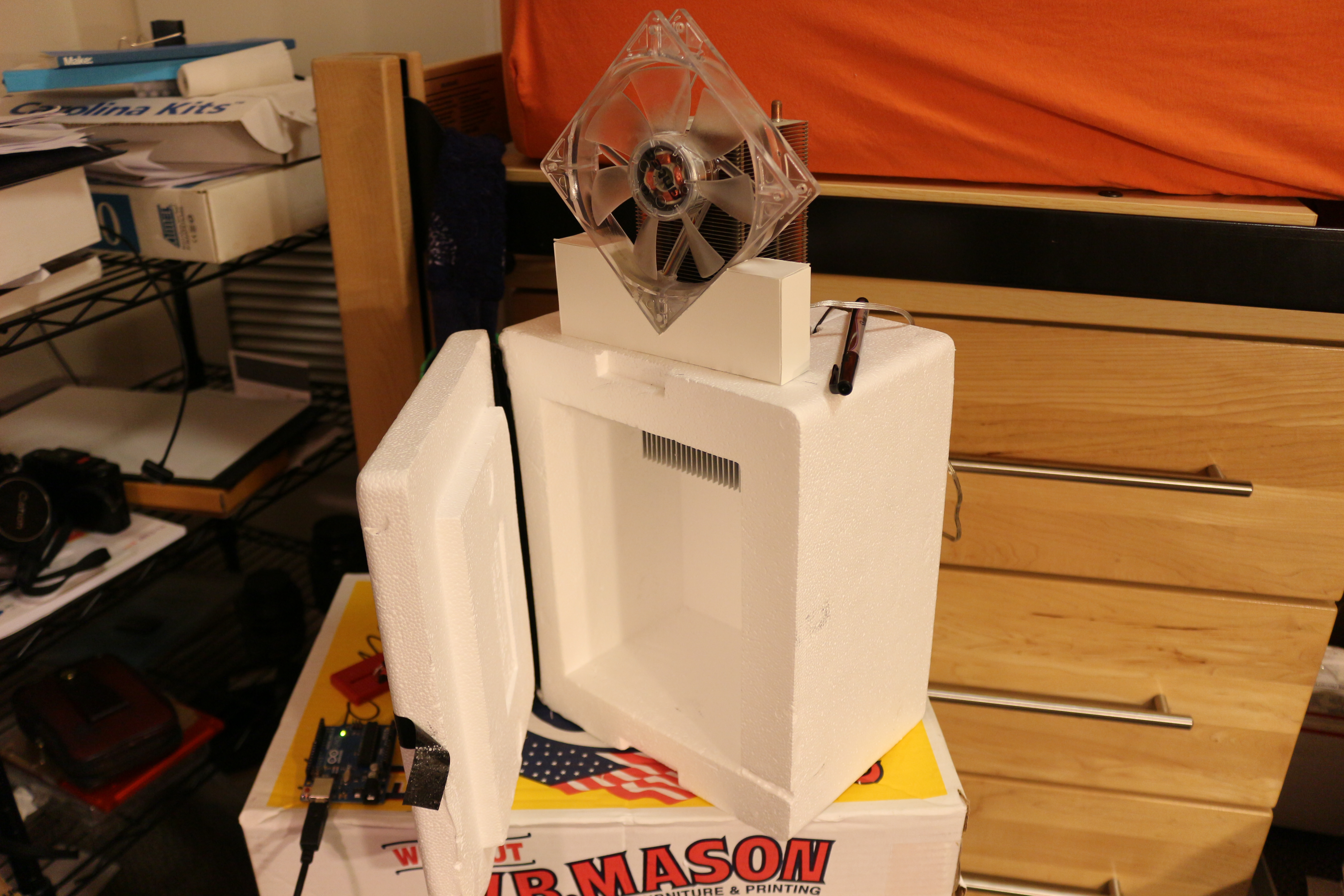
IMG_4917This is the state of the incubator.  It has moved from ugly styrofoam container to slightly more functional ugly foam container.  One nice thing about the foam is it is easy to cut it to make channels for wires.  The hope is to give it a decent finish with foam-core (just for looks), plastic or MDF once it is done which will hide the foam, although that will depend on how much I like it.  Another thing to check out is the new fan and fan support.  The support is made of foam core, which is a material I really like.  It can make lightweight structural elements like the support in a pinch, and it looks clean (provided you are careful).  For this application it was much faster than 3d printing, and easy to work with without large tools (unlike sheet metal).  One of the next steps is to move all the wiring to the back of the box.

note: The arduino is there just because I was playing with the cc3000 module- it is not related to the project.

IMG_4902I added this picture because it shows the tiny workspace I use to fab this stuff.  Even with a small space you can get stuff done.

Celery Causing Out of Memory with OpenCv

Recently I posted about using openCV to grab webcam images on a pi.  The problem turned out not to be the limited memory, but how I was using celery and opencv.  Basically, there was a memory leak.  On my laptop this occurred as well, but at a much slower pace.  On the pi, the poor computer very rapidly ran out of memory.

The setup was that there was a celery task (posted below), which was set in celleryconfig to run every 10 seconds or so.

@app.task
def getwebcamimage():
    logger.debug(“capturing image attempt…”)
    c = cv2.VideoCapture(0)
    for i in range(10):
        flag, frame=c.read()
    flag, frame = c.read()
    cv2.imwrite(PATH_TO_IMG,frame)
    logger.debug(‘saved image…hopefully’)
    c.release()
    return 0

I would start celery beat with

$ celery -B -A celerytest worker –loglevel=DEBUG”

The problem has something to do with how celery/python treats objects that are created inside of tasks.  Each time, python was creating a cv2.VideoCapture object, but cv2.VideoCaptue.release() doesen’t seem to release the object- instead it releases the lock on the camera and keeps the object because it might be needed later.  I used the Top command to look at how processes were using the memory, and the memory for celery would grow out of control.  Bad.

The solution I came up with was just to run two threads- the server in one, and an image updater in the other.  This is nice because the cv2.VideoCapture object is only made once, and it can run independently of celery.  Just to make sure I had actually found the error, I tried running the same code from the celery task in a thread alongside the server, and I got the same kind of memory leak.  So it was not celery related, but jut python not giving up memory, which caused the celery task to OOM.

The new code snippets look like this:

def get_image():
    c = cv2.VideoCapture(0)  #make videocapture object
    while 1:                              #capture frame ever 5s
        sleep(5)
        print(“getting image!”)
        for i in range(10):        #let camera adjust*
            flag, frame=c.read()
         flag, frame = c.read()
        cv2.imwrite(PATH,frame)

    try:
        thread.start_new_thread(app.run,())#start server
        thread.start_new_thread(get_image,())
    except:
        print(“unable to start thread”)
    while 1:
        pass

*Note: my webcam seems to take some time to wake up between accesses, so I read a few frames before capturing the final image.