REVOBOTS Week 4: Rebobot Factory

Robot Factory!

Videos: Part 1 Part 2

Guide: TSK4

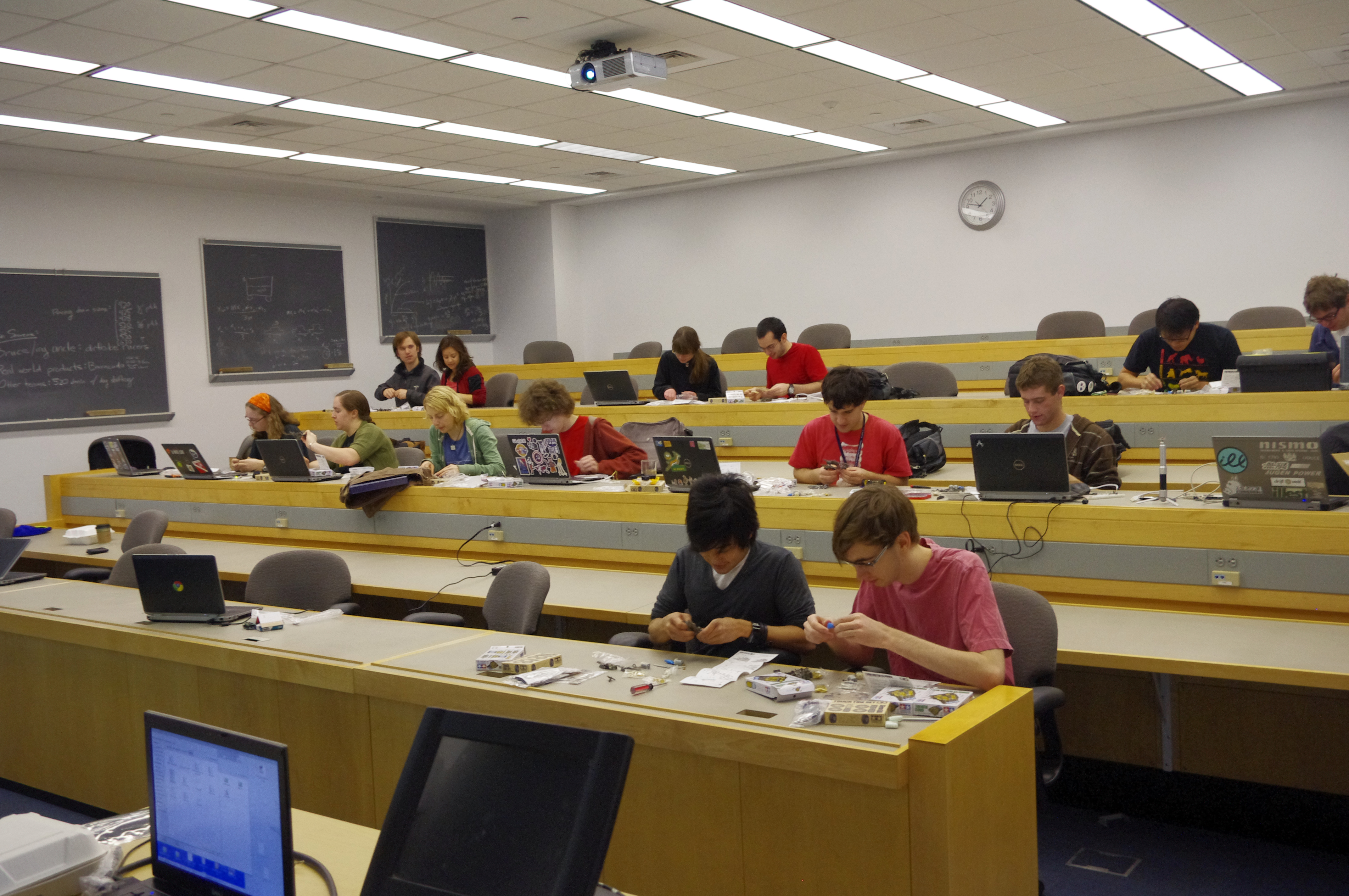
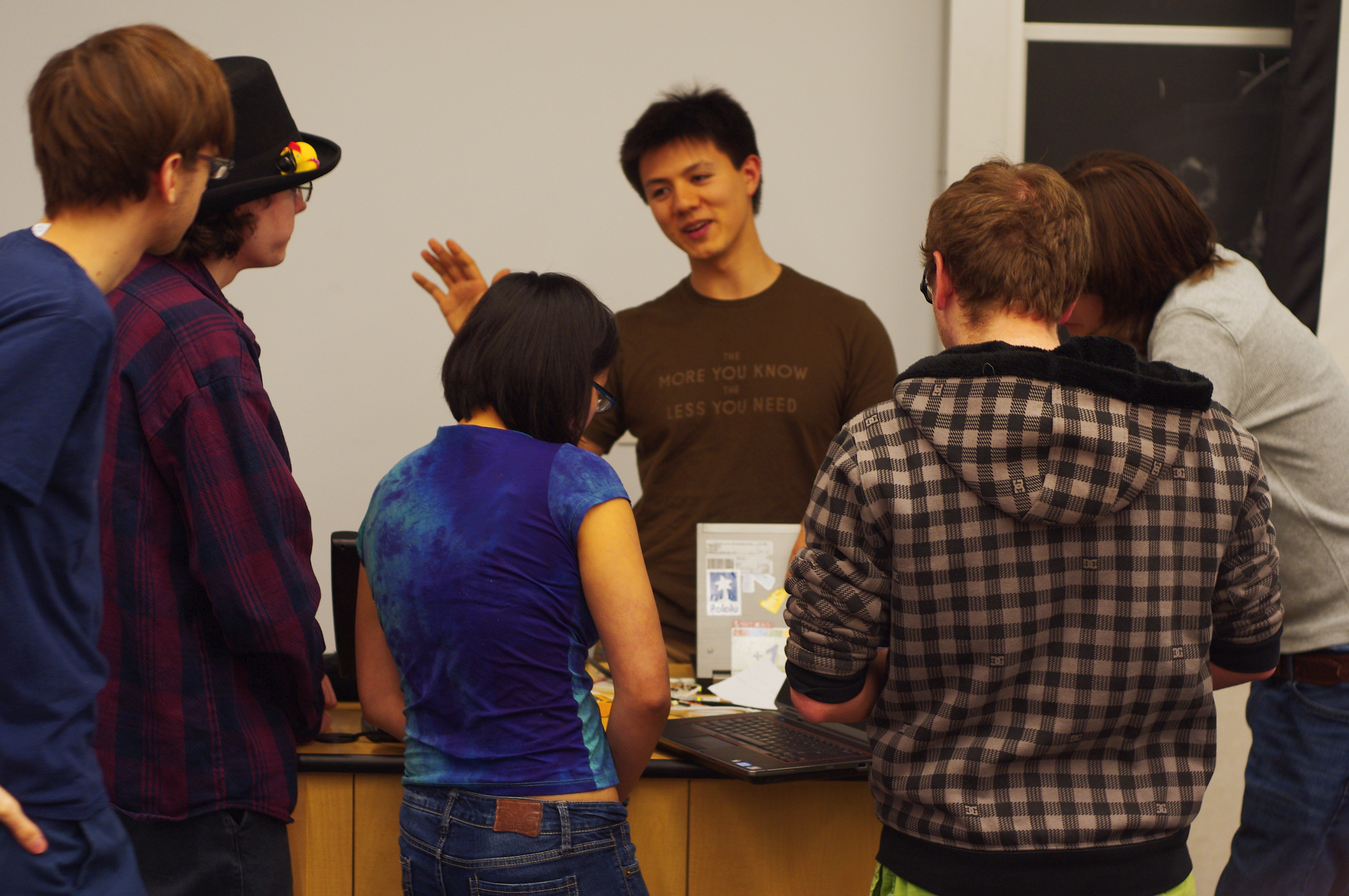
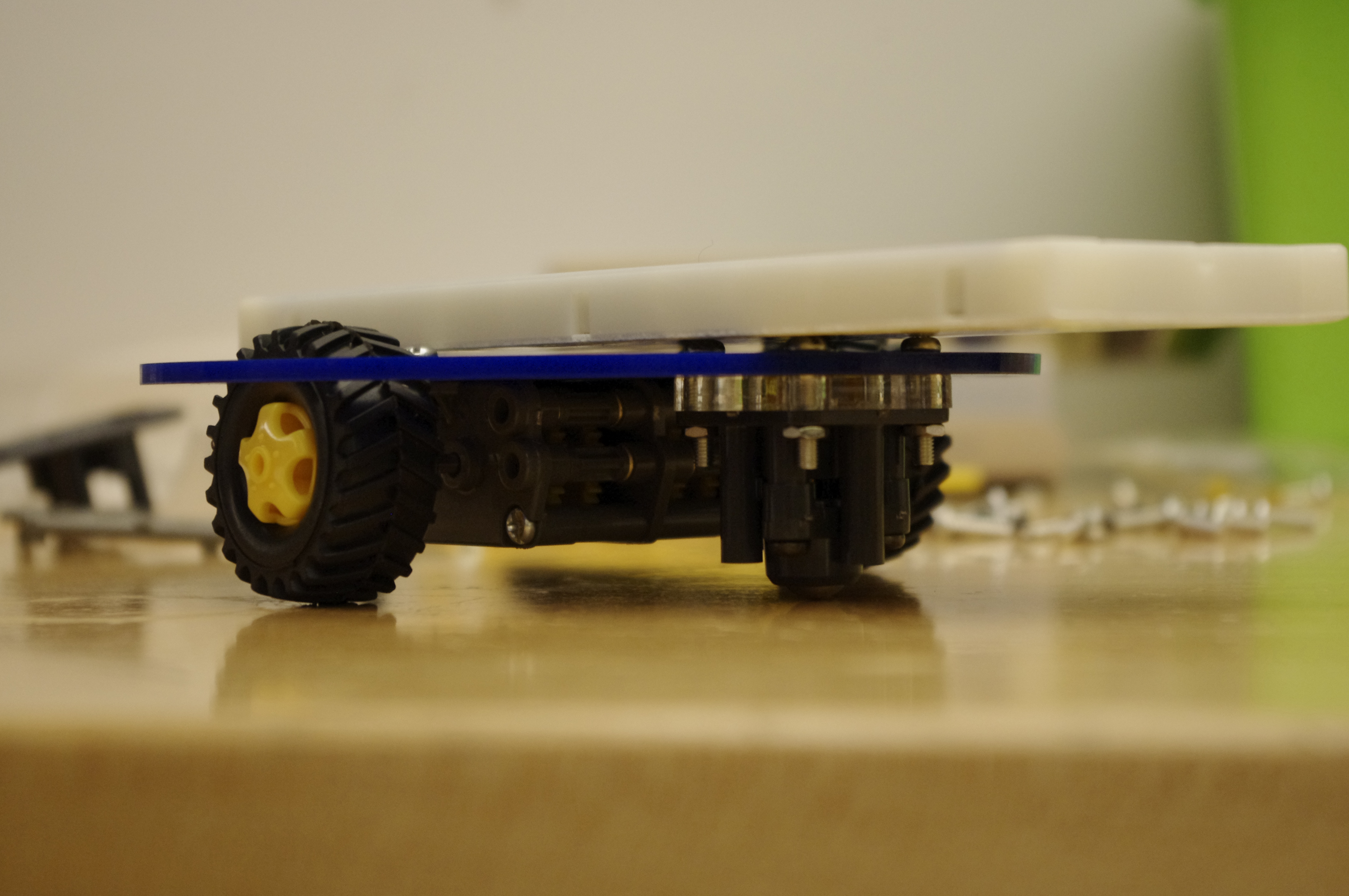
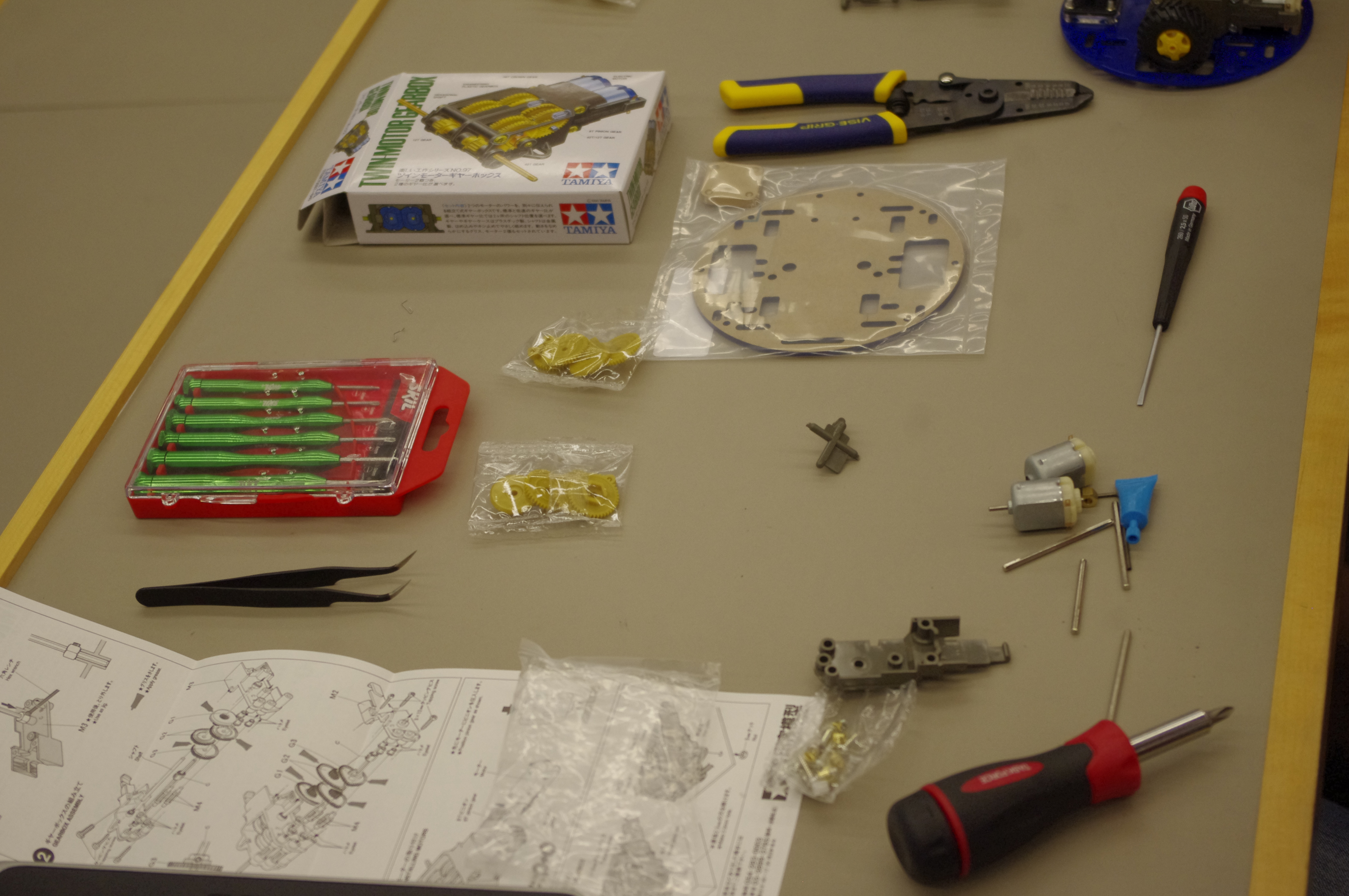
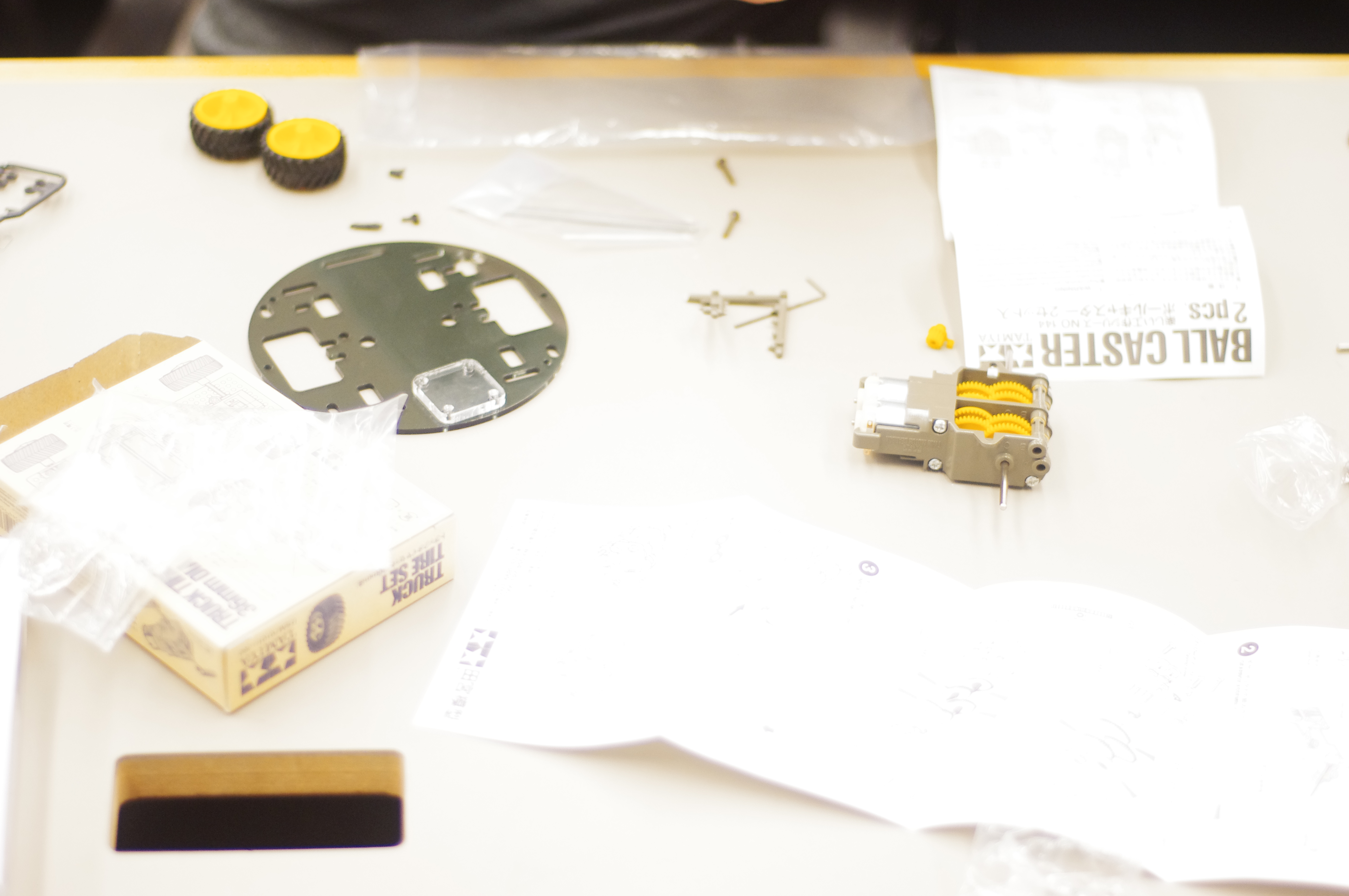
Today AC113 was turned into an assembly line for pololus robot chassis kit.  The lecture today was about controlling big things with little things, with interrupts (which I thought was an important topic) thrown in in the context of encoders.  The turnout was a little below what it normally is, but still pretty good.  Word on the street is that the freshmen have a lot of stuff due this coming week, so there is a big crunch to get that done and therefore there are less REVONauts (as I call them).  Still, there was a good turnout.  Next time I would definitely teach the class in pairs of two to a robot, but one to an arduino.  I am afraid that there is going to be too much debugging of implementations of different robots/hardware that it will be hard to get to each student individually.  Working in teams raises the threshold for when people come to me, and it might actually increase the quality of the exercise for everyone so that people get more done.

Here are some shots of the assembly line:

Materials

Attendance was not too shabby

REVOBots Week 3: Halfway There

Another good turnout. Obviously, this is not a picture of everyone who attended…

Material for week 3:

Videos: Part 1 Part 2

Guide: TSK3

And by halfway there, I mean halfway done with REVOBOTS!  So far, we have built a $5 arduino clone, learned about several kinds of sensors, and finally, this week I (properly) showed them how to write code that runs on the clone.  I think it went well.  This class alleviated a lot of the previous frustrations people were having with the device as far as having hardware but not knowing how to use it.  By the end of class several people had actually managed to build a breakbeam sensor, which I thought was awesome.

Debug ALL the problems!

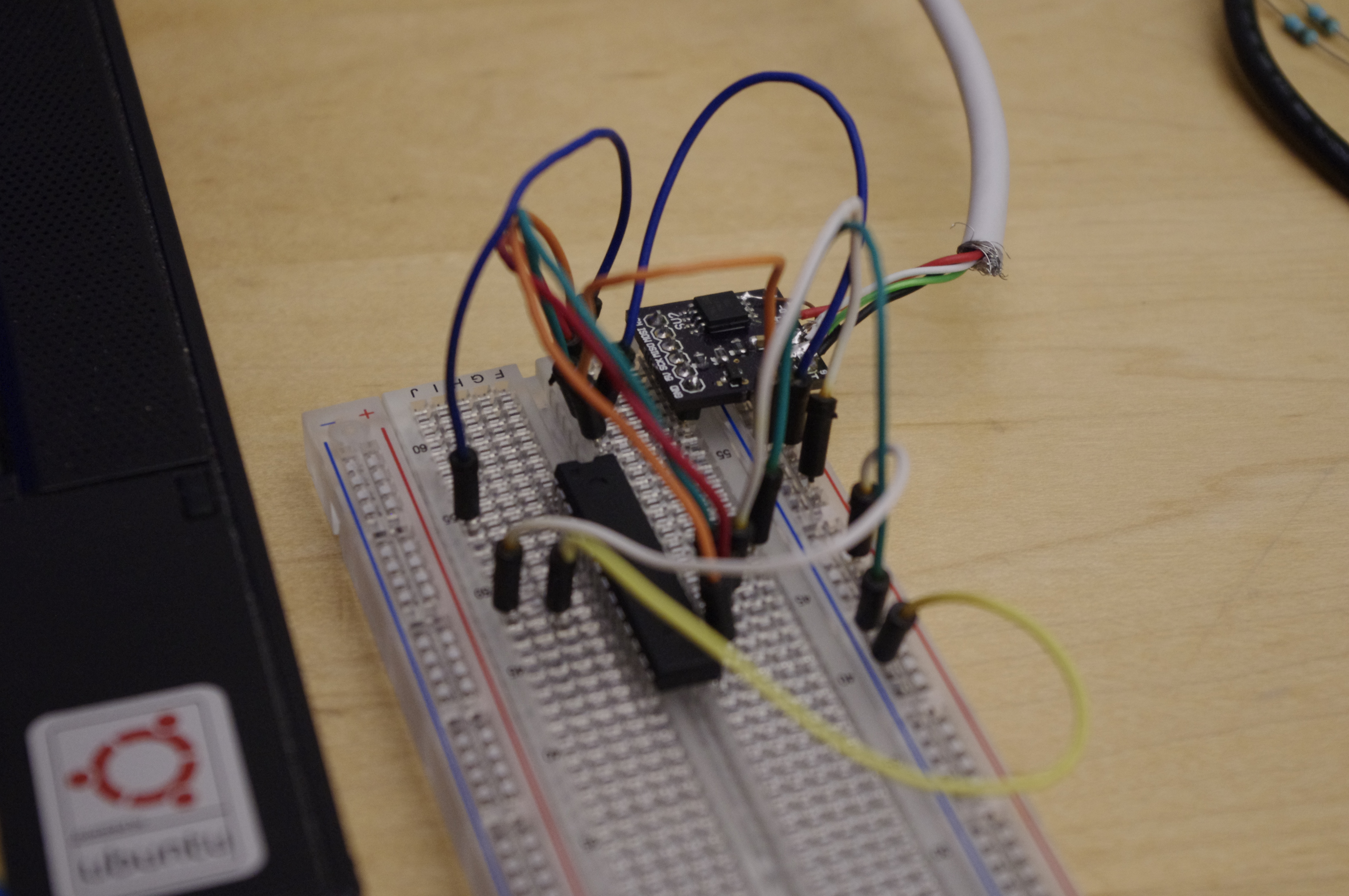
On the other hand, the actual devices that the students built are starting to show some wear and tear; often people have some trouble connecting them to their computer.  Often, the problem is that the USB cable had come unstuck from the header pins and needs to be resoldered, or the ground and power wires are touching (Which shuts off the USB port), or the usb cable came out of the breadboard and was plugged in backwards (D- and D+ swapped).  I think it might be worth my time in the future to cad up a board for these bootloaded atmega328s so that they are less likely to fall apart, or be put together wrong.

Inspiring student gets breakbeam sensor to work.

Despite the frustrations and the general roughness of the first pass at teaching revobots, I think it is worthwhile for both me and the students.  Hopefully I will teach this again soon, but better.

REVOBots: Getting Ready!

Custom SMD Attiny45 USBISP programmer doing its job!

Last night a small package from monoprice, and a huge box from pololu arrived.  In it were the materials for the REVOBots class I am going to teach.  Since the first class is this weekend, I really needed to finish the guide/handout!  I spent all night building a Tamaiya gearbox (pictorial instructions soon!), re-building a $5 arduino, and eventually fixing an attiny45 based usbisp programmer.  The git repo for the bootloader of the $5 arduino is here.  It took about 6 hours to finally get everything working.  There were several stumbling blocks, like the gearbox having 3-4 configurations, and a dead ATMega chip.  But when I finally got the arduino IDE to talk to the chip, it was worth it- it was much easier to sleep knowing that the parts coming in from digikey would work.  Anyways, the first REVOBots guide is posted now, in the downloads section, or with this link.  REVOBots are coming!

REVOBot 001

Secret Knowledge: REVObots

Recently, the leadershio of the REVO (Research on Electric Vehicles at Olin) club approached me and asked me to drop some secret knowledge on them.  While they have had some experience with EVs, they have no real EE background, and a very limited embedded/microcontroler background, and they wanted me to fix it.

Over the next few days I developed a 6-class course that would get their feet wet in the direction of building and understanding useful devices on an EV, or really any platform using a microcontroller, and even some that don’t (motor drivers and such).  I will be using the arduino platform for what it was intended; as a simple teaching platform.  The six classes are based around these learning goals:

  1. Explain what a mcu is, what it is good for, and what kind of hardware capabilities they have as far as PWM, ADC, timers and counters.  Explain what an arduino is, and build the secret knowledge arduino.
  2. Explain basic sensors that depend on resistance (thermistor, photoresistor) and current (photodiode) work.  Explain digital sensors, show an example with the 1-wire protocol.
  3. Explain various control schemes: on/off, proportional, differential, and integral.  Explain how to actually use them in hardware, using examples like the laser poejector.  Focus on quadrature encoding.
  4. Explain how to control big things like motors or AC current, with little things, like microcontrolers.  This will be all about BJT transistors, H-bridges, and relays.
  5. Explain how to talk to other devices via serial and USB.  This will be pretty theory-heavy, but we will have a USB example.
  6. Putting this all together, we will finish building a small robot and have it do some kind of task.

These six classes will be spread out over six weeks, and each will have both a lecture and a lab portion with a deliverable.  This is similar in structure to the other Secret Knowledge projects, but it differers in a few ways that will hopefully help deal with the problems of students not coming to classes, and students not retaining knowledge.

The difference here is that class is predictable.  Each week of TSK before was planned on the fly, materials were sourced from a withering stockroom, and everything had to be dirt cheap.  This made it hard to say what we would be doing from week to week.  The predictability makes it easy to know when to be where.  There is also a big carrot dangling at the end of six weeks when the students actually finish the robot; this will hopefully help eliminate the week-to-week variation of interest.

To help with the knowledge retrieval after the class is through, I will be putting together a guide ahead of time, with stuff people will learn each week.  Ideally, each deliverable will also be structured as a working example of the concepts covered in the class, and seeing everything work together will help cement the knowledge.  Most of the material will just be me throwing mud on a wall and hoping some sticks; the idea is that people will at least know where to start projects with mcus once this is all said and done.

I will be blogging more about this here as the class begins and things are done.  Classes will be recorded and posted on youtube.  In the Secret Knowledge tradition of flying-by-the-seat-of-ones-pants, and living on the gritty edge of barely being on time, right now I have a two week lead time before the class starts.  Better get going!

Laser Projector!

My team just finished our laser projector for Priciples Of Engineering, or POE at Olin.  Its pretty sweet-mostly its good at drawing circles, because it decided to shake itself apart.  We will probably fix it up before EXPO on Monday (Olin’s open house), but if you want to take a look at what we did, check out our website (here)!

I might add some more details later, if folks are interested.  However, right now I am going to bed.  As always, if there are questions, ask away.

Clock Project: Inspiration

A few weeks ago I went to the MIT Swapfest to poke around and look at the cool stuff that was there.  Naturally, I came back with a bag full of random crap including one very cool item:  A Durant Precision Counter.

The box!

I found it at one of the vendor tables outside.  It came in its original box with the original manual-complete with notes from the previous owner.  I really wondered why I was buying it.  I didn’t know if it would work, I didn’t know if it only ran on AC, and I didn’t really have a plan for it.  Not that I would expect any of that to stop me, because those thoughts have never stopped me from acquiring piles of crap.

A counter is just what it sounds like-it counts.  The display is kind of like a combination lock; there are four dials with the numbers 0-9 on them that rotate.  Each time the button is pressed it increments by one until it gets to 9999 and resets to 0000.  Normally, this is done completely mechanically, but this counter is way cooler than a mechanical one.  The mechanical linkage that increments the counter can also be actuated by an electromagnet!

The counter, sitting on the breadboard I am building the clock on

Anyways, I have to do something with it.  Four-digits of novel display-o-power.  Clicky.  Mechanical.  Cool.  Clearly I should turn it into a clock!

POEJect 3 AKA “The V-USB”

Check out the downloads page for a barebones USB script that lets you send commands over USB, and some basic code you can throw on an AVR chip to try this out!

Laser Turret!

I am currently taking a class called “The Principles of Engineering”, AKA POE.  The name of the class is very old-school and almost baroque, but really what it boils down to is twenty engineers of various flavors and a professor sitting in a room for a few hours a week.  There are no lectures, there is next to no instruction, and only four assignments.  the first three are based on a PIC microcontroller, and the last assignment is an open ended project where students in teams of 4-5 build something with a “significant electrical and mechanical component”.

POE lab three “One Button, Two Blinky Lights, and the USB” was designed around using a PIC.  Naturally, my team took this to be a challenge.  Out of dislike for MPLab (PIC IDE), PICs, and generally being iconoclasts in POE, we decided to forgo the pre-written USB implementation on the PIC, the python that interfaced with it, and the GUI framework that was supplied to us, in favor of doing it all ourselves.  We decided to do this, and then we waited until the day it was due to start working on it.

With t minus 10 hours, we decided to make a laser turret.  Our reasoning was:

  1. We have servos
  2. We have a laser
  3. ????
  4. Profit!

It was around 12:30 when we got started implementing V-USB, PyUSB, a TKinter interface, and some AVR C (windows users: winavr) code to run the servos.  I would like to give a huge thanks to Kevin Mehall here, who is a massive baller when it comes to things like V-USB and microcontrollers for helping us out with some bugs we were having.  This writeup is so that you all don’t have to go through the same stuff we did to get V-USB working.

Implementing “The V-USB”

V-USB is a Virtual USB port for AVR chips.  This lets you talk to them over USB, or in this case, to make them into a USB Device.  It’s a beautiful thing, but is totally a hack.  This project is a good example of the simplest thing you can do with V-USB, which is send some data to the device with a control transfer.

Start by making a directory for your project.  The next step of getting V-USB to work is getting the header files from the downloads page of V-USB.  For those of you on linux machines, just tar -xzfv filename.  Then copy the files into the project folder.  You will also need a makefile.  You can get a makefile from the examples on the V-USB website, or you can get the one I used (originally from the V-USB website) on the downloads page, so you don’t have to download the whole thing.

Include the usbconfig.h, and usbdrv.h in your file.  To get this to work, the file that you will have to play with to get V-USB working is called usbconfig.h.  Find it, and open it in gedit or bluefish or your text editor of choice.  MAKE SURE IT IS IN USBDRV.  All of the options are described very clearly, but the ones that are important and that you should look at first are:

  • All of the hardware config
  • Optional hardware config
  • #define USB_CFG_HAVE_INTRIN_ENDPOINT    0
  • #define USB_CFG_IS_SELF_POWERED         0
  • #define USB_CFG_MAX_BUS_POWER           400
  • #define  USB_CFG_VENDOR_ID       0xc0, 0x16
  • #define  USB_CFG_DEVICE_ID       0xFF, 0xFF
  • #define USB_CFG_VENDOR_NAME     ‘A’, ‘L’, ‘O’, ‘U’, ‘I’, ‘E’, ‘1’, ‘4’
    #define USB_CFG_VENDOR_NAME_LEN 8
  • #define USB_CFG_DEVICE_NAME     ‘P’, ‘O’, ‘E’, ‘J’, ‘e’, ‘c’, ‘t’, ‘3’
    #define USB_CFG_DEVICE_NAME_LEN 8

The hardware config will depend on your circuit, and I will talk about that in a moment.  The other options (in order that they are listed) make it so you have an endpoint 0 (default), tell the USB controller that the device is powered by your USB port, set the max current the USB port will provide, set a vendor ID (I used the default), a device ID (anything can go here), a vendor name and length of name, and a device name and length of name.

Below is a diagram of the circuit I used.  It is good for illustrating how to set up usbconfig.h based on your hardware, but you might not use the same AVR so your mileage may vary.

The Secret Knowledge Arduino uses V-USB! the connections to Pin 1 are not needed for V-USB.

My hardware file looks like:

#define USB_CFG_IOPORTNAME      D

As you can see, we are using pins PD2 and PD3 for D+ and D-.  The port we are using is D, so we define USB_CFG_IOPORTNAME to be D.

#define USB_CFG_DMINUS_BIT      3

#define USB_CFG_DPLUS_BIT      2

These tell V-USB which pin on the chosen port (D) D+ and D- go to.  Note, D+ goes to PD2, which is pin 4.  We use the name of the port not the name of the pin, because the C code accesses the pins by port, not pin number.

#define USB_CFG_CLOCK_KHZ       (F_CPU/1000)

#define USB_CFG_CHECK_CRC       0

These are set correctly.

#define USB_CFG_PULLUP_IOPORTNAME   D

#define USB_CFG_PULLUP_BIT          4

This sets up a pullup resistor so we can connect or disconnect the device with software commands.  The resistor is the 1.7 K ohm resistor in the schematic.  If this is not set, that resistor should be connected to D- and 5V.

Bad breadboarding! Do not do!

One last thing that I did, specifically for this hardware, was calibrate the internal RC oscillator so that we didn’t have to use an external crystal.  This is achieved by copy-pasta into usbconfig and into your C code.  documentation can be found here if you are interested: http://vusb.wikidot.com/examples.  Look for “Clocking the AVR from the RC oscillator with auto calibration” on that page.

Now that that is done, you should be able to make (just go to the folder in the terminal and type make) your project.  If you get some error about not having a clock frequency (F_CPU) add this line “-DF_CPU=12800000” to the COMPILE line in your makefile.  Replace  12800000 with your clock frequency.

Now you probably have some bug complaining that “usbFunctionSetup” is not defined.  We are going to need to define this, because V-USB needs this to be set up to function.  This implements the ability to perform a control transfer, which is needed to set up anything over USB.  My code looks like this:

usbMsgLen_t usbFunctionSetup(uchar setupData[8])
{
usbRequest_t *rq = (void *)setupData;   // cast to structured data for parsing
on=rq->bRequest;
xval=rq->wValue.word;
yval=rq->wIndex.word;
return 0;

}

This is just an example of totally abusing the control transfer.  In this project, I just wanted to send a few bytes to the AVR to tell it how to control the servos and the laser, so I used the values for bRequest, wValue, and wIndex to hold the information.  These are just part of the control transfer request, which has these arguments:

(bmRequestType, bRequest, wValue, wIndex, wLength)

These are sent from the computer (from a python program) to the AVR.  bmRequestType tells the device what kind of request it is, bRequest is the name of the request, and wValue, wIndex I (ab)used to send data, and wLength, is the amount of data that is supposed to be sent over the control transfer.

Normally these are actually used to set up a data transfer, but I used them to send over a couple bytes of data in bRequest, wValue and wIndex.  Here is an example (from my python interface) of a request:

dev.ctrl_transfer(0x40,1,0,0,None)

This means that it is an device to host transfer (0x40 is the number for a vendor specific control transter) and that the request number is 1, and wValue and wIndex are 0.  The last argument is None, because no data is being sent, but this is python (pyUSB) specific.

Implementing “The PyUSB”

Once I had the hardware usb code for the chip compiled and working, I started to work on the python that would talk to the chip.  I had a lot of help from examples from Kevin, because the sum of the documentation for PyUSB that I could find was about 4 pages, and it was not very specific or well written.  The important lines (for the whole dang thing, see downloads!) were:

dev=usb.core.find(idVendor=0x16c0, idProduct=0xFFFF)

This makes an object dev that is attached to a specific Vendor and Product id, provided usb.core.find can find it.  If it can’t, you should catch that error with an if statement that looks something like “if not dev:”, or “if device is none”.

the other important line is:

try:
dev.ctrl_transfer(0x40,laserState,int(x),int(y),None)
print(‘laser cannon enumerated’)
except usb.core.USBError, e:
print(‘exception’)

This tries to send a control transfer request out, and if it is successful it prints “laser cannon enumerated”.  If we run into some sort of error, it prints “exception”, which lets us know our last command didn’t go through.  This is useful for debugging, but once it was buried under the TKinterface, we commented those commands out.  This try…except block is important because without it, if the transfer gets interrupted for some reason, the python program will freak out and stop working.

Again, if you want to get your feet wet, I have put some basic code on the downloads page to play with, modify, and learn from.
Attiny45 based USBtinyISP Programmer

For a long time, I was looking for a solution to the size of my stk500.  Its big, fragile, and requires external power and a large USB to serial cable.  It seemed like the solution was one of these, a tiny (haha) programmer based around an attiny45/48.

Since I had the parts left over from The Secret Knowledge (more on this later) that would let me implement v-usb, and some attiny45 in my room, I decided to give it a shot.  Along the way there were a few roadblocks:

1. I didn’t read the instructions carefully enough, so I didn’t set the fuses properly the first time around.

2. Mysteriously, I couldn’t program the target chip if some of the outputs were set to high at the time of programming.  I resolved this with a .1uF capacitor across power and ground.

The rest of this post will be documentation on how to build the programmer, which hopefully will improve upon the instructions in the instructable.

Materials used (sources of parts at end of post):

  1. USB cable.  Any one will do, so long as it plugs into your computer on one end.  This is normally a USB A cable.
  2. Breadboard.  I made some PCBs for this but a breadboard is more accessible, and if they work I will post the files up on this blog.
  3. two 68 ohm resistors
  4. one 1.7K ohm resistor
  5. two 3.6 volt Zener diodes
  6. one .1uF capacitor
  7. one pre-programmed attiny45 in a DIP package OR an attiny45 and a way to program it
  8. .1″ pitch male header pins

The first thing you want to do is cut the USB cable in half, and extract the four wires that are inside.  There should be a red, black green, and white wire inside.  Red is 5 volts, black is ground, green is data+ (D+) and white is data- (D-).  strip the ends of these wires and solder them to the header pins, like in the picture below:

5 Volts and Ground are soldered to one pair of pins, while D+ and D- are soldered to another pair

The next step is to program the Attiny45/85.  I would just grab the .hex file from here, and flash it onto the attiny with whatever programmer you have.  If you are using AVR studio, just open a random project, connect to your programmer, and choose vusbtiny.hex as the file to burn to the chip.  Then, when you are SURE the correct program is written, set the fuses (click the fuses tab on the programming menu) and set the lower fuse to 0xe1 the higher fuse to 0x5d and the extended fuse to 0xff.  you can do this by directly editing the fuses in the menu by just clicking on the numbers the fuses are set to, and changing them.

If you are using avr dude, you want to use the command “sudo avrdude -c *your programmer here* -p t45 -U flash:w:usbtiny.hex” and when you are SURE it is written, you can burn the fuses with “avrdude -c usbtiny -p t45 -V -U lfuse:w:0xe1:m -U hfuse:w:0x5d:m -U efuse:w:0xff:m” (These commands are from the instructable)

You may notice that I emphasize making sure the program is correctly written BEFORE burning the fuses.  This is because you are going to burn the fuse that turns PB5 into an I/O pin instead of RST.  This makes it so that you have to use “high-voltage” (12V) programming to clear the fuses, and some programmers can’t do that.  If you burn the fuse before the program is correctly loaded, you cannot program it with ISP which which the majority of programmers use.  This is because ISP requires the RST pin.

Once you have all of that done, go ahead and build the circuit.  I have drawn up an improved circuit diagram (the one on instructables is awful) that includes a decoupling cap between power and ground.  This is really important because without it I tended to have problems programming chips when the target chips pins were high.  The hypothesis is that there was some sort of voltage surge, and the USB controller in my computer was turning off the device.

An improve schematic without over 9000 overlapping wires. Note the decoupling capacitor, and the orientation of the diodes. The band on the diodes is the same as the bar/z-shape on the schematic.

Once you are done, it should look something like this:

This is how my breadboard looked when I was done. Note the diodes and the orientation of the chip. Specifically pin one is on the upper right hand corner.

Then, take the whole thing and plug the USB A end into your computer.  You should hear a “Dun-Dah!” noise (in windows, linux users can use “lsusb” from the command line), and your computer might search for a driver.  You can get the driver here from ladyada.  If just downloading the driver doesn’t work (windows), plug in the device, go to start>control panel>hardware and sound>device manager and look for a device called something like “tinyusbisp”, and right-click install drivers and then manually search for drivers.  If you are on windows, you will need WinAVR to use this programmer, or if you are on Linux, just “sudo apt-get install avrdude”.

Now this whole thing should work…The easiest way to test is is to try flashing some random .hex onto another Attiny device.  You will need avrdude (included in winavr) to do this.  The command will look something like this “sudo avrdude -c usbtiny -p t45 -e -V -U flash:w:yourfilename.hex”.

Part Sources:

Digikey part numbers for the resistors: 985-1023-1-ND (68 ohm), PPC1.69KYTR-ND (1.69k ohm), 568-5907-1-ND (zener diode), ATTINY45-20PU-ND (attiny45), P4525-ND (.1 uf capacitor).

You can get a breadboard of your choosing (in size), and a USB cable from amazon.