Live Streaming Webcam!

This summer, my housemate bought a fish.  She named it “Maggie”, which is short for its real name, #MAGNUM.  I decided that I too would like a fish that I could watch…in my room, on the couch, at work…Everywhere!  Unfortunately, that kind of fish doesn’t really exist, so instead I made a website and hosted a webcam on it.  I wanted to quickly document the process, as I found it somewhat difficult to find documentation on what I thought should be an easy process.  Caveat:  I have yet to do this in linux, as the software I used was windows-based.

There are a few things you will need before you begin:

1. wireless router login info.

2. Microsoft expression encoder 4

3. A legitimate copy of windows

The first thing you should do is install Internet Information Services (IIS) on your computer.  This is REALLY EASY, don’t be deterred by this step.  Go to the start menu, open up the control panel, click programs, then got to the “turn windows features on or off” under programs and features.  There should be a little shield next to it.
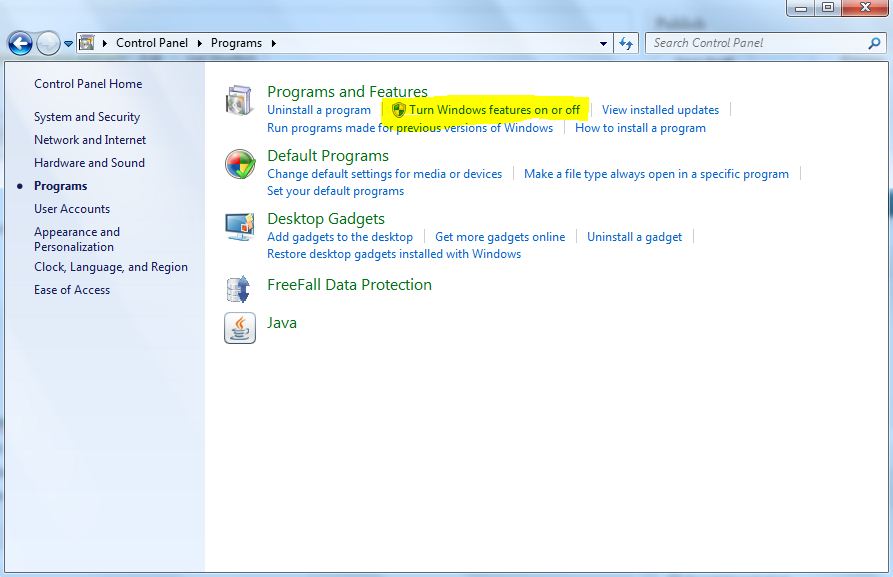
Turn on/off Windows features with this button

Since we are in windows, this will open yet another window with some kind of terrible check box/tree menu.  You want to click the Internet Information Services button, then click OK.

Click this one! Then OK

This should get IIS installed.  In the mean time get a (legit, from MS) copy MS expression for free from here.  MS Expression allows you to encode video as a wmv stream.  Install it, open it, and click start broadcast project, and you should see something like this:
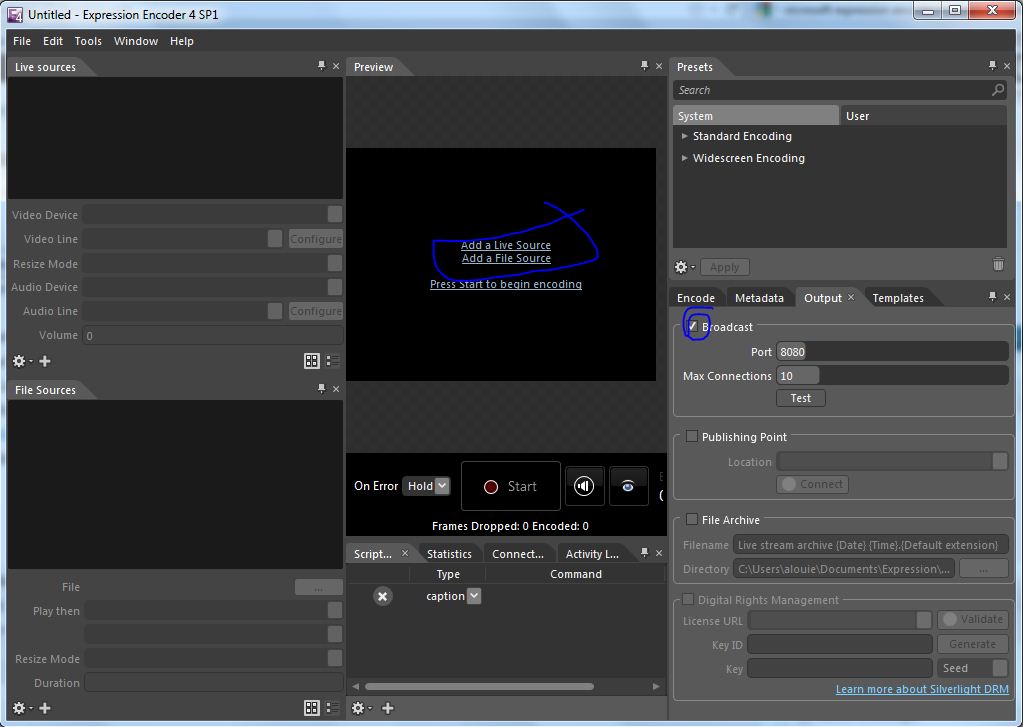
MS Expression

The first thing to do here is to click the check mark next to broadcast.  You can leave those settings as they are, or play with them.  By default, the broadcast should be on port 8080.  Then click “add live source” right in the middle of the screen.  The left pane should become active for clicking, and you can use the dropdown there to select your webcam.  Once you do that, click start.  You should see whatever the webcam is pointed at in the middle pane.  Once that is done, it is time to set up your IIS server to host your website.  Go to start, then open IIS.  You should see something like this:

IIS interface, numbers indicate the order that you should do things

Now, the first thing you want to do is use the leftmost drop down pane to to navigate to DefaultWebsite.  Then press start (right pane), if it is not already started.  Then mouse up a bit and click on bindings.  Click Add in the dialog that pops up.  Yet another dialog will pop up.  Use the dropdown menu for IP address and choose whatever IP happens to be there.  Then click OK.

Now try clicking the button beneath “browse website” on the right pane.  It should be some kind of IP address looking thing.  The default iis startup webpage should appear.  If that works, open up a new text document in [insert your favorite text editor here] or notepad.  Paste this into it:

<html>
<!— BEGIN PLAYER —>
<!– webbot bot=”HTMLMarkup” startspan —->

http://98.216.67.110:8080“>

<!– webbot bot=”HTMLMarkup” endspan —->
<!— end PLAYER —>
</html>

Replace the bolded sections with your IP (the one in IIS).  It should read http://your.ip.here:8080.  With that done, save it as an fish.html file and drag it into C:\inetpub\wwwroot.  Now go to your http://yourwebsiteip/fish.html and you should see your live cam!  Just like this:

Streaming Live!

Now there are two (possibly three) things you need to do:

  1. set up a static IP with your wireless router, and bind the website to that IP
  2. set up port forwarding on your wireless router
  3. use a service like noip to make sure your DNS doesn’t get dynamically reassigned.

These all assure that other people can access your website.  1 and 2 make it so people can connect to your website from your external ip (don’t know it?  google “what is my ip”).  Right now you are using an internal ip, and asking your router to connect to youself.  If you try to visit your page from your external ip, your router will look for the webpage on itself, and then promptly return an error.  Thats why you need port forwarding; it tells the router that when asked for a website (port 80) they should send it to your computer.  The static IP will make it so that your computer is not re-assigned a new IP when you reconnect to your wireless network.  Otherwise, it will get a new ip and the port forwarding will not work.  The last thing (3) is only necessary if you want a really stable website, as your phone/internet company will occasionally change some DNS address and, again queries for your website will return errors.  Services like noip will help you manage this.

I would write a guide for this, but www.portforward.com has excellent tutorials on pretty much every router, and much better explanations for everything.  This is where I learned to do it, and I highly recommend using the website to do it yourself (however, I wouldn’t buy their product).

As usual, if there are questions/comments, ask away.

Debugging a Preamp

Sometimes electronics stop working when you need them most.  This was the case this weekend, when Adam ran into me at sprout.  Adam plays flute in a hip hop band for DJ Afro DZ ak, and had a gig that night, but his flutes mic/preamp combo had stopped working!  Fortunately, I had a few hours to kill and a room full of test equipment.

Fx-1 mic that like the one attached to the amp

I started by checking to see if the microphone was producing some kind of output.  I plugged in the power and looked at the output on the oscilloscope.  Strangely, it seemed to work.  I decided that this meant that something on the preamp board was borked.  The easiest way to test if the board was working was to give it a known input with a function generator and look at the output it produced.  Again, after some fiddling it seemed to work, leading me to the conclusion that the whole system was working and that adam had a problem downstream of the preamp.  I picked it up to put it back in the case, but I wanted to show Adam that it worked.  So, in mid-air I tried to connect the probes.  Then it stopped working.  Shaking it seemed to make it work intermittently.  It was then when I noticed the long leads snaking down to one of those 9V battery clips.

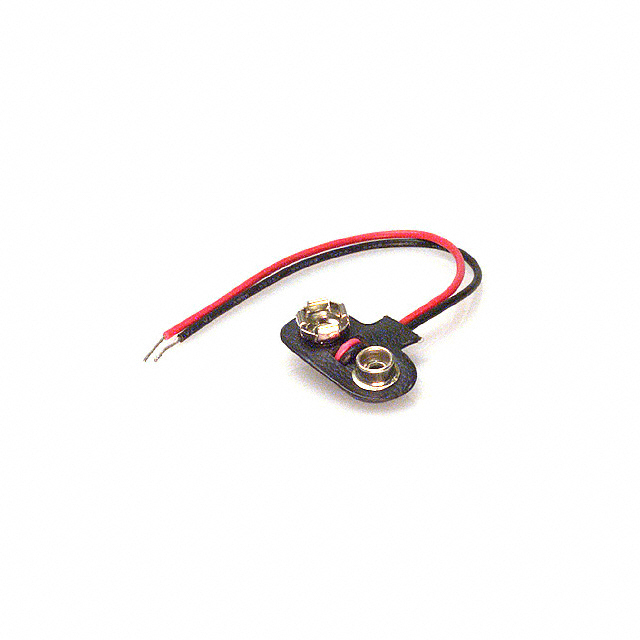
9V battery clip

One of these buggers

Immediately, I was suspicious of the battery clip.  After testing it with a multimeter for continuity, I determined that the ground wire had been worn so much over the TEN YEARS that Adam had been using it, that the stranded wire inside had frayed and broken.  Occasionally it would work, because the wires would make a connection.  Adam further confirmed my suspicions that this was the problem when he mentioned that the amp would connect and disconnect sometimes, making loud popping noises on the speakers.

Once I knew what was wrong, it was easy to solder another clip into place.  Adam rode off into the the sunset (or over to Union Square), and played his gig.  Apparently, the preamp and microphone worked fine once they had power.

This is an interesting case of debugging because the “divide and conquer” approach that I like to use didn’t work.  The initial division was between the board and the microphone, but it was a poor division because the microphone actually depended on power supplied by the board.  I guess I missed an even simpler debugging step: make sure the power is on.

EEE PC 701 mods (DerpyHooves)

My netbook, DerpyHooves, is now back to being in one piece!  Yay!  This is the project that precipitated reverse engineering the logitech receiver, so I thought I would share it.

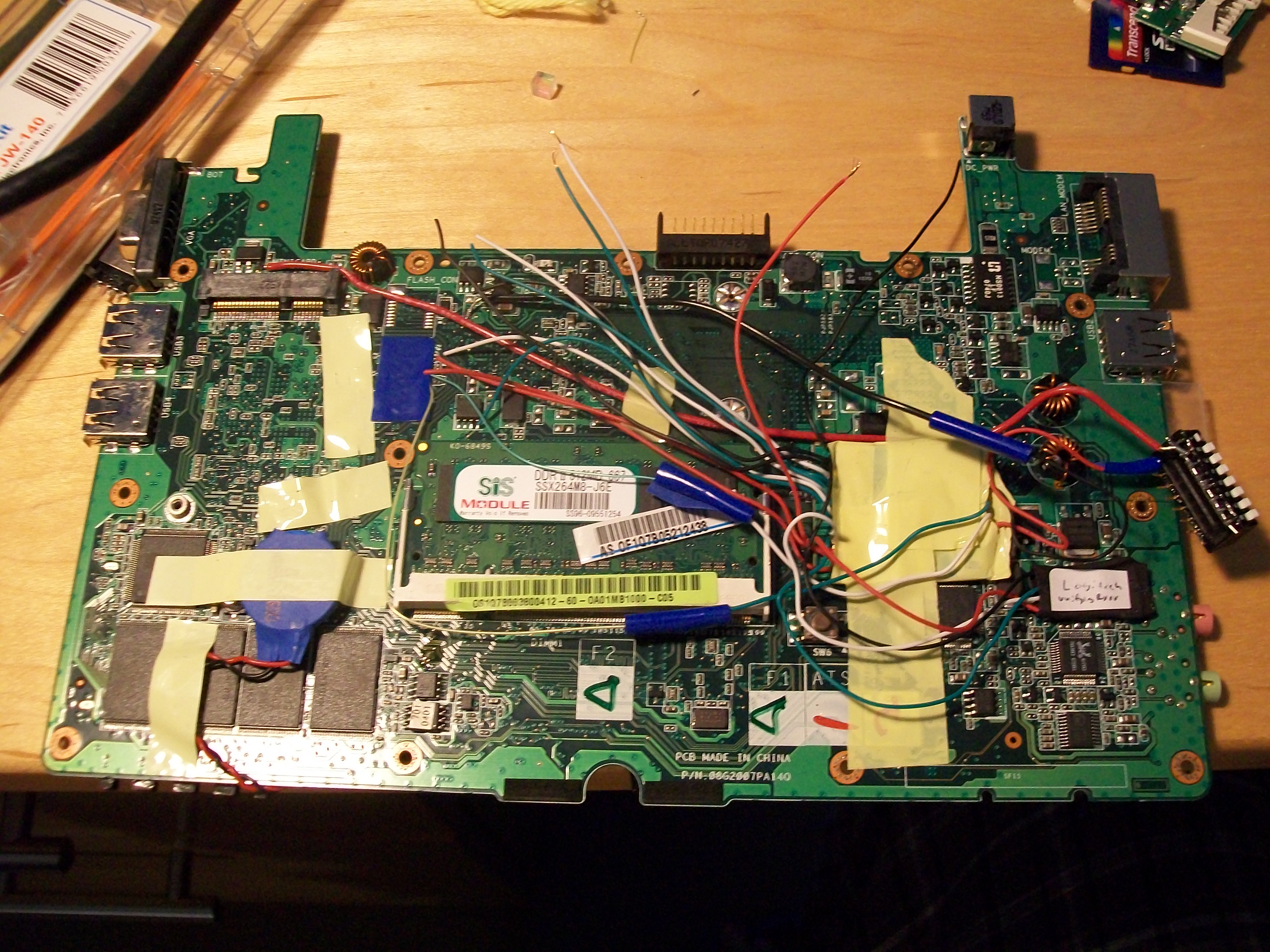
Theres the bugger. The logitech receiver is there, under the black heat shrink.

About a month ago, I decided it would be a good idea to take apart my EEE 701 completely, and add a tiny USB programmer to it.  I cadded up a circuit board for it (using EAGLE), had it printed, and bought some SMD parts from digikey and soldered it all together.  After some debugging, I was able to get it to work.  The total size of the unit is about .5″x.5″, about the size of my thumbnail.  The goal was to put it IN my computer, so I could do awesome embedded programming all over!  Flash all the memory!

Unfortunately, even though my boards worked, there was no really good way to get the wires from inside the computer to outside the computer.  It’s not as if my computer has a ZIF socket in it, or anything.  After a while I decided that it was a silly idea, but that I should really add some cool USB peripherals to my computer.  After looking around, I decided that I probably didn’t want a humping dog usb dongle, but that some extra storage and a USB keyboard and mouse would be nice.

After looking at a few guides on finding extra USB connections on the mobo, I soldered a few wires together and BAM, I had a USB port!  Then I cracked open a cheap USB hub and soldered it in.  After testing to see that the hub was connected, it was a simple matter of very carefully cutting open a logitech unifying receiver, and a cheepo SDHC card reader and soldering them onto the usb hub.  All of these were supposed to be internal and permanent, so destroying the cases was a must to conserve space.

Once all of that was done, I realized that sometimes I wanted these devices to be off, or that I might want to disconnect and reconnect them.  Very grudgingly, I used a DIP switch for this.  My main qualms with DIP switches is that they are so damn hard to flip; however, there weren’t many other options.  I wired it so that one side of the switch was all power, and the other side went to the power connections of the usb devices.

large yellow taped blob is the USB hub. Black labeled thing is the receiver. Card reader not pictured.

Reverse Engineering Logitech Unifying USB Protocol

*For those of you looking for something to let you attach more than one logitech device in linux, you should go to the downloads page.

Just finished a reverse engineering and building a “driver” that will let you link more than one device to a Logitech unifying receiver in Linux!  Yay!  (Big thanks here goes to Kevin, who helped me through some bugs/was a console guru)

For those of you who haven’t used the “unified” series of products from logitech, the selling point is that you can have multiple wireless peripherals (Keyboards or mice) that all link up to single TINY USB dongle.  To pair to the first device, all you do is plug in the receiver, and turn on your peripheral.  After that, they are paired!  This is awesome for windows/Mac users, because they can use the provided software to connect more devices.  For linux users, this is not so easy.  There are no drivers, and this means there is no way to pair more than one device to a receiver.  This means that to use a keyboard and a mouse, you need to:

  1. Find a win/mac machine, pair, and basically pray that the devices never get unpaired
  2. Use one receiver per device (expensive in terms of usb ports)
  3. Write your own program to pair devices

Since I had already cracked a receiver open and soldered it onto the mobo of my EEEpc, I decided that 1) and 2) were out of the question.  Thankfully I had another receiver and another machine to test on.  I decided my program really only needs to do one thing, which is to pair to devices not near other receivers.  I figured I could take advantage of a case that the Logitech engineers must have planned for, loosing a receiver.  Since these things are so tiny, and can be easily misplaced/stolen/eaten, I assumed that already paired devices would be willing to pair to another device given that they are not within range of a paired receiver.  If within range of a paired receiver, it doesn’t make sense for a device to pair, because then your mouse would pair to other peoples receivers more or less at random (ever time you turned it on).

I started by booting into windows and using a program called usblyser to analyze usb traffic.  It turns out it was mostly useless, due to the clunky interface, and I didn’t want to install pyusb on my windows partition, so I moved on to a different solution.  This time around I installed virtual box from oracle (NOT the OSE edition, which doesn’t have usb extensions).  I created a VM running windows XP, downloaded the software from logitech, and let the VM grab the usb dongle.  I paired and unpaired a few devices to test it.

Now I was ready for some sniffing.  I started out by mounting the debug filesystem so I could use usbmon (usb monitoring) which is some kind of linux utility.  To do this I used:

sudo mount -t debugfs none_debugfs /sys/kernel/debug

sudo modprobe usbmon

The I used wireshark to look at the output.  This was a HUGE MISTAKE.  For some reason, wireshark thinks USB is big endian.  This is basically the direction it “reads” data that is transmitted.  for example, if it received ‘011’ it would think that the most significant bit was 0, then 1 then 1, so it would say the decimal value was 3.  a little endian interpretation would say the MSB was 1, then 1 then 0 so that the value is 6.

For the longest time I thought the wValue and wIndex of the control command I was trying to send were 0x1002 and 0x0200, because Wireshark was telling me that the setup packet in the USB request block was “21 09 10 02 02 00 07 00”.  I should have known something was fishy, because I knew the request length was 7 because 7 bytes were returned.  What didn’t dawn on me until I looked at the raw usbmon logs was that the values of the wValue, wIndex and wLength were reversed.  It should have read:

“21 09 02 10 00 02 00 07”

Without the right setup packet, I kept getting USB I/O and USB pipe errors.  The moral of the story is that usbmon doesn’t need no stinkin’ wireshark.  Just use:

cat /sys/kernel/debug/usb/usbmon/u0

To look at the raw output.  When I did that I got a lot of garbage, which I then had to sort through carefully and think about.  I went tested the logitech software by pressing buttons and watching the USB requests it generated.  Here what I noticed:

Opening the program:  This generated TONS of USB traffic that I really didn’t want to sift though.  I made a gamble here and assumed logitech didn’t want this to be hard to do, and that this traffic was the program asking the dongle things like “Are you there? do you have any attached devices? what can you tell me about them?” and such.  If worst had come to worst, I would have just replicated these packets without knowing what they did.

Hitting the “Advanced” button:  This also generated tons of USB traffic.  Boo!  I think what mostly goes on here is that the program queries the device to see if anything new has been attached/dropped out of range/has been used, because the GUI here shows all the attached devices, and if you use a device a little icon blinks.  The requests looked like a simple call and response, but I didn’t want to mess with that much traffic.

Hitting the “next” button to get to the pairing scree:  This generated very little traffic (3 requests) and it also seemed to be what put the dongle “in the mood” to pair.  I decided that this was a good point to start my “attack” on the protocol.  I also made the call here that there would probably not be a ton of complications or security here, because there is no reason to make this protocol less likely to work/install security.

Taking that as my starting point, I booted/shut down my VM and the program several times, each time hitting the next button.  The following always occurred when I did that:

e20bb300 755547433 S Co:2:008:0 s 21 09 0210 0002 0007 7 = 10ff80b2 01503c
e20bb300 755547611 C Co:2:008:0 0 7 >
e7b69400 755549571 C Ii:2:008:3 0:2 7 = 10ff4a01 000000
e20bb300 755550445 S Ii:2:008:3 -115:2 32 <
e20bb300 755551614 C Ii:2:008:3 0:2 7 = 10ff80b2 000000
efb5ef00 755552476 S Ii:2:008:3 -115:2 32 <

This is in dense usbmon-speak, but if you take a look at the documentation its not so bad.  The deciphered version of the first two lines is just that a control transfer was submitted (S) and completed (C).  The setup packet for the transfer was “21 09 0210 0002 0007” meaning it was a class request sending 7 bytes of data out, and the data was “10ff80b2 01503c”.  I guessed that this was probably the “Go pair with stuff” command, and wrote a little python to send it:

dev.ctrl_transfer(0x21,0x09,0x0210,0x0002, [0x10,0xff,0x80,0xb2,0x01,0x50,0x3c])

This gave me an error that was something like “device busy”.  This is because my computer thought that the dongle was a HID device, which it is.  But for now, we want to suspend that function.  So I closed down my VM and typed:

sudo modprobe -r usbhid

to temporarily stop usbhid from using it.  Once I got the control transfer to work, I tried pairing a device.  Nothing appeared to happen, other than the initial pairing of one device to the receiver.  I decided that I would be best to duplicate the rest of the traffic that happened when hitting the next button before I gave up.

The next request I wanted to duplicate was a read of 7 bytes from endpoint 3 (based on usbmon).  For the longest time I thought the right code was:

dev.read(3,7,0)

Because I wanted to read from endpoint 3, 7 bytes, interface 0.  WRONG.  It turns out that endpoint 3 has an address described by the usb protocol, a useful explanation of which can be found here.  What I also discovered with the verbose mode (lsusb -v) of lsusb, was this:

bEndpointAddress     0x83  EP 3 IN

hey, thats not 3.  The right line was actually:

dev.read(0x83,0x7,2)

The two came from guessing an interface by luck, but I don’t think there are normally out of the range [0,4].

Testing this again showed that this was indeed the right command to do something…?  It at least lets me pair my keyboard and my mouse to the same receiver!  I don’t completely understand what this line means, but I also saw it when USB requests were made when leaving pairing mode.  Maybe it says something about the device, like how many devices are paired to it, or their names; all I know is that it is necessary to push the receiver into pairing.  The final thing to do is to turn HID devices back on with:

sudo modprobe usbhid

The little script that plays these requests will be available on the Downloads page.  The modprobing needs to be done manually.  If you want to help improve it, or if you have some logs from your receiver that look different on the “next”/pairing step, I would love to see them.

USB Control-Transfer Sender

I was playing around with v-USB and control transfers last week to build a USB laser turret (post coming soon) with my friends.  I am going to make some random USB peripherals for my netbook (actually, I intend to embed them inside.  If you can think of anything fun/cool to put in a netbook, let me know), so to start experimenting with USB I decided I would make a USB control transfer sender.  Right now it’s ugly, but functional.

Ugly, and very horizontal interface

When I actually use it, I will probably make it more horizontal, and therefore easier to use, as it won’t hang off the side of the screen.  However, you can play with it right now by grabbing it from the downloads page (once I figure out github it’s up  Jk, now its on filedropper)!  Useful for debugging V-USB!