Live Streaming Webcam!

This summer, my housemate bought a fish.  She named it “Maggie”, which is short for its real name, #MAGNUM.  I decided that I too would like a fish that I could watch…in my room, on the couch, at work…Everywhere!  Unfortunately, that kind of fish doesn’t really exist, so instead I made a website and hosted a webcam on it.  I wanted to quickly document the process, as I found it somewhat difficult to find documentation on what I thought should be an easy process.  Caveat:  I have yet to do this in linux, as the software I used was windows-based.

There are a few things you will need before you begin:

1. wireless router login info.

2. Microsoft expression encoder 4

3. A legitimate copy of windows

The first thing you should do is install Internet Information Services (IIS) on your computer.  This is REALLY EASY, don’t be deterred by this step.  Go to the start menu, open up the control panel, click programs, then got to the “turn windows features on or off” under programs and features.  There should be a little shield next to it.
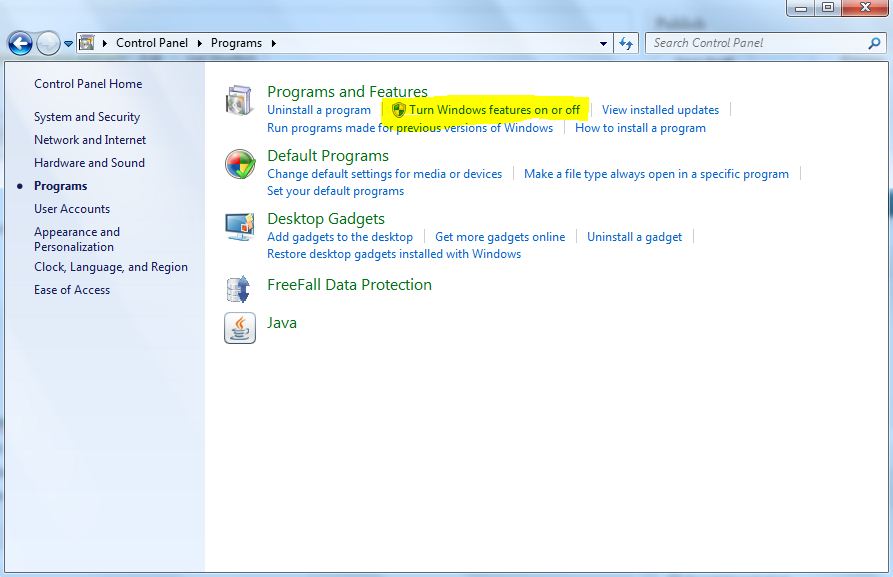
Turn on/off Windows features with this button

Since we are in windows, this will open yet another window with some kind of terrible check box/tree menu.  You want to click the Internet Information Services button, then click OK.

Click this one! Then OK

This should get IIS installed.  In the mean time get a (legit, from MS) copy MS expression for free from here.  MS Expression allows you to encode video as a wmv stream.  Install it, open it, and click start broadcast project, and you should see something like this:
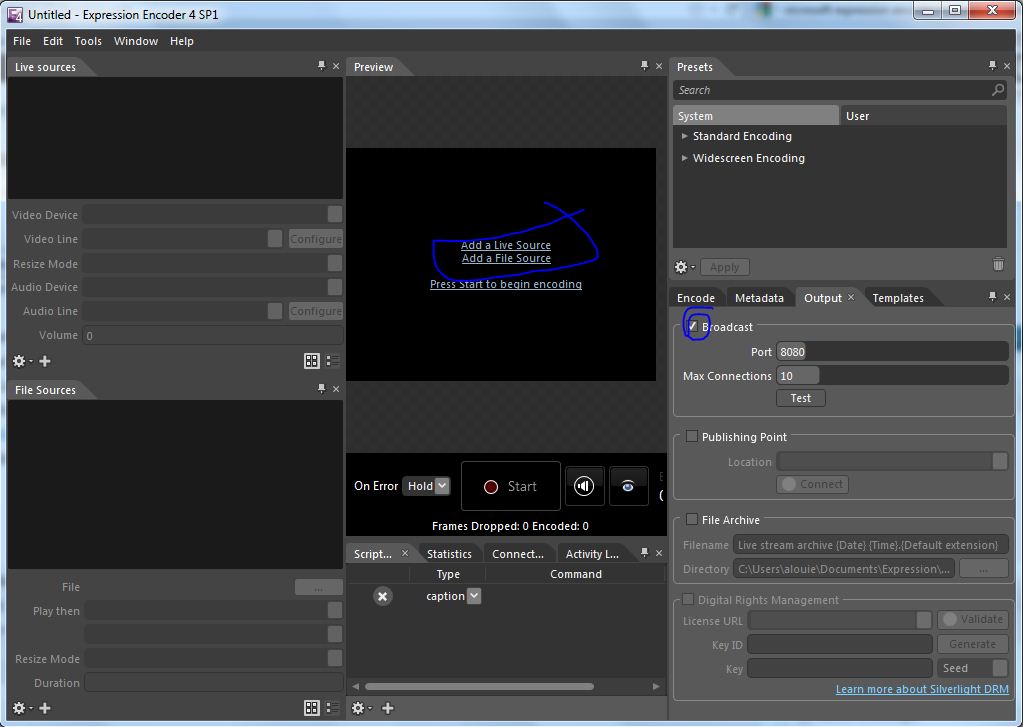
MS Expression

The first thing to do here is to click the check mark next to broadcast.  You can leave those settings as they are, or play with them.  By default, the broadcast should be on port 8080.  Then click “add live source” right in the middle of the screen.  The left pane should become active for clicking, and you can use the dropdown there to select your webcam.  Once you do that, click start.  You should see whatever the webcam is pointed at in the middle pane.  Once that is done, it is time to set up your IIS server to host your website.  Go to start, then open IIS.  You should see something like this:

IIS interface, numbers indicate the order that you should do things

Now, the first thing you want to do is use the leftmost drop down pane to to navigate to DefaultWebsite.  Then press start (right pane), if it is not already started.  Then mouse up a bit and click on bindings.  Click Add in the dialog that pops up.  Yet another dialog will pop up.  Use the dropdown menu for IP address and choose whatever IP happens to be there.  Then click OK.

Now try clicking the button beneath “browse website” on the right pane.  It should be some kind of IP address looking thing.  The default iis startup webpage should appear.  If that works, open up a new text document in [insert your favorite text editor here] or notepad.  Paste this into it:

<html>
<!— BEGIN PLAYER —>
<!– webbot bot=”HTMLMarkup” startspan —->

http://98.216.67.110:8080“>

<!– webbot bot=”HTMLMarkup” endspan —->
<!— end PLAYER —>
</html>

Replace the bolded sections with your IP (the one in IIS).  It should read http://your.ip.here:8080.  With that done, save it as an fish.html file and drag it into C:\inetpub\wwwroot.  Now go to your http://yourwebsiteip/fish.html and you should see your live cam!  Just like this:

Streaming Live!

Now there are two (possibly three) things you need to do:

  1. set up a static IP with your wireless router, and bind the website to that IP
  2. set up port forwarding on your wireless router
  3. use a service like noip to make sure your DNS doesn’t get dynamically reassigned.

These all assure that other people can access your website.  1 and 2 make it so people can connect to your website from your external ip (don’t know it?  google “what is my ip”).  Right now you are using an internal ip, and asking your router to connect to youself.  If you try to visit your page from your external ip, your router will look for the webpage on itself, and then promptly return an error.  Thats why you need port forwarding; it tells the router that when asked for a website (port 80) they should send it to your computer.  The static IP will make it so that your computer is not re-assigned a new IP when you reconnect to your wireless network.  Otherwise, it will get a new ip and the port forwarding will not work.  The last thing (3) is only necessary if you want a really stable website, as your phone/internet company will occasionally change some DNS address and, again queries for your website will return errors.  Services like noip will help you manage this.

I would write a guide for this, but www.portforward.com has excellent tutorials on pretty much every router, and much better explanations for everything.  This is where I learned to do it, and I highly recommend using the website to do it yourself (however, I wouldn’t buy their product).

As usual, if there are questions/comments, ask away.

Debugging a Preamp

Sometimes electronics stop working when you need them most.  This was the case this weekend, when Adam ran into me at sprout.  Adam plays flute in a hip hop band for DJ Afro DZ ak, and had a gig that night, but his flutes mic/preamp combo had stopped working!  Fortunately, I had a few hours to kill and a room full of test equipment.

Fx-1 mic that like the one attached to the amp

I started by checking to see if the microphone was producing some kind of output.  I plugged in the power and looked at the output on the oscilloscope.  Strangely, it seemed to work.  I decided that this meant that something on the preamp board was borked.  The easiest way to test if the board was working was to give it a known input with a function generator and look at the output it produced.  Again, after some fiddling it seemed to work, leading me to the conclusion that the whole system was working and that adam had a problem downstream of the preamp.  I picked it up to put it back in the case, but I wanted to show Adam that it worked.  So, in mid-air I tried to connect the probes.  Then it stopped working.  Shaking it seemed to make it work intermittently.  It was then when I noticed the long leads snaking down to one of those 9V battery clips.

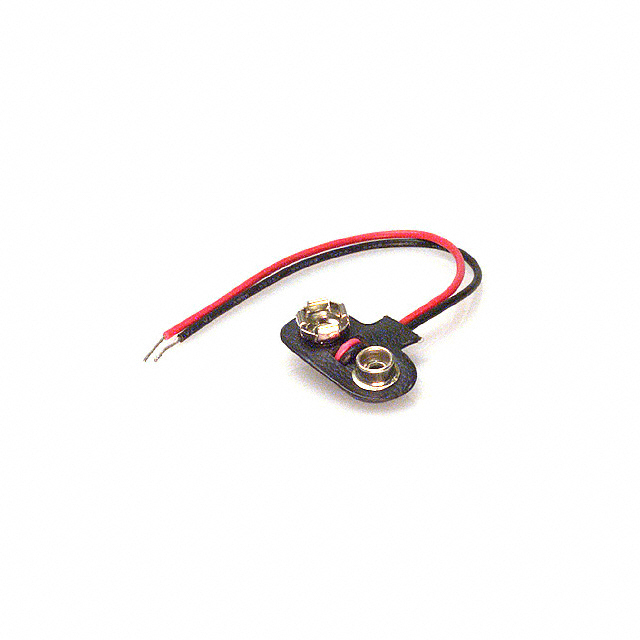
9V battery clip

One of these buggers

Immediately, I was suspicious of the battery clip.  After testing it with a multimeter for continuity, I determined that the ground wire had been worn so much over the TEN YEARS that Adam had been using it, that the stranded wire inside had frayed and broken.  Occasionally it would work, because the wires would make a connection.  Adam further confirmed my suspicions that this was the problem when he mentioned that the amp would connect and disconnect sometimes, making loud popping noises on the speakers.

Once I knew what was wrong, it was easy to solder another clip into place.  Adam rode off into the the sunset (or over to Union Square), and played his gig.  Apparently, the preamp and microphone worked fine once they had power.

This is an interesting case of debugging because the “divide and conquer” approach that I like to use didn’t work.  The initial division was between the board and the microphone, but it was a poor division because the microphone actually depended on power supplied by the board.  I guess I missed an even simpler debugging step: make sure the power is on.

EEE PC 701 mods (DerpyHooves)

My netbook, DerpyHooves, is now back to being in one piece!  Yay!  This is the project that precipitated reverse engineering the logitech receiver, so I thought I would share it.

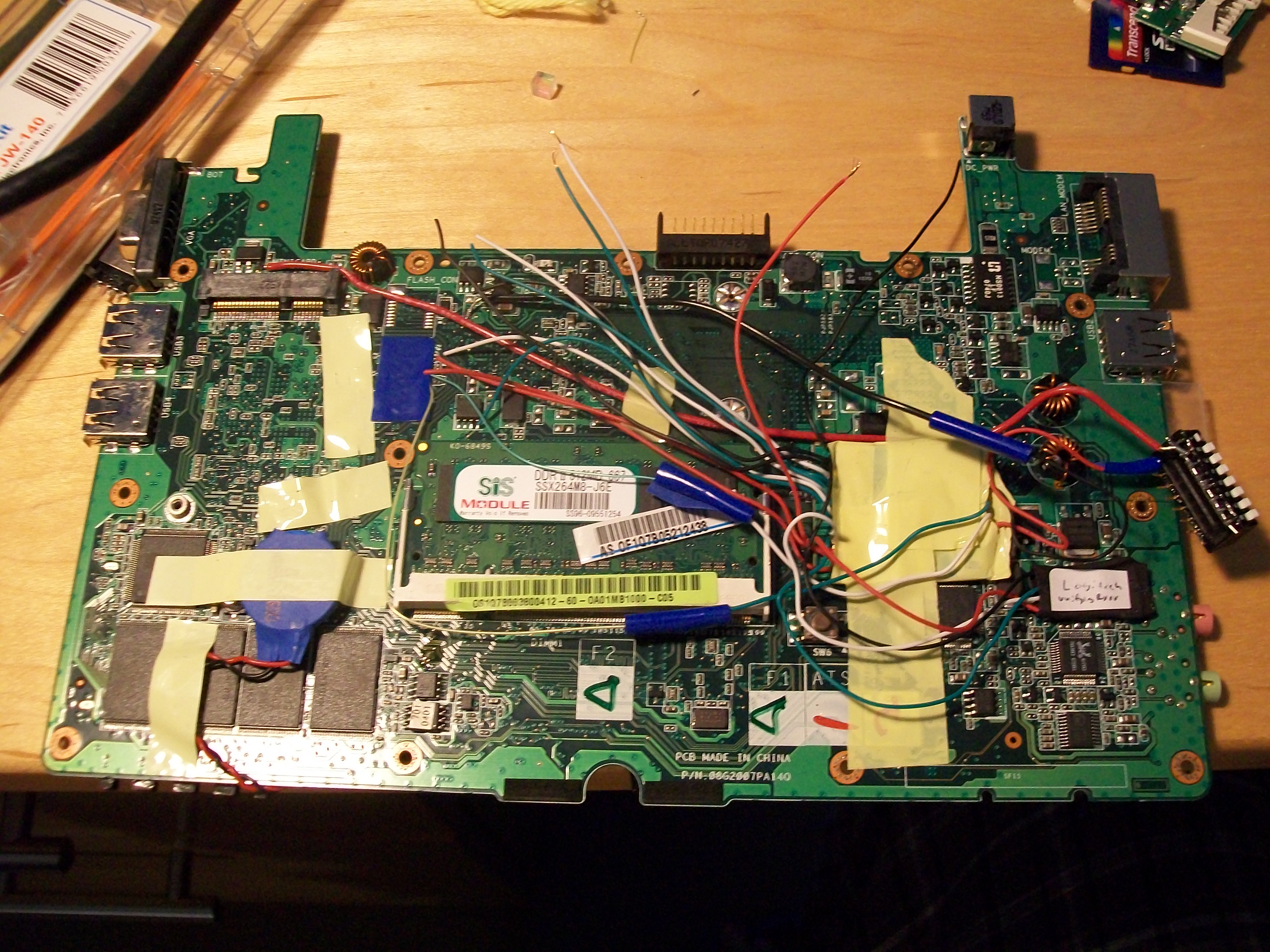
Theres the bugger. The logitech receiver is there, under the black heat shrink.

About a month ago, I decided it would be a good idea to take apart my EEE 701 completely, and add a tiny USB programmer to it.  I cadded up a circuit board for it (using EAGLE), had it printed, and bought some SMD parts from digikey and soldered it all together.  After some debugging, I was able to get it to work.  The total size of the unit is about .5″x.5″, about the size of my thumbnail.  The goal was to put it IN my computer, so I could do awesome embedded programming all over!  Flash all the memory!

Unfortunately, even though my boards worked, there was no really good way to get the wires from inside the computer to outside the computer.  It’s not as if my computer has a ZIF socket in it, or anything.  After a while I decided that it was a silly idea, but that I should really add some cool USB peripherals to my computer.  After looking around, I decided that I probably didn’t want a humping dog usb dongle, but that some extra storage and a USB keyboard and mouse would be nice.

After looking at a few guides on finding extra USB connections on the mobo, I soldered a few wires together and BAM, I had a USB port!  Then I cracked open a cheap USB hub and soldered it in.  After testing to see that the hub was connected, it was a simple matter of very carefully cutting open a logitech unifying receiver, and a cheepo SDHC card reader and soldering them onto the usb hub.  All of these were supposed to be internal and permanent, so destroying the cases was a must to conserve space.

Once all of that was done, I realized that sometimes I wanted these devices to be off, or that I might want to disconnect and reconnect them.  Very grudgingly, I used a DIP switch for this.  My main qualms with DIP switches is that they are so damn hard to flip; however, there weren’t many other options.  I wired it so that one side of the switch was all power, and the other side went to the power connections of the usb devices.

large yellow taped blob is the USB hub. Black labeled thing is the receiver. Card reader not pictured.

Reverse Engineering Logitech Unifying USB Protocol

*For those of you looking for something to let you attach more than one logitech device in linux, you should go to the downloads page.

Just finished a reverse engineering and building a “driver” that will let you link more than one device to a Logitech unifying receiver in Linux!  Yay!  (Big thanks here goes to Kevin, who helped me through some bugs/was a console guru)

For those of you who haven’t used the “unified” series of products from logitech, the selling point is that you can have multiple wireless peripherals (Keyboards or mice) that all link up to single TINY USB dongle.  To pair to the first device, all you do is plug in the receiver, and turn on your peripheral.  After that, they are paired!  This is awesome for windows/Mac users, because they can use the provided software to connect more devices.  For linux users, this is not so easy.  There are no drivers, and this means there is no way to pair more than one device to a receiver.  This means that to use a keyboard and a mouse, you need to:

  1. Find a win/mac machine, pair, and basically pray that the devices never get unpaired
  2. Use one receiver per device (expensive in terms of usb ports)
  3. Write your own program to pair devices

Since I had already cracked a receiver open and soldered it onto the mobo of my EEEpc, I decided that 1) and 2) were out of the question.  Thankfully I had another receiver and another machine to test on.  I decided my program really only needs to do one thing, which is to pair to devices not near other receivers.  I figured I could take advantage of a case that the Logitech engineers must have planned for, loosing a receiver.  Since these things are so tiny, and can be easily misplaced/stolen/eaten, I assumed that already paired devices would be willing to pair to another device given that they are not within range of a paired receiver.  If within range of a paired receiver, it doesn’t make sense for a device to pair, because then your mouse would pair to other peoples receivers more or less at random (ever time you turned it on).

I started by booting into windows and using a program called usblyser to analyze usb traffic.  It turns out it was mostly useless, due to the clunky interface, and I didn’t want to install pyusb on my windows partition, so I moved on to a different solution.  This time around I installed virtual box from oracle (NOT the OSE edition, which doesn’t have usb extensions).  I created a VM running windows XP, downloaded the software from logitech, and let the VM grab the usb dongle.  I paired and unpaired a few devices to test it.

Now I was ready for some sniffing.  I started out by mounting the debug filesystem so I could use usbmon (usb monitoring) which is some kind of linux utility.  To do this I used:

sudo mount -t debugfs none_debugfs /sys/kernel/debug

sudo modprobe usbmon

The I used wireshark to look at the output.  This was a HUGE MISTAKE.  For some reason, wireshark thinks USB is big endian.  This is basically the direction it “reads” data that is transmitted.  for example, if it received ‘011’ it would think that the most significant bit was 0, then 1 then 1, so it would say the decimal value was 3.  a little endian interpretation would say the MSB was 1, then 1 then 0 so that the value is 6.

For the longest time I thought the wValue and wIndex of the control command I was trying to send were 0x1002 and 0x0200, because Wireshark was telling me that the setup packet in the USB request block was “21 09 10 02 02 00 07 00”.  I should have known something was fishy, because I knew the request length was 7 because 7 bytes were returned.  What didn’t dawn on me until I looked at the raw usbmon logs was that the values of the wValue, wIndex and wLength were reversed.  It should have read:

“21 09 02 10 00 02 00 07”

Without the right setup packet, I kept getting USB I/O and USB pipe errors.  The moral of the story is that usbmon doesn’t need no stinkin’ wireshark.  Just use:

cat /sys/kernel/debug/usb/usbmon/u0

To look at the raw output.  When I did that I got a lot of garbage, which I then had to sort through carefully and think about.  I went tested the logitech software by pressing buttons and watching the USB requests it generated.  Here what I noticed:

Opening the program:  This generated TONS of USB traffic that I really didn’t want to sift though.  I made a gamble here and assumed logitech didn’t want this to be hard to do, and that this traffic was the program asking the dongle things like “Are you there? do you have any attached devices? what can you tell me about them?” and such.  If worst had come to worst, I would have just replicated these packets without knowing what they did.

Hitting the “Advanced” button:  This also generated tons of USB traffic.  Boo!  I think what mostly goes on here is that the program queries the device to see if anything new has been attached/dropped out of range/has been used, because the GUI here shows all the attached devices, and if you use a device a little icon blinks.  The requests looked like a simple call and response, but I didn’t want to mess with that much traffic.

Hitting the “next” button to get to the pairing scree:  This generated very little traffic (3 requests) and it also seemed to be what put the dongle “in the mood” to pair.  I decided that this was a good point to start my “attack” on the protocol.  I also made the call here that there would probably not be a ton of complications or security here, because there is no reason to make this protocol less likely to work/install security.

Taking that as my starting point, I booted/shut down my VM and the program several times, each time hitting the next button.  The following always occurred when I did that:

e20bb300 755547433 S Co:2:008:0 s 21 09 0210 0002 0007 7 = 10ff80b2 01503c
e20bb300 755547611 C Co:2:008:0 0 7 >
e7b69400 755549571 C Ii:2:008:3 0:2 7 = 10ff4a01 000000
e20bb300 755550445 S Ii:2:008:3 -115:2 32 <
e20bb300 755551614 C Ii:2:008:3 0:2 7 = 10ff80b2 000000
efb5ef00 755552476 S Ii:2:008:3 -115:2 32 <

This is in dense usbmon-speak, but if you take a look at the documentation its not so bad.  The deciphered version of the first two lines is just that a control transfer was submitted (S) and completed (C).  The setup packet for the transfer was “21 09 0210 0002 0007” meaning it was a class request sending 7 bytes of data out, and the data was “10ff80b2 01503c”.  I guessed that this was probably the “Go pair with stuff” command, and wrote a little python to send it:

dev.ctrl_transfer(0x21,0x09,0x0210,0x0002, [0x10,0xff,0x80,0xb2,0x01,0x50,0x3c])

This gave me an error that was something like “device busy”.  This is because my computer thought that the dongle was a HID device, which it is.  But for now, we want to suspend that function.  So I closed down my VM and typed:

sudo modprobe -r usbhid

to temporarily stop usbhid from using it.  Once I got the control transfer to work, I tried pairing a device.  Nothing appeared to happen, other than the initial pairing of one device to the receiver.  I decided that I would be best to duplicate the rest of the traffic that happened when hitting the next button before I gave up.

The next request I wanted to duplicate was a read of 7 bytes from endpoint 3 (based on usbmon).  For the longest time I thought the right code was:

dev.read(3,7,0)

Because I wanted to read from endpoint 3, 7 bytes, interface 0.  WRONG.  It turns out that endpoint 3 has an address described by the usb protocol, a useful explanation of which can be found here.  What I also discovered with the verbose mode (lsusb -v) of lsusb, was this:

bEndpointAddress     0x83  EP 3 IN

hey, thats not 3.  The right line was actually:

dev.read(0x83,0x7,2)

The two came from guessing an interface by luck, but I don’t think there are normally out of the range [0,4].

Testing this again showed that this was indeed the right command to do something…?  It at least lets me pair my keyboard and my mouse to the same receiver!  I don’t completely understand what this line means, but I also saw it when USB requests were made when leaving pairing mode.  Maybe it says something about the device, like how many devices are paired to it, or their names; all I know is that it is necessary to push the receiver into pairing.  The final thing to do is to turn HID devices back on with:

sudo modprobe usbhid

The little script that plays these requests will be available on the Downloads page.  The modprobing needs to be done manually.  If you want to help improve it, or if you have some logs from your receiver that look different on the “next”/pairing step, I would love to see them.

Transformation!

A few months back I worked out how to do a bacterial transformation, and then I (successfully) preformed the procedure.  I did this at BOSSLAB, which is in Sommerville, MA.  If you are in the area, check it out!  This procedure is memorialized in the BOSSLAB lab notebook, which I will scan and upload relevant portions of to the downloads page, but one of the goals of BOSSLAB (??? at best) seems to be to communicate what we do there to the world.  This is my writeup on what I did and how I did it.

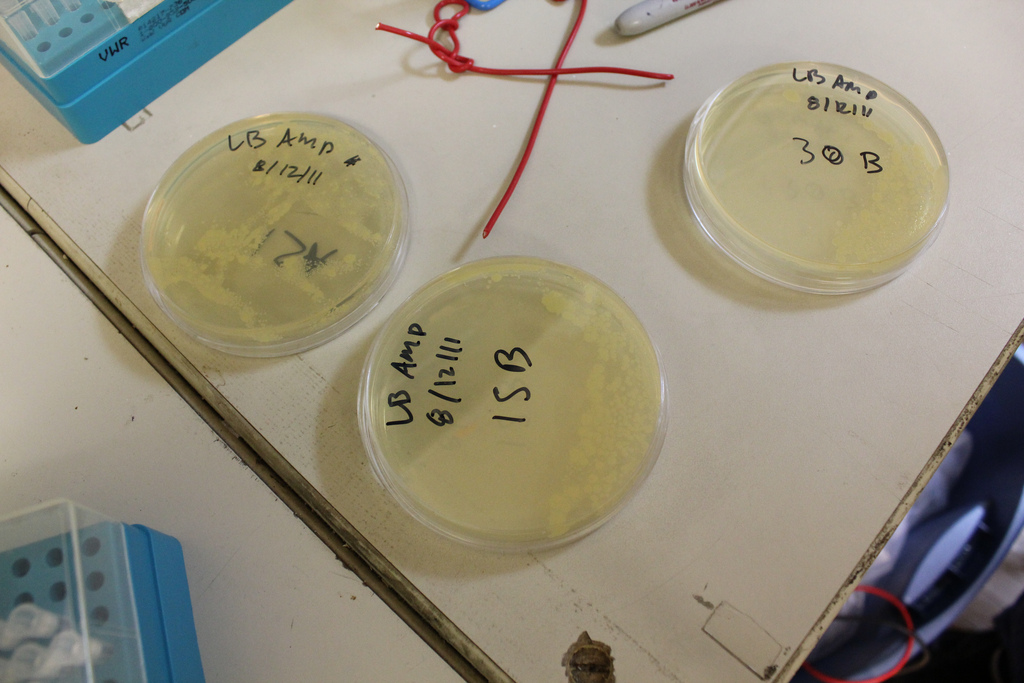
Some plates of transformants…which ones are green?

What is Transformation?

Transformation is the process of adding genetic material to a bacteria.  The phrase comes from an experiment by Fredrick Griffith in 1928, where he discovered that non-pathogenic strains of Strep. pneumoniae could be “transformed” into pathogenic strains.  This was done by adding dead (heat-killed) pathogenic Strep. pneumoniae to the non-pathogenic strains.  When this mix was injected into mice, the mice died.  Later, the Avery-MacLeod-McCarty experiment showed that DNA caused this transformation.

For bacteria, the most convenient way to add genetic material is with plasmid DNA, which is a little circle-shaped piece of DNA.  There are a few really important things to know about choosing a plasmid, most of which I (fortunately) got to gloss over.

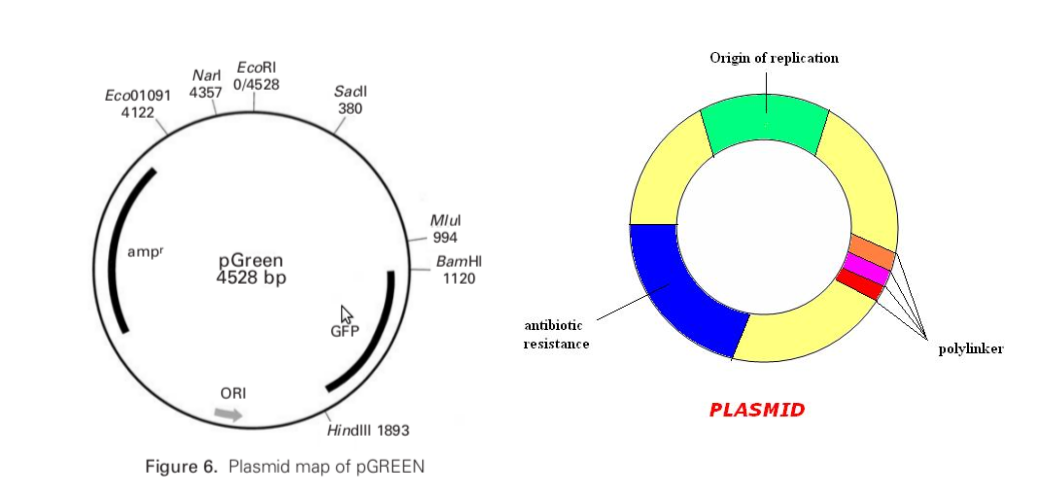
pGreen and a generic plasmid

As you can see on the right hand diagram, there are three major parts to a plasmid.  An origin of replication, which is dependent on the target organism (ori-> on the left diagram).  This is where the cell begins the replication of the plasmid, if it is going to make more.  Another important factor in plasmid selection is some kind of selection marker (ampr on the left diagram).  Both of these plasmids use an antibiotic resistance marker.  This is important so that when you have all the transformed and not transformed bacteria mixed up, you can selectively kill all the ones that do not have the antibiotic resistance gene.  The final consideration are the regions that can be cut by restriction enzymes, which are also called restriction enzyme digest sites.  These are used to cut the plasmid open, so you can add genes to an “empty” plasmid vector.  When you have a lot of them together, near each other, it is generally called a polylinker or multiple cloning site.  On the left hand diagram, if you “digested” (cut) the plasmid with EcoR1, you would have two EcoR1 compatible ends on the plasmid.  You could then add a gene with EcoR1 compatible ends.

For me, all I did was buy the plasmid on the left.  The goal was to successfully complete a transformation, not do ligate a gene into a plasmid.  That might be the next step, but trying to do it as an initial foray into genetic engineering or running my own protocol completely independently would add too many uncertainties to the protocol and make it impossible to debug with the materials I had.  For you embedded folks, this would be like trying to hand code assembly with no debugger and no verification of the program memory.

How do you do it?

Bacterial transformation is tricky.  You can put plasmid in a tube with some bacteria and swish it around all day, and probably nothing will happen.  Thats because the outside of bacteria is a membrane which keeps things that should be out, out, and things that should be in, in.  Basically it’s like their skin.  And the plasmid needs to go through it.  To do this, we have to break up the skin so tiny pores open.  When bacteria are in this state, they are called competent.

There are various recipes for making chemically competent cells.  I used CaCl salts, but I hear tell that TSS (Transformation Storage Solution paper by Chung et al. here) is more efficient.  Unfortunately, I had no success with TSS because of (probably) a snafu with a thermocouple, and I didn’t have time or money to do it again (see what went wrong).  Both of these solutions have the same effect; the positive ions in the solution neutralize the (negative) charge on the membrane, and the negative charge on the outside of the DNA.

Once the cells are competent, and chilled, DNA is added.  Later, they are “heat shocked”, which (possibly?) expands the holes in the membrane and allows the DNA to enter the cell.  Afterwards, they are allowed to recuperate, and then a tiny amount of bacteria are spread onto a plate with the antibiotic.  The goal here is that the bacteria without the plasmid will die, leaving you colonies of the transformed bacteria (transformants).

Results (and what went wrong)

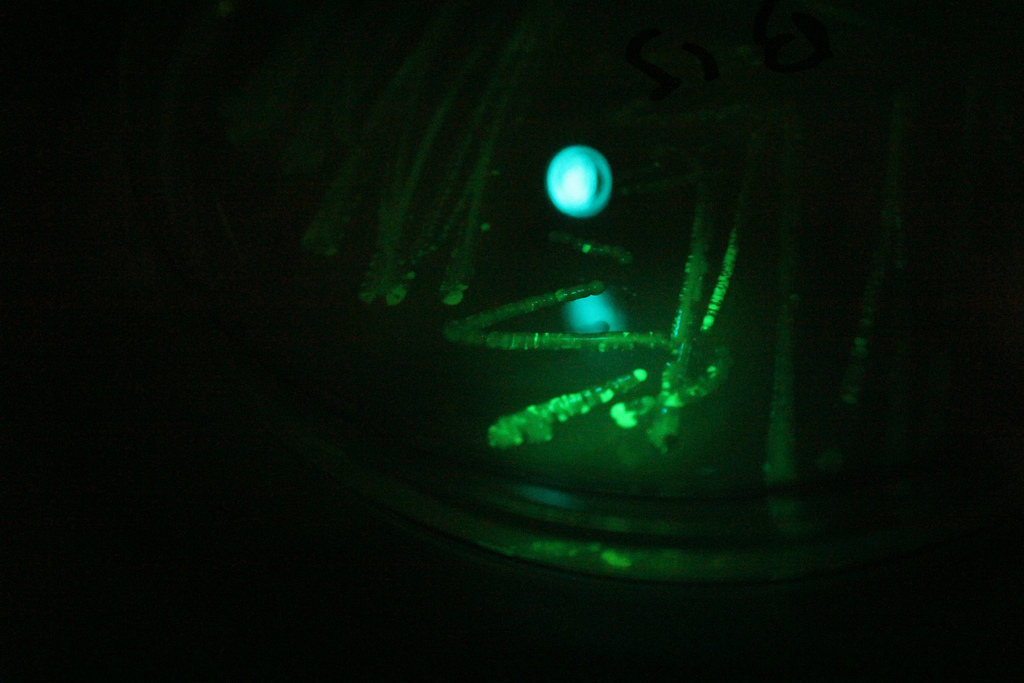
First, a picture!

Transformants under blue light with a green filter. Green light is produced by the fluorescence, and then only green light is let through the filter.

Although I got the procedure to work, I had less than stellar results.  I attempted transformation twice.  The first round had five trials, all of which completely failed.  Some of these used TSS and some of these were CaCl.  The reason these failed is probably because the water bath was not hot enough.  Since we didn’t have a temperature controlled water bath, we used a large beaker of water on a hot plate instead.  The idea is that we would heat it up to about the right temperature (42C) and then turn it off.  since water retains heat pretty well, we thought it would stay near enough to 42C to be used for the transformation.  HOWEVER, on my second attempt at transformation (only two trials this time!) I was measuring the temperature of the water with the same thermocouple we had used before…and I discovered that it was VERY wrong.  I believe the thermometer was on the low side, reading -20C in ice water, so the water for the heat shock was probably around 60C-way too hot.  When I discovered this in the second trial, I had to very quickly figure out a way to get some 42C water!  My bacteria were incubating and I was eager to get on with the heat shock.

I knew from making antibiotic plates that at about 50C, it is safe to add antibiotic and that the media will be hot, but bearable to hold.  So I heated some water until it was uncomfortable to touch, and then cooled it down some.  Estimating that my body temperature was 35, I knew the water would feel very warm, but not too warm to touch.  Using this, I guesstimated that I had a good temperature and preformed the heat shock.

All of this can be avoided by buying a (literally) $3 thermometer from the dollar store.

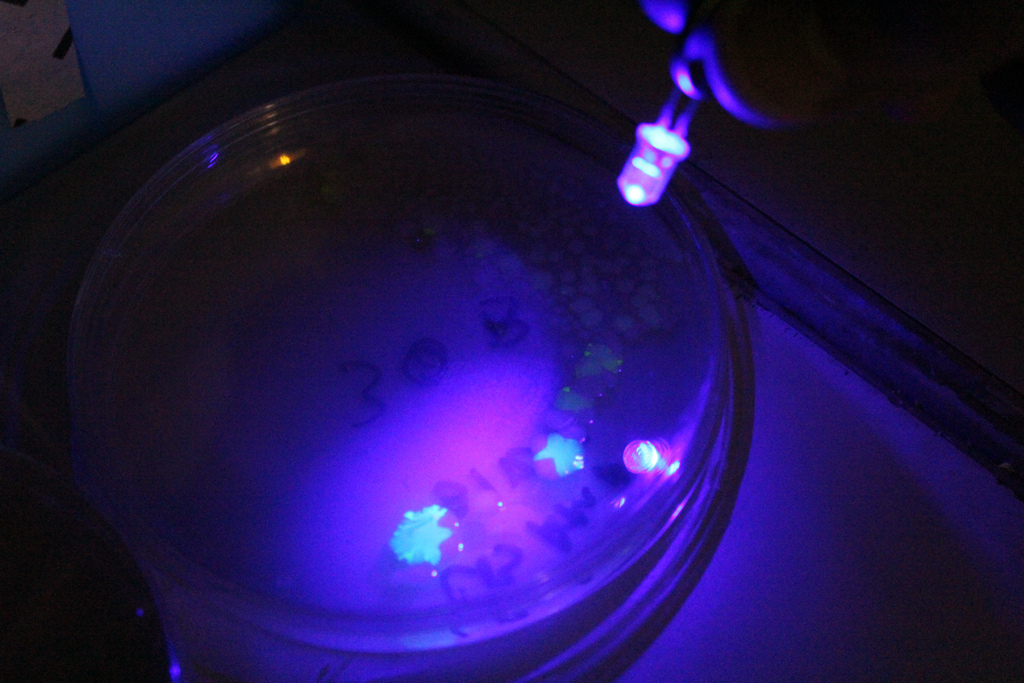
Another important step that I forgot to figure out before I began was how to verify the GFP was being produced.  It turns out that this variant of GFP fluoresces under blue light.  Since there were batteries and a few blue LEDs handy, I used those.

Transformants fluorescing under a blue LED.

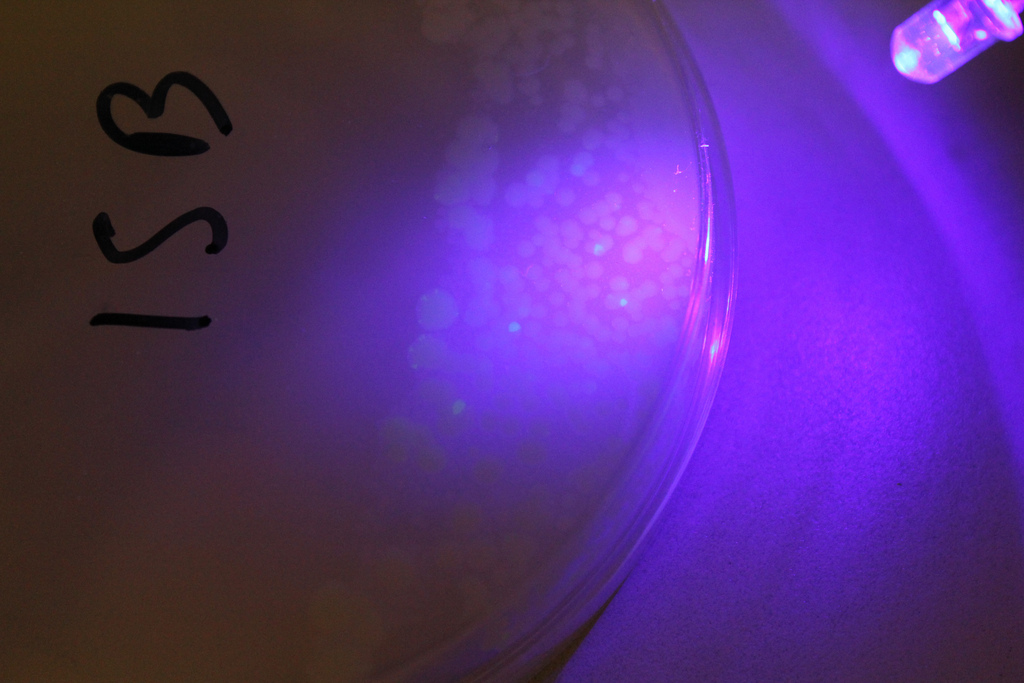
The other, sneakier problem, was the lack of antibiotic efficiency.  This caused satellite colonies (or maybe just amp-R colonies) to proliferate over the plate.  I have a few theories about why this could have happened:

  1. There is some sort of ampR contaminant that got moved from plate to plate
  2. The antibiotic was bad.  I tested it before the first attempt, but it could have gone bad in the mean time (sketchy fridge is sketchy), or it could have been damaged in pouring.  I didn’t have enough plates to test if the plates I poured worked, and to do all the transformations.
  3. The bacteria incubated too long, and they destroyed enough ampicilin locally to  allow satellite colonies to form.

I think a combination of two and three are most likely, particularly two.  In the first set of trials I also saw slow growth, but no GFP.  This would indicate that there is something wrong with the ampicilin, possibly that it was not concentrated enough, or that it was damaged.  I think three is also likely because  I mostly saw non-GFP growth near the GFP bacteria, or where I pipetted the transformation solution onto.

Satellite colonies around transformants

Procedure (specifically, how do you do it)

The actual procedure I followed, can be found at this link to a pirate pad where I planned the transformation out this summer.  I will also put a nice PDF version (including some of this reference material) on the downloads page.

USB Control-Transfer Sender

I was playing around with v-USB and control transfers last week to build a USB laser turret (post coming soon) with my friends.  I am going to make some random USB peripherals for my netbook (actually, I intend to embed them inside.  If you can think of anything fun/cool to put in a netbook, let me know), so to start experimenting with USB I decided I would make a USB control transfer sender.  Right now it’s ugly, but functional.

Ugly, and very horizontal interface

When I actually use it, I will probably make it more horizontal, and therefore easier to use, as it won’t hang off the side of the screen.  However, you can play with it right now by grabbing it from the downloads page (once I figure out github it’s up  Jk, now its on filedropper)!  Useful for debugging V-USB!

Clock Project: Inspiration

A few weeks ago I went to the MIT Swapfest to poke around and look at the cool stuff that was there.  Naturally, I came back with a bag full of random crap including one very cool item:  A Durant Precision Counter.

The box!

I found it at one of the vendor tables outside.  It came in its original box with the original manual-complete with notes from the previous owner.  I really wondered why I was buying it.  I didn’t know if it would work, I didn’t know if it only ran on AC, and I didn’t really have a plan for it.  Not that I would expect any of that to stop me, because those thoughts have never stopped me from acquiring piles of crap.

A counter is just what it sounds like-it counts.  The display is kind of like a combination lock; there are four dials with the numbers 0-9 on them that rotate.  Each time the button is pressed it increments by one until it gets to 9999 and resets to 0000.  Normally, this is done completely mechanically, but this counter is way cooler than a mechanical one.  The mechanical linkage that increments the counter can also be actuated by an electromagnet!

The counter, sitting on the breadboard I am building the clock on

Anyways, I have to do something with it.  Four-digits of novel display-o-power.  Clicky.  Mechanical.  Cool.  Clearly I should turn it into a clock!

POEJect 3 AKA “The V-USB”

Check out the downloads page for a barebones USB script that lets you send commands over USB, and some basic code you can throw on an AVR chip to try this out!

Laser Turret!

I am currently taking a class called “The Principles of Engineering”, AKA POE.  The name of the class is very old-school and almost baroque, but really what it boils down to is twenty engineers of various flavors and a professor sitting in a room for a few hours a week.  There are no lectures, there is next to no instruction, and only four assignments.  the first three are based on a PIC microcontroller, and the last assignment is an open ended project where students in teams of 4-5 build something with a “significant electrical and mechanical component”.

POE lab three “One Button, Two Blinky Lights, and the USB” was designed around using a PIC.  Naturally, my team took this to be a challenge.  Out of dislike for MPLab (PIC IDE), PICs, and generally being iconoclasts in POE, we decided to forgo the pre-written USB implementation on the PIC, the python that interfaced with it, and the GUI framework that was supplied to us, in favor of doing it all ourselves.  We decided to do this, and then we waited until the day it was due to start working on it.

With t minus 10 hours, we decided to make a laser turret.  Our reasoning was:

  1. We have servos
  2. We have a laser
  3. ????
  4. Profit!

It was around 12:30 when we got started implementing V-USB, PyUSB, a TKinter interface, and some AVR C (windows users: winavr) code to run the servos.  I would like to give a huge thanks to Kevin Mehall here, who is a massive baller when it comes to things like V-USB and microcontrollers for helping us out with some bugs we were having.  This writeup is so that you all don’t have to go through the same stuff we did to get V-USB working.

Implementing “The V-USB”

V-USB is a Virtual USB port for AVR chips.  This lets you talk to them over USB, or in this case, to make them into a USB Device.  It’s a beautiful thing, but is totally a hack.  This project is a good example of the simplest thing you can do with V-USB, which is send some data to the device with a control transfer.

Start by making a directory for your project.  The next step of getting V-USB to work is getting the header files from the downloads page of V-USB.  For those of you on linux machines, just tar -xzfv filename.  Then copy the files into the project folder.  You will also need a makefile.  You can get a makefile from the examples on the V-USB website, or you can get the one I used (originally from the V-USB website) on the downloads page, so you don’t have to download the whole thing.

Include the usbconfig.h, and usbdrv.h in your file.  To get this to work, the file that you will have to play with to get V-USB working is called usbconfig.h.  Find it, and open it in gedit or bluefish or your text editor of choice.  MAKE SURE IT IS IN USBDRV.  All of the options are described very clearly, but the ones that are important and that you should look at first are:

  • All of the hardware config
  • Optional hardware config
  • #define USB_CFG_HAVE_INTRIN_ENDPOINT    0
  • #define USB_CFG_IS_SELF_POWERED         0
  • #define USB_CFG_MAX_BUS_POWER           400
  • #define  USB_CFG_VENDOR_ID       0xc0, 0x16
  • #define  USB_CFG_DEVICE_ID       0xFF, 0xFF
  • #define USB_CFG_VENDOR_NAME     ‘A’, ‘L’, ‘O’, ‘U’, ‘I’, ‘E’, ‘1’, ‘4’
    #define USB_CFG_VENDOR_NAME_LEN 8
  • #define USB_CFG_DEVICE_NAME     ‘P’, ‘O’, ‘E’, ‘J’, ‘e’, ‘c’, ‘t’, ‘3’
    #define USB_CFG_DEVICE_NAME_LEN 8

The hardware config will depend on your circuit, and I will talk about that in a moment.  The other options (in order that they are listed) make it so you have an endpoint 0 (default), tell the USB controller that the device is powered by your USB port, set the max current the USB port will provide, set a vendor ID (I used the default), a device ID (anything can go here), a vendor name and length of name, and a device name and length of name.

Below is a diagram of the circuit I used.  It is good for illustrating how to set up usbconfig.h based on your hardware, but you might not use the same AVR so your mileage may vary.

The Secret Knowledge Arduino uses V-USB! the connections to Pin 1 are not needed for V-USB.

My hardware file looks like:

#define USB_CFG_IOPORTNAME      D

As you can see, we are using pins PD2 and PD3 for D+ and D-.  The port we are using is D, so we define USB_CFG_IOPORTNAME to be D.

#define USB_CFG_DMINUS_BIT      3

#define USB_CFG_DPLUS_BIT      2

These tell V-USB which pin on the chosen port (D) D+ and D- go to.  Note, D+ goes to PD2, which is pin 4.  We use the name of the port not the name of the pin, because the C code accesses the pins by port, not pin number.

#define USB_CFG_CLOCK_KHZ       (F_CPU/1000)

#define USB_CFG_CHECK_CRC       0

These are set correctly.

#define USB_CFG_PULLUP_IOPORTNAME   D

#define USB_CFG_PULLUP_BIT          4

This sets up a pullup resistor so we can connect or disconnect the device with software commands.  The resistor is the 1.7 K ohm resistor in the schematic.  If this is not set, that resistor should be connected to D- and 5V.

Bad breadboarding! Do not do!

One last thing that I did, specifically for this hardware, was calibrate the internal RC oscillator so that we didn’t have to use an external crystal.  This is achieved by copy-pasta into usbconfig and into your C code.  documentation can be found here if you are interested: http://vusb.wikidot.com/examples.  Look for “Clocking the AVR from the RC oscillator with auto calibration” on that page.

Now that that is done, you should be able to make (just go to the folder in the terminal and type make) your project.  If you get some error about not having a clock frequency (F_CPU) add this line “-DF_CPU=12800000” to the COMPILE line in your makefile.  Replace  12800000 with your clock frequency.

Now you probably have some bug complaining that “usbFunctionSetup” is not defined.  We are going to need to define this, because V-USB needs this to be set up to function.  This implements the ability to perform a control transfer, which is needed to set up anything over USB.  My code looks like this:

usbMsgLen_t usbFunctionSetup(uchar setupData[8])
{
usbRequest_t *rq = (void *)setupData;   // cast to structured data for parsing
on=rq->bRequest;
xval=rq->wValue.word;
yval=rq->wIndex.word;
return 0;

}

This is just an example of totally abusing the control transfer.  In this project, I just wanted to send a few bytes to the AVR to tell it how to control the servos and the laser, so I used the values for bRequest, wValue, and wIndex to hold the information.  These are just part of the control transfer request, which has these arguments:

(bmRequestType, bRequest, wValue, wIndex, wLength)

These are sent from the computer (from a python program) to the AVR.  bmRequestType tells the device what kind of request it is, bRequest is the name of the request, and wValue, wIndex I (ab)used to send data, and wLength, is the amount of data that is supposed to be sent over the control transfer.

Normally these are actually used to set up a data transfer, but I used them to send over a couple bytes of data in bRequest, wValue and wIndex.  Here is an example (from my python interface) of a request:

dev.ctrl_transfer(0x40,1,0,0,None)

This means that it is an device to host transfer (0x40 is the number for a vendor specific control transter) and that the request number is 1, and wValue and wIndex are 0.  The last argument is None, because no data is being sent, but this is python (pyUSB) specific.

Implementing “The PyUSB”

Once I had the hardware usb code for the chip compiled and working, I started to work on the python that would talk to the chip.  I had a lot of help from examples from Kevin, because the sum of the documentation for PyUSB that I could find was about 4 pages, and it was not very specific or well written.  The important lines (for the whole dang thing, see downloads!) were:

dev=usb.core.find(idVendor=0x16c0, idProduct=0xFFFF)

This makes an object dev that is attached to a specific Vendor and Product id, provided usb.core.find can find it.  If it can’t, you should catch that error with an if statement that looks something like “if not dev:”, or “if device is none”.

the other important line is:

try:
dev.ctrl_transfer(0x40,laserState,int(x),int(y),None)
print(‘laser cannon enumerated’)
except usb.core.USBError, e:
print(‘exception’)

This tries to send a control transfer request out, and if it is successful it prints “laser cannon enumerated”.  If we run into some sort of error, it prints “exception”, which lets us know our last command didn’t go through.  This is useful for debugging, but once it was buried under the TKinterface, we commented those commands out.  This try…except block is important because without it, if the transfer gets interrupted for some reason, the python program will freak out and stop working.

Again, if you want to get your feet wet, I have put some basic code on the downloads page to play with, modify, and learn from.

Secret Knowledge Time Vol III: Tiny Computer Time

The third week of secret knowledge we decided to move in the microcontroller-hat direction.  This means that we needed an easy to learn platform like an arduino, but we also needed a cheap to buy platform like a raw AVR chip.  Kevin came up with a solution:  a “five dollar” arduino (git here).  The five dollar arduino is a bootloaded AtMega328P.  This means that it is first programmed with the bootloader by a normal programmer (a AVR dragon, STK500, or usbtiny).  Then, it is put into the circuit below, and connected to a computer.  When the button is pressed it runs the bootloader code for 28 seconds, which allows the user enough time to press the upload button on the arduino IDE to upload code to the device.  After 28 seconds, the chip boots into the user code.

We expected a lot more to get done at this secret knowledge time.  We even wrote up some arduino tutorials to go with the hardware.  Unfortunately, we hit a few snags in actually getting all the devices built and programmable.  This may be due to our (lack) of structure; we mostly just give out a handout and parts and expect people to do things on their own while we stand by to help.  Unfortunately, there was a lot of confusion about what that was exactly.  We wanted to avoid sitting them all down and showing them how to do it piece by piece, because that tends to bore and frustrate people.  A good middle ground might be a video tutorial, but that takes a lot of effort to create.

The amount that people got done this session was varied.  There was one group who got most of, but not all of their arduinos working by the end of the session.  There was another group that successfully made and tested several cool tri-color LED display programs based on novel analog input devices, like potentiometers or CdS cells.

Without a doubt, this session was a huge success.  30 (+/-2) students showed up, and as many Arduinos as we could give out were given out and built.  Hopefully over the next few weeks we can develop some sort of path to teach people how to and when to use a microcontroller.

Secret Knowledge Time Vol II: Servos

For documentation on what the activity was, go here (link not active yet).

This Secret Knowledge Time was all about…what we did last week, but slightly different.  At this point, we hoped to gather everyone who wanted secret knowledge, catch people up on what we had done last week, and to stall for time to figure out how to introduce them to microcontrollers.

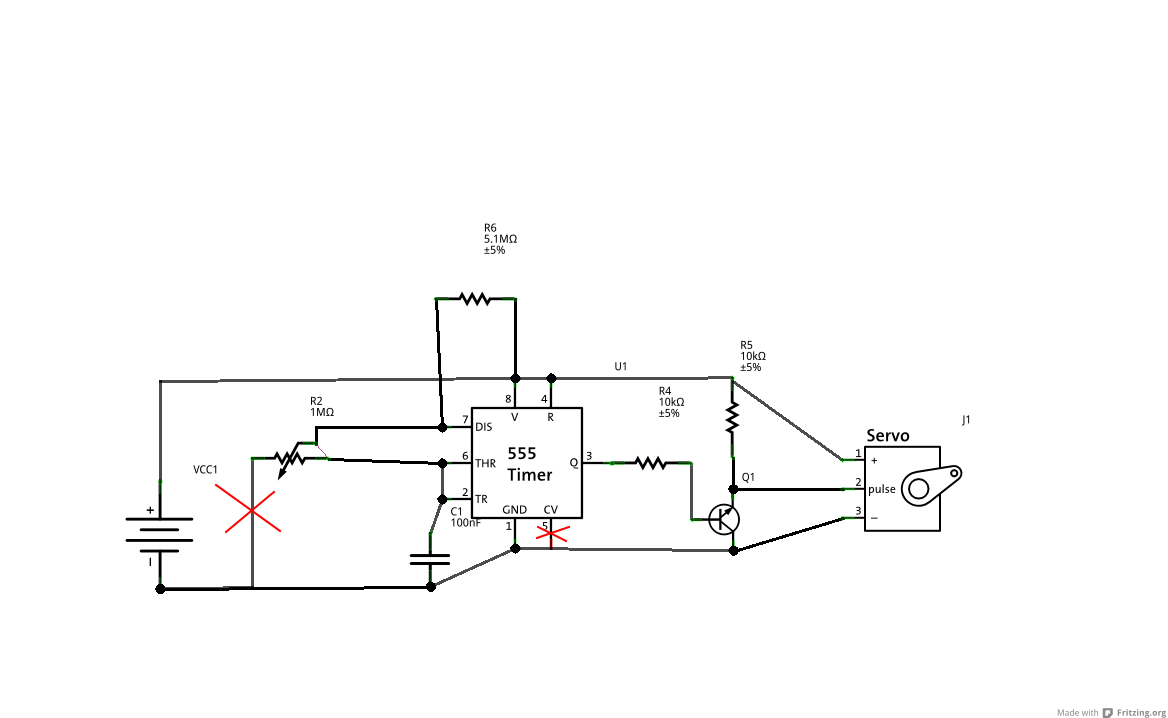
This week we made the same 555 circuit, but with a twist.  The output from the 555 was inverted and used to drive a servo (Note: the output had to be inverted because the minimum duty cycle of a 555 is 50%, and the duty cycle we needed was 10%.).  I found a few diagrams online, finagled the resistance values into something we could supply from the stockroom, and the built and tested the circuit.  It worked!

Again, errors are marked with red Xs.

However, our circuit diagram was flawed yet again.  Despite testing the circuit, we had not tested our diagram.  Fritzing drew several lines that we had deleted at some point, but did not technically connect them, because there was no large black dot indicating a connection.  This led to confusion in both myself and the people running the activity, and the people building the circuit.  This time the corrections and things that we had to yell out were:

  1. Corrections to the circuit diagram
  2. What the leads of the servo were (GND, V+, and Signal)
  3. What resistor went where
  4. How the pins on the transistor correlated to the pins on the schematic
  5. How to hook up the potentiometer

With all that resolved, most of the people got the circuit working in about two hours, played with it, and went home.  We got less feedback forms this time, indicating that we needed (and still need) to implement some new kind of feedback.

We had several improvements over the first SK this time.  We had acquired additional 5V power supplies.  We asked Sasha to help us again.  We improved the handout to include background information on what we were doing, and we even had a pretty good slightly better circuit diagram.  The problems we ran into were mostly in explaining the components, in which really is based on the problem of sexy vs. critical.

The sexy vs. critical problem is going to be another theme in TSK.  Some information or skills are sexy, cool, or desirable.  Things like reading brain waves, or blinking LEDs, or making a robot are sexy.  Things like understanding ohms law and how the oscillator in a 555 works are less sexy, but in some cases that knowledge can be critical to doing the cool thing.  The problem is that to get people to show up, you need to promise cool things in a short amount of time, but to achieve that, people will need to know a few critical and unsexy things.  This turns into a chicken and egg problem.

Our solution is just to throw the critical knowledge at them as they do cool stuff.  Sometimes this comes across as being unprepared, but it is almost easier to just do it on the fly as opposed to spending hours typing up detailed explanations of every component.  It also limits how “theory” we can be.  We do not want to be “too damn theory”, which is easy to have happen in a writeup that we are trying to make into a complete, definitive document on a part or subject.  It’s hard to tell where to stop; my best estimate is that a page or half a page is probably as much as anyone needs to know, and that is something that might be handy to have as a reference for TSK.

Overall, TSK Vol II: Servos was a success.  The feedback was mostly the same, but we did have a big question hanging over our heads at the end.  People kept asking:

What’s next?

We thought that was a pretty good question ourselves.